

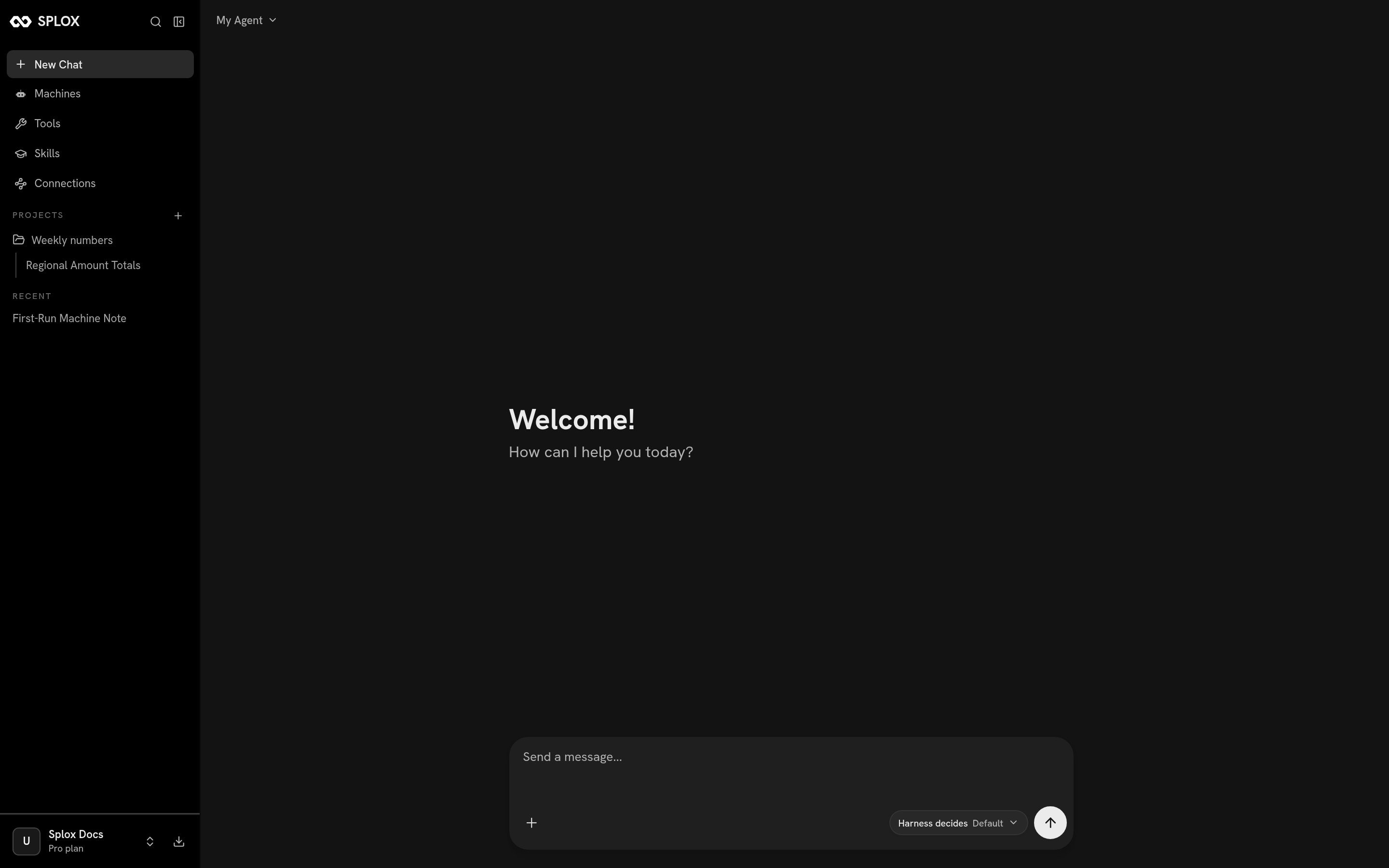
A new chat. The machine switcher is top left, the composer at the bottom, the sidebar down the side.
The sidebar
New Chat opens an empty conversation. Machines, Tools, Skills and Connections are the four screens where you set up what the agent has to work with:
Under those, PROJECTS lists your projects and RECENT lists your chats,
newest first. A chat sits in Recent until you move it into a project, and then it
sits under that project instead. See Projects.
The magnifier at the top of the sidebar searches chats — by name and by message
content, so a phrase you remember from a conversation finds it.
At the bottom is your account: name, plan, and a menu with Upgrade Plan,
Usage, Settings and Log out. The download icon beside it goes to the
desktop app.
The machine switcher
The control at the top left of a chat names the machine this conversation runs on, and under it the harness that machine runs and the ref it runs at.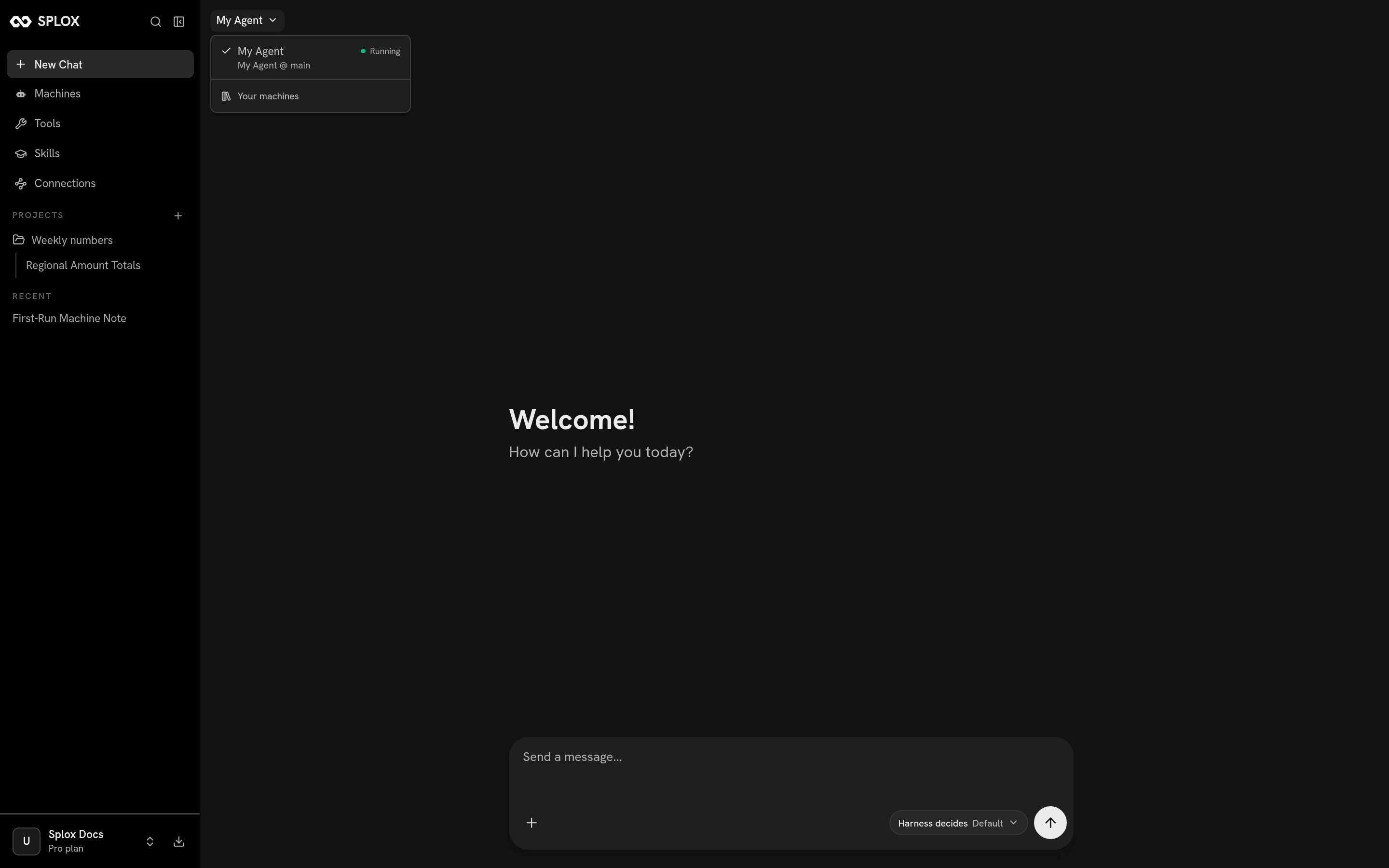
The machine picker: the machine's name, then the harness at its ref
The composer
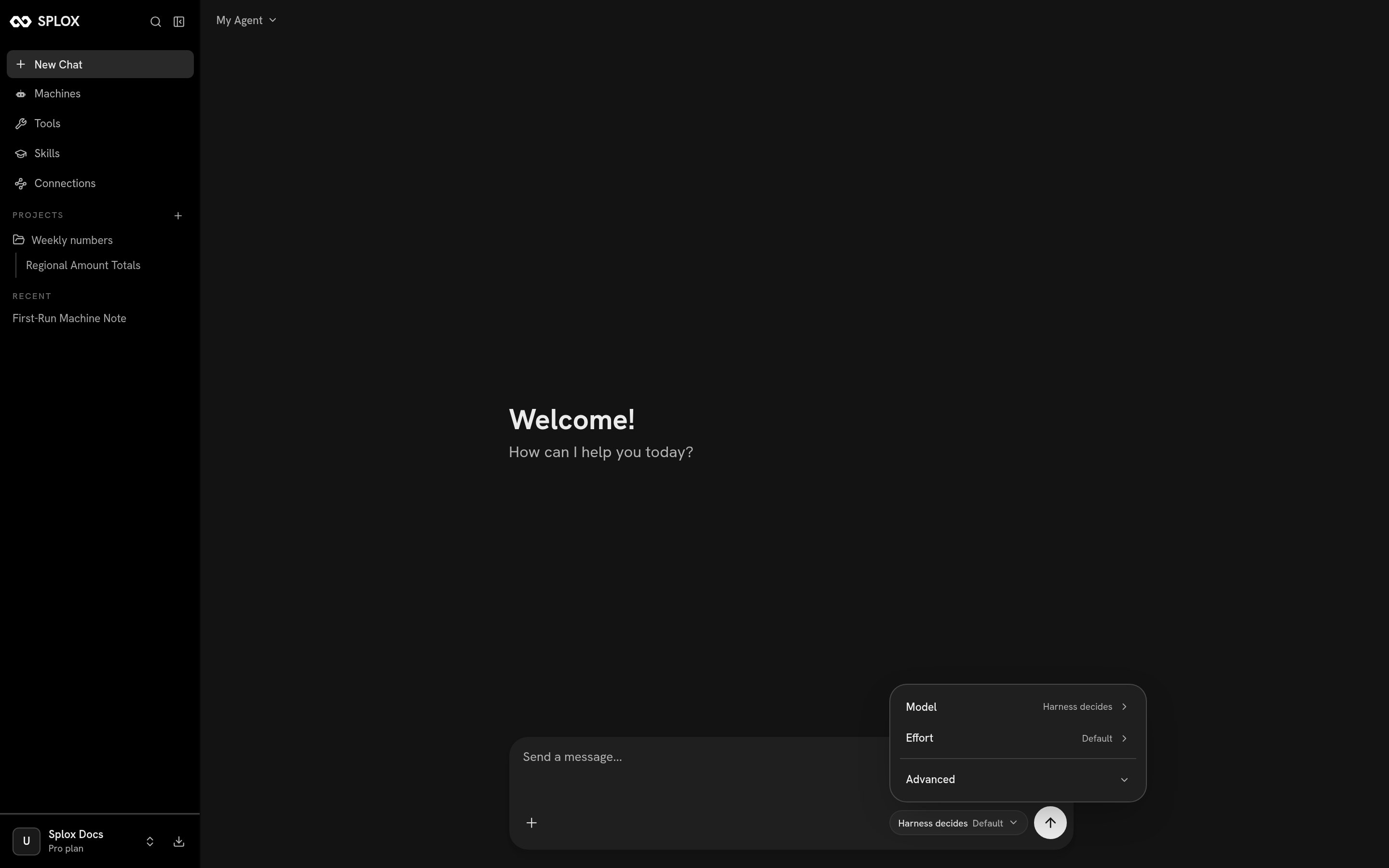
The composer: attachments on the left, model and effort in the middle, send on the right
- + attaches a file. It is uploaded and the agent is given a URL it can fetch onto the machine.
- Harness decides · Default is the run configuration: which model answers, and how much thinking effort it spends. Left alone, both come from the code in your harness.
- The arrow sends. While a run is going it becomes a square, which stops it.
The inspector
The button at the top right of a chat opens a panel showing the machine this chat is on, how much of the context window the conversation has used, a way into the sandbox over SSH or VS Code, and any sub-agents running right now.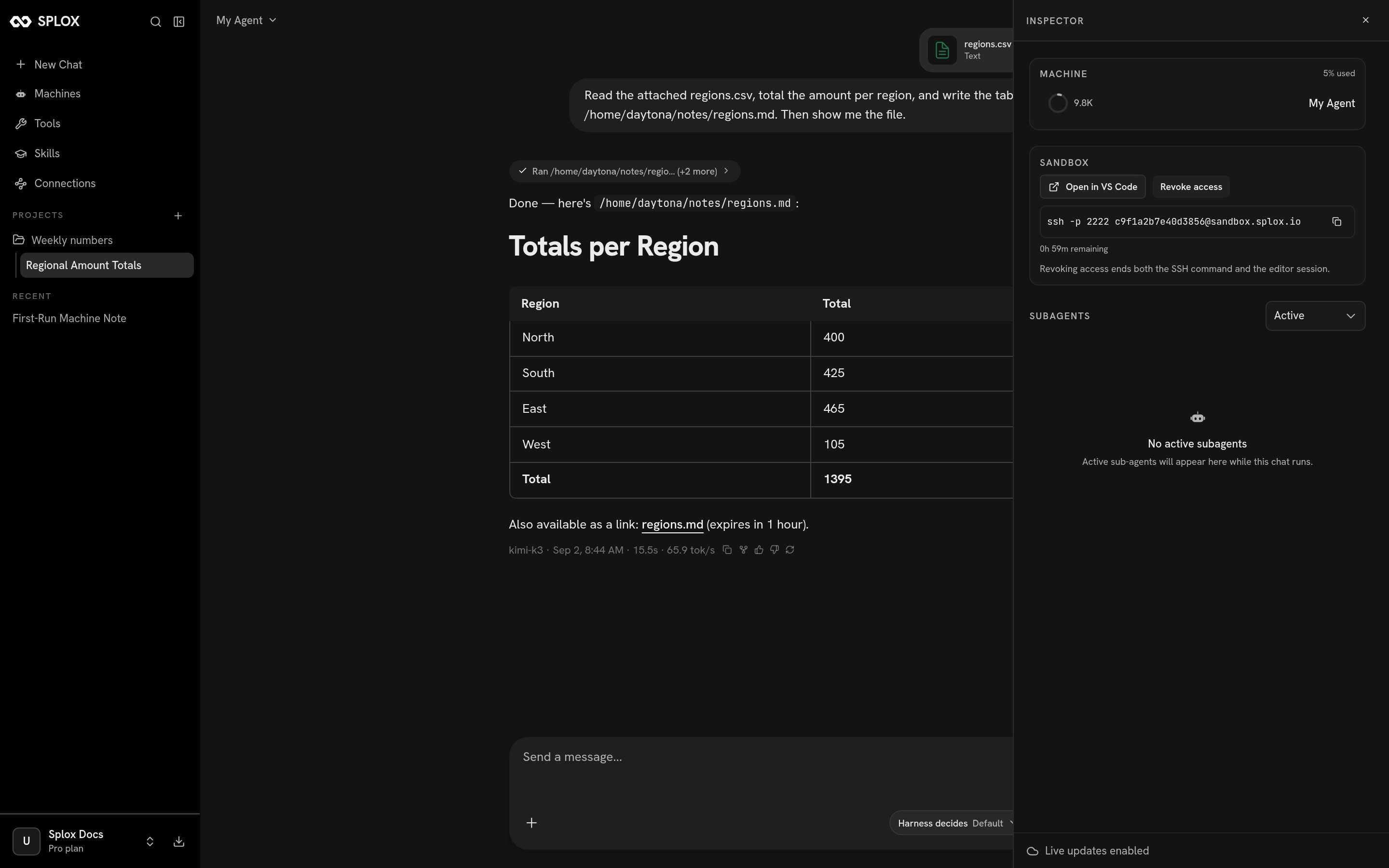
The inspector: context used, the sandbox, and the sub-agent list
Where to go next
A conversation
Sending, attachments, reading tool calls, stopping, forking, sharing.
Machines
Start, stop, add a second one, delete one.
Tools
What is listed, what
system: means, how an agent gets one.Skills
The catalog, the shipping skills, forking one.