Sign in, send the first message, and find the files the agent left on its machine
Signing up gives you a machine and an agent on it. Nothing to install, nothing
to configure — the first useful thing you can do is type a sentence.
1
Sign in
Go to the app and sign in with Google, or with a work email. Signing up creates
two things for you: a harness (a git repository holding the code that decides
who your agent is, named My Agent until you rename it) and a machine for it
to run on.
2
You land in an empty chat
The composer. The machine picker is top left; the model chip is bottom right.
Three things on this screen matter now:
My Agent at the top left is the machine this chat runs on. Open it and it
reads My Agent @ main — the harness it runs, at the ref it runs.
Harness decides on the composer means the model is the one your harness
declared. You can override it per chat; see Models.
Machines, Tools, Skills and Connections in the sidebar are what
the agent has to work with.
3
Send the first message
Ask for something that ends in a file, so you can go looking for it afterwards:
Create ~/notes/first-run.md with a one-line note about what this machine is,then list the files in ~/notes.
Press Enter. The chat is named from your message and the run starts.
4
Watch it work
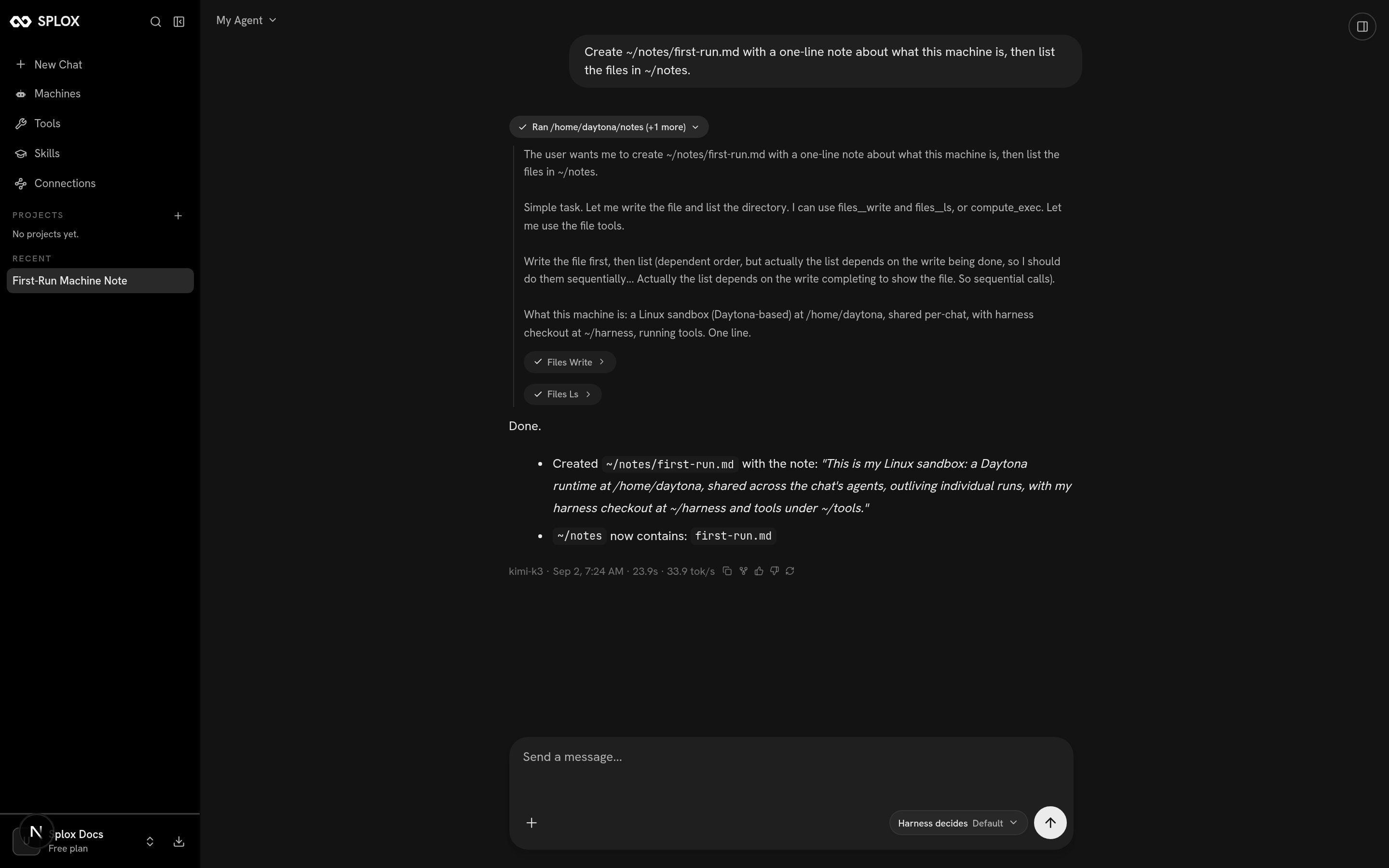
While the run is going you see a collapsed chip like Ran /home/daytona/notes (+1 more). Click it and the turn opens up: the model’s reasoning, then each tool
call it made, in order.
The same turn expanded: two tool calls, and the answer under them
Under the answer is the footer for that turn — the model that ran it, the time,
how long it took and how fast it generated:
kimi-k3 · Sep 2, 7:24 AM · 23.9s · 33.9 tok/s
One turn of a chat is one run. Everything the run did is kept: its messages,
its tool calls, its usage. See Runs.
5
Find the file, in another chat
Start a new chat and ask:
Read /home/daytona/notes/first-run.md and tell me what it says.
It reads it. The disk is the machine’s, not the conversation’s — the first chat
wrote the file and the second one finds it. That is the difference between this
and a sandbox that resets.
Use absolute paths when you name a file to the agent. The starter’s file tools do
not expand ~, so ~/notes comes back as FileNotFoundError while
/home/daytona/notes works. The agent’s home is /home/daytona.
6
Look at the machine
Open Machines in the sidebar and pick Your machines.
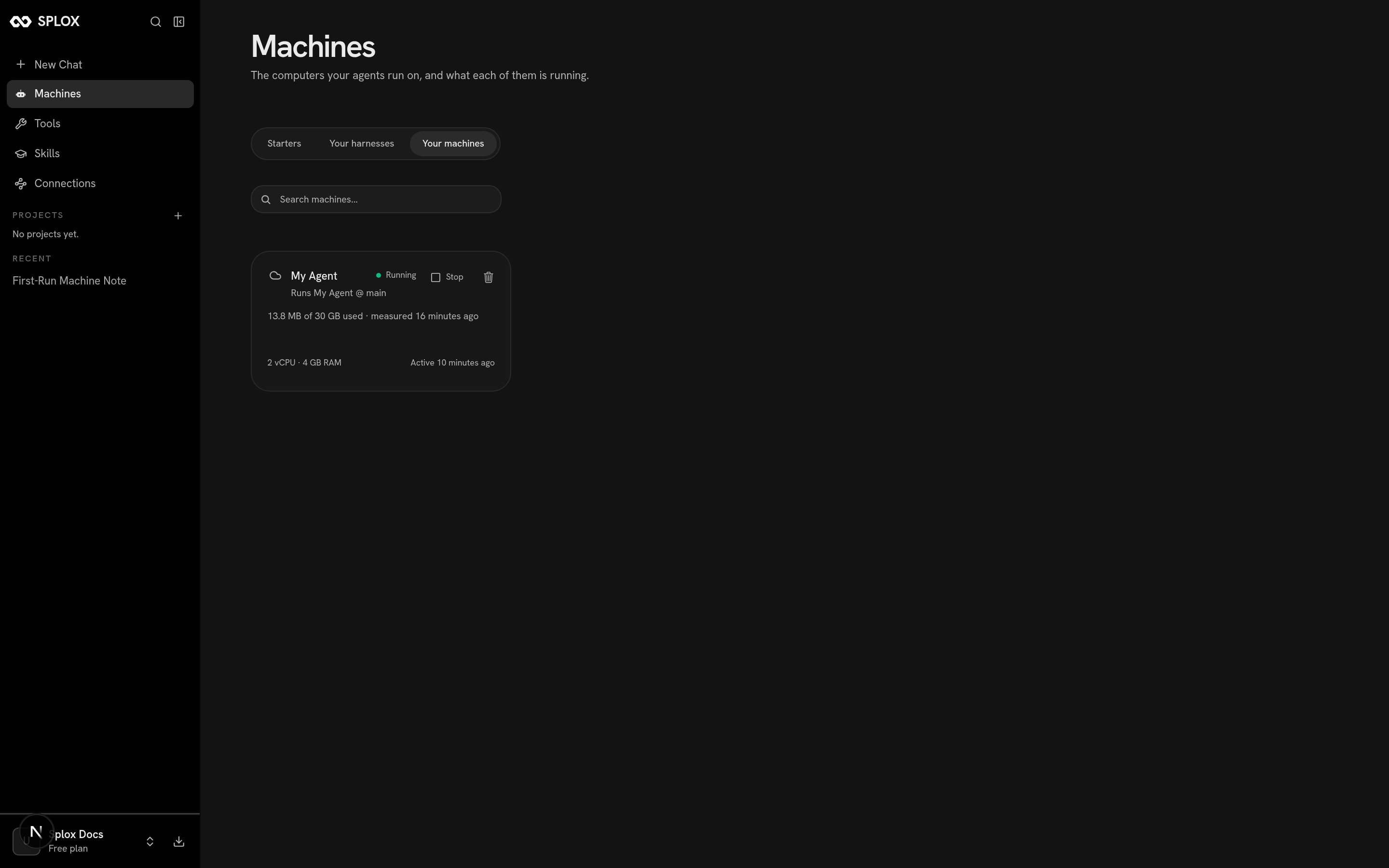
The machine card: what it runs, what it has, and how much of the disk is used
The card says what the machine runs (Runs My Agent @ main), what it has
(2 vCPU · 4 GB RAM), how much disk it has used and when it was last active.
Stop shuts it down; the files stay. See Machines.
Give it work that takes a while. Ask for something with several steps — read
four pages and compare them, convert a directory of documents, write and run a
script. The agent keeps going through the tool loop until it has an answer.Ask it to leave something running. A watcher, a bot, a nightly job. A process
started in one turn is still running in the next chat, because it belongs to the
machine and not to the conversation. You do not write it; you ask for it, and
the agent writes it into its harness as a program.
Reach you outside a chat and On a schedule
show what that looks like.Ask it to change. “Give yourself a tool for X.” “Be shorter.” “Use a cheaper
model for routine things.” The agent edits its own harness and publishes a
version; the next turn is different, and you can ask which version it is on and
what changed. Ask is the section for that, and
Versions is how you go back if you do not like it.Drive it from your own code. Runs, events and outputs are an API, with
Python, Node and Go SDKs. API.
Concepts
The six words the rest of the documentation uses.
The machine
What persists, what start and stop do, what a plan gives you.