

Overview
Memory nodes enable stateful conversations by storing and retrieving chat history for LLM nodes.Chat Memory Node
Store and retrieve conversation history with automatic trimming and summarization
Chat Memory Node
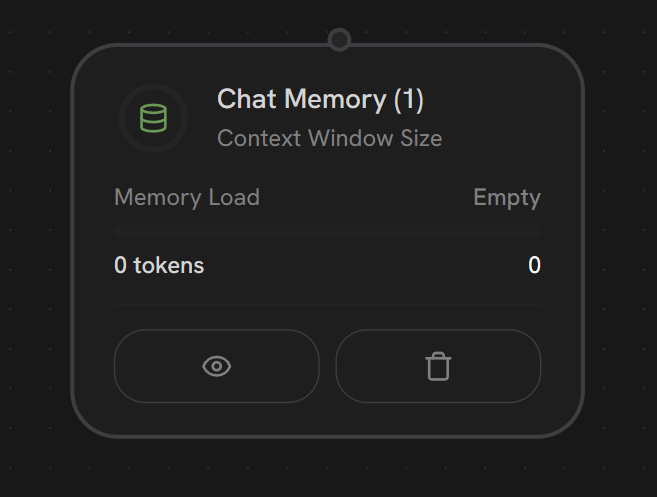
Purpose: Manage chat history and conversation context Memory nodes store and retrieve conversation history for LLM nodes, enabling stateful conversations.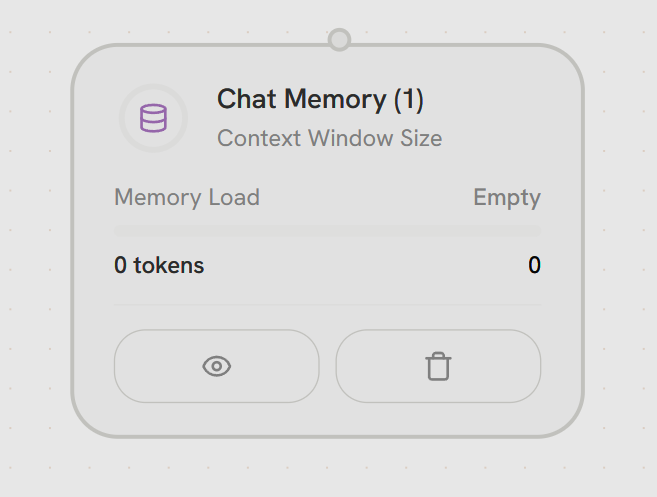
Configuration
Chat Memory Node
Common Configuration
Label
Label
Description: A user-defined name to identify this memory node in your workflow.Type: StringRequired: YesExample:
Memory Limit Type
Memory Limit Type
Description: Choose how the memory size should be limited.Type: SelectRequired: YesDefault: MessagesOptions:
- By Message Count - Keep last N messages
- By Token Count - Keep messages within token limit
- Message Count: Simple, predictable memory management
- Token Count: Precise control for model context windows
User Message Content
User Message Content
Description: The content to store as the user message in chat history.Type: Editor (Pongo template)Required: YesDefault:
{{ start | json }}How It Works:
Defines what gets stored as the user’s message. By default captures the start node input.Example:Chat ID
Chat ID
Description: Unique identifier for this chat/conversation session.Type: Editor (Pongo template)Required: YesHow It Works:
Groups messages into conversations. Same Chat ID = same conversation history.Template Variables:
Use variables to create isolated contexts per user/session.Examples:
Multi-User Support: Use user IDs in Chat ID to isolate conversations between different users.
Trim Strategy
Trim Strategy
Description: How to select which messages to remove when trimming.Type: SelectRequired: YesDefault: Drop OldestOptions:
- Drop Oldest (keep recent) - Remove oldest messages first, keep most recent
- Drop Middle (keep first & recent) - Keep first few messages + most recent, remove middle
- Drop Oldest: Standard conversations - recent context most important
- Drop Middle: Preserve initial context (system instructions, persona) + recent messages
Empty Tool Results
Empty Tool Results
Description: Empty all tool result contents before trimming to reduce token count.Type: BooleanRequired: NoDefault: falseHow It Works:
Preserves tool call structure (names, arguments) but removes result content to save tokens.Use Case:
Long tool outputs (API responses, file contents) that don’t need to be kept in context.Example:
Enable Summarization
Enable Summarization
Description: Summarize removed messages to preserve context when trimming.Type: BooleanRequired: NoDefault: falseHow It Works:
Before trimming old messages, send them to LLM for summarization. Replace trimmed messages with summary.Benefits:
- Preserve important context from old messages
- Reduce token count while maintaining conversation continuity
- Keep decisions, facts, and key points
Summarization Prompt
Summarization Prompt
Description: Instructions for how to summarize removed messages.Type: EditorRequired: NoDefault: “Summarize the key points of the removed messages, preserving important context and decisions made.”Visibility: Only when Enable Summarization = trueBest Practices:
- Be specific about what to preserve
- Mention format preferences
- Guide tone and style
Use Predefined Messages
Use Predefined Messages
Description: Include predefined messages at the beginning of the memory context.Type: BooleanRequired: NoDefault: falseUse Cases:
- Few-shot examples (show LLM example conversations)
- Persona messages (establish character/tone)
- Initial instructions (supplement system prompt)
- Conversation templates
Predefined Messages
Predefined Messages
Description: Custom messages to add at the beginning of the memory context.Type: Memory Messages BuilderRequired: NoDefault: []Visibility: Only when Use Predefined Messages = trueHow It Works:
These messages appear before actual chat history. They’re combined with chat history and subject to trimming limits.Format:Use Cases:
- Few-shot learning: Show examples of desired responses
- Persona: Establish assistant personality through example exchanges
- Instructions: Add context that supplements system prompt
Message Limit Configuration
These fields appear when Memory Limit Type = “By Message Count”
Trim Mode
Trim Mode
Description: When to trim old messages from memory.Type: SelectRequired: NoDefault: ContinuousOptions:
- Continuous (trim at limit) - Remove oldest message immediately when limit reached
- Threshold (batch trim) - Wait until threshold reached, then batch trim to target
- Continuous: Standard conversations, predictable memory size
- Threshold: High-volume chats, reduce trimming overhead
Max Messages
Max Messages
Description: Maximum number of messages to retain in memory.Type: NumberRequired: YesDefault: 20Visibility: Only when Trim Mode = “Continuous”Example:
Threshold Trigger
Threshold Trigger
Description: Number of messages that triggers batch trimming.Type: NumberRequired: YesDefault: 500Visibility: Only when Trim Mode = “Threshold”How It Works:
When message count reaches this threshold, trim down to “Threshold Target” value.Example:
Threshold Target
Threshold Target
Description: Number of messages to keep after threshold trimming.Type: NumberRequired: YesDefault: 100Visibility: Only when Trim Mode = “Threshold”Example:
Threshold Example: Trigger=500, Target=100 means: Let messages grow to 500, then trim down to 100 most recent.
Max Last Images
Max Last Images
Description: Maximum number of images to retain in memory.Type: NumberRequired: NoDefault: 1How It Works:
Images consume significant tokens. This limits how many image messages to keep.Example:
Token Limit Configuration
These fields appear when Memory Limit Type = “By Token Count”
Max Tokens
Max Tokens
Description: Maximum number of tokens to retain in memory.Type: NumberRequired: YesDefault: 2000How It Works:
Automatically counts tokens in messages and trims oldest when limit exceeded.Model Context Windows:
- GPT-4o: 128K tokens
- Claude 3.5 Sonnet: 200K tokens
- GPT-3.5 Turbo: 16K tokens
Min Messages to Keep
Min Messages to Keep
Description: Minimum number of messages to keep even if they exceed token limit.Type: NumberRequired: NoDefault: 0Use Case:
Ensures critical recent context is never trimmed, even if messages are very long.Example:
Add Memory Node
Manually add messages to chat memory (for programmatic memory injection).Label
Label
Description: Name to identify this Add Memory node.Type: StringRequired: Yes
Memory Node
Memory Node
Description: Select which Chat Memory node to add messages to.Type: Select (Dynamic)Required: YesOptions: Shows Chat Memory nodes from your workflow (backward nodes only)
Chat ID
Chat ID
Description: Chat/conversation ID to add the message to.Type: Editor (Pongo template)Required: YesExample:
Role
Role
Description: Message role (user or assistant).Type: SelectRequired: YesOptions:
- User - Message from the user
- Assistant - Message from the AI assistant
Content
Content
Description: The message content to add.Type: Editor (Pongo template)Required: YesExample:
Enable Files
Enable Files
Description: Toggle to enable attaching files to this message.Type: BooleanRequired: NoDefault: false
Files
Files
Description: List of files to attach to the message.Type: Editor (JSON)Required: NoVisibility: Only when Enable Files = trueFormat:
Get Memory Data Node
Retrieve messages from chat memory for inspection or processing.Label
Label
Description: Name to identify this Get Memory Data node.Type: StringRequired: Yes
Memory Node
Memory Node
Description: Select which Chat Memory node to retrieve data from.Type: Select (Dynamic)Required: YesOptions: Shows Chat Memory nodes from your workflow
Chat ID
Chat ID
Description: Chat/conversation ID to retrieve messages from.Type: Editor (Pongo template)Required: YesExample:
Limit
Limit
Description: Maximum number of messages to retrieve.Type: NumberRequired: NoDefault: 50Example:
Offset
Offset
Description: Number of messages to skip from the beginning.Type: NumberRequired: NoDefault: 0Use Case:
Pagination - retrieve messages in chunks.Example:
Delete Memory Node
Remove messages from chat memory.Label
Label
Description: Name to identify this Delete Memory node.Type: StringRequired: Yes
Memory Node
Memory Node
Description: Select which Chat Memory node to delete from.Type: Select (Dynamic)Required: YesOptions: Shows Chat Memory nodes from your workflow
Chat ID
Chat ID
Description: Chat/conversation ID to delete messages from.Type: Editor (Pongo template)Required: YesExample:
Deletion Strategy
Deletion Strategy
Description: How to select which messages to delete.Type: SelectRequired: YesOptions:
- By Latest Workflow Request - Delete messages from the most recent workflow execution
- All - Delete all messages from this chat
- By Latest: Undo last interaction
- All: Reset conversation, clear history
Roles
Roles
Description: Which message roles to delete.Type: Multi-SelectRequired: YesOptions:
- User - Delete user messages
- Assistant - Delete assistant messages
- Select both: Delete all messages
- Select User only: Keep assistant responses, remove user inputs
- Select Assistant only: Keep user inputs, remove assistant responses
Node Handles
Memory nodes use a special bidirectional connection to the LLM’s MEMORY handle. They don’t have traditional PARALLEL or ERROR output handles - the memory connection handles all data flow.
Memory Limit Types
- Message Limit
- Token Limit
Keep last N messages
- Simple message-based trimming
- Maintains recent context
- Predictable memory usage
Summarization
When messages are trimmed, enable summarization to condense old context:Chat IDs
Memory nodes use Chat IDs to group conversations:- Multi-user conversations
- Session management
- Conversation history across workflow executions
- Isolated contexts per user/session