

What is a Tool Node?
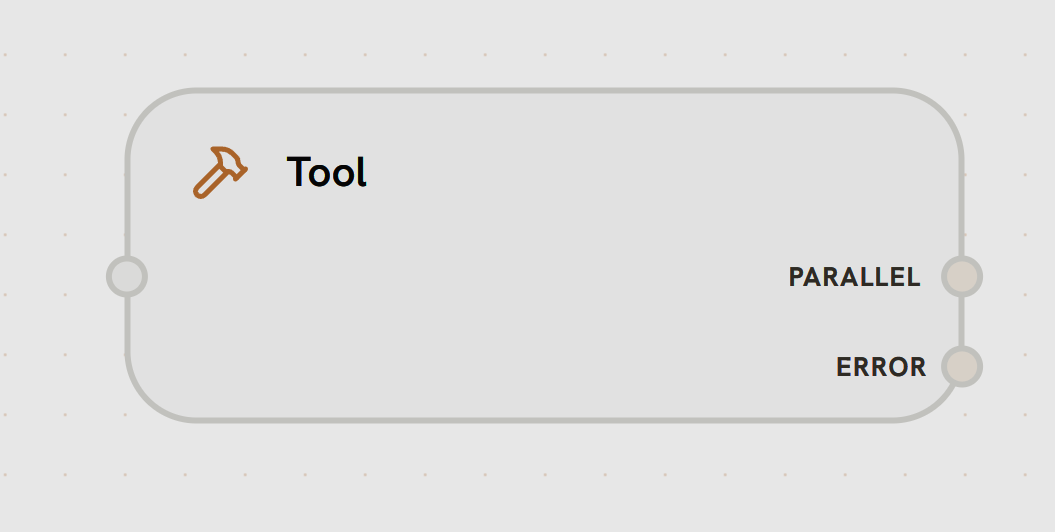
A Tool Node executes actions — calling APIs, running commands, querying databases, managing files, and more. Tool nodes are the hands and feet of your AI agents, letting them interact with the real world. Tool nodes work in two modes:Agent Mode (LLM-Controlled)
Connected to an Agent via a tool edge. The Agent’s LLM autonomously decides when and how to call the tool during its iteration loop.
Manual Mode
Connected via a parallel edge. The tool executes once with pre-configured arguments when reached in the workflow.
How It Works
Agent Mode (via Tool Edge)
When a Tool node is connected to an Agent node through a tool edge (from the Agent’s TOOLS handle):- The Agent discovers all connected tools automatically at the start of its loop
- Tool definitions (names, descriptions, input schemas) are sent to the LLM
- The LLM decides which tools to call based on the task
- The Agent executes the tool calls and feeds results back to the LLM
- This repeats until the Agent finishes its iteration loop
Manual Mode (via Parallel Edge)
When a Tool node is connected via a standard parallel edge:- The tool executes when its parent node completes
- A single pre-configured tool is called with fixed or templated arguments
- The result flows to downstream nodes
Configuration
MCP Server
Every Tool node is backed by an MCP server — the service that provides the actual tools.MCP Server
MCP Server
Description: The MCP server that provides tools to this node.Type: SelectRequired: YesOptions include:
Default:
system:tool_routerManual Mode Settings
These fields appear when the Tool node is not connected via a tool edge (manual/parallel-edge mode):Selected Tool
Selected Tool
Description: The specific tool to execute from the selected MCP server.Type: Select (dynamic, loaded from MCP server)Required: Yes (in manual mode)After selecting an MCP server, this dropdown shows all available tools from that server.
Tool Arguments
Tool Arguments
Description: Input arguments for the selected tool.Type: Dynamic form (schema-driven)Required: Depends on toolThe input form is generated from the tool’s JSON schema. Each field maps to a tool parameter. Supports Jinja2 template variables for dynamic values:
Agent Mode Settings
These fields appear when the Tool node is connected via a tool edge:Allowed Tools
Allowed Tools
Description: Restrict which tools from this MCP server the LLM can access.Type: Multi-select (dynamic, loaded from MCP server)Required: NoBehavior:
- Empty (default): All tools from the server are available to the LLM
- Selected: Only the specified tools are exposed to the LLM
- Limit LLM to safe/relevant operations
- Prevent access to destructive tools (e.g., delete operations)
- Optimize by reducing tool list size for faster LLM decisions
Tool Approval
Tool Approval
Description: Require human approval before tool calls execute.Type: Approval configurationRequired: NoModes:
Timeout: Configurable (default: 300 seconds / 5 minutes). If no approval is received within the timeout, the tool call is rejected.
When approval is required, the agent pauses and the approval request appears in the chat interface. The user can approve or reject each tool call.
Common Settings
These fields are available in both modes:Output Storage
Output Storage
Description: Where to store tool execution output.Type: SelectRequired: No
Outputs exceeding 200KB are automatically uploaded to S3 regardless of this setting.
On Error
On Error
Description: How to handle tool execution failures.Type: SelectRequired: No
In Agent mode with
continue, the error is reported back to the LLM, which can decide how to handle it (retry, use a different tool, or respond to the user).Variable Mappings
Variable Mappings
Description: Reference data from other nodes using Jinja2 templates.Type: Variable mapping listRequired: NoAdd mappings to make data from upstream nodes available in tool arguments and templates. See Variable Mappings for details.
Max Retries
Max Retries
Description: Number of automatic retries on transient failures.Type: NumberDefault: 3Range: 0–10
Timeout
Timeout
Description: Maximum execution time in minutes.Type: NumberDefault: 525,600 (1 year)
Handles
Tool nodes do not have a TOOLS handle — they receive tool calls through their input handle when connected to an Agent via a tool edge.
Output
The Tool node produces aToolResult:
In Agent mode, tool results are automatically fed back to the LLM. In manual mode, access results in downstream nodes via variable mappings:
{{ tool_node_name.result }}.
System MCP Servers
Splox provides several built-in MCP servers:Tool Router
Tool Router
A meta-tool server that gives your agent the ability to discover and call tools dynamically from any connected MCP server.Tools provided:
splox_list_user_connections— List all connected MCP serverssplox_search_tools— Search for tools across all serverssplox_execute_tool— Execute any discovered toolsplox_get_tool_schema— Get a tool’s input schema
Splox
Splox
Built-in platform operations.Common tools: API Request, KV Store, Vector Search, DateTime operationsBest for: Interacting with Splox platform features directly.
Sandbox
Sandbox
Execute code and commands in isolated E2B sandbox environments.Common tools: Execute Command, Read File, Write File, Upload to S3Best for: Code execution, data processing, file manipulation in an isolated environment.Configuration: Requires a sandbox template and sandbox ID (can be templated from previous nodes for persistent sandbox sessions).
Remote Server
Remote Server
Execute commands on remote machines via SSH.Common tools: SSH commands, file operationsBest for: Server management, deployment automation, remote execution.
Local Machine
Local Machine
Control the user’s local machine via the Splox desktop app.Best for: Desktop automation, local file access, system interactions.
Skills
Skills
Reusable skill packs that bundle related tools together.Best for: Sharing curated tool sets across agents and workflows.
Event Hub
Event Hub
Event-driven messaging and webhook operations.Best for: Publishing events, triggering webhooks, inter-workflow communication.
Media
Media
Media processing operations.Best for: Image, audio, and video processing tasks.
Composio
Composio
Third-party integrations via Composio.Best for: Connecting to SaaS platforms (Slack, GitHub, Gmail, etc.) with managed OAuth.
Custom MCP Servers
Connect your own MCP servers via the Tools page:- Go to Add Custom Tool
- Configure your MCP server with its URL and authentication
- The server appears in the MCP Server dropdown across all Tool nodes
- HTTP — Standard RESTful communication
- SSE — Server-Sent Events for streaming
- OAuth — Full OAuth flow with token persistence
- Manual — Custom headers (API keys, bearer tokens)
- None — No authentication
Best Practices
Use Tool Router for Agents
For Agent-mode tools, the Tool Router lets the LLM discover and use tools dynamically without pre-configuring each one
Set Allowed Tools
In Agent mode, restrict allowed tools to only what the agent needs — fewer tools means faster and more accurate LLM decisions
Enable Approval for Sensitive Actions
Use pattern-based approval rules to auto-approve safe operations and require human review for destructive ones
Handle Errors Gracefully
Use
continue error strategy in Agent mode so the LLM can recover from tool failuresUse S3 for Large Outputs
Set output storage to S3 for tools that produce large files or binary data
Template Arguments
Use Jinja2 templates in manual-mode arguments to pass dynamic data from upstream nodes
What’s Next?
Agent Node
Learn how agents autonomously call tools in a loop
Tool Edges
How to connect agents to tools via the TOOLS handle
Variable Mappings
Reference data between nodes with Jinja2 templates
Node Lifecycle
Understand execution states and transitions