

Start Node

Purpose: Entry point for workflow execution Every workflow must have at least one start node. When a workflow is triggered, execution begins at the specified start node.
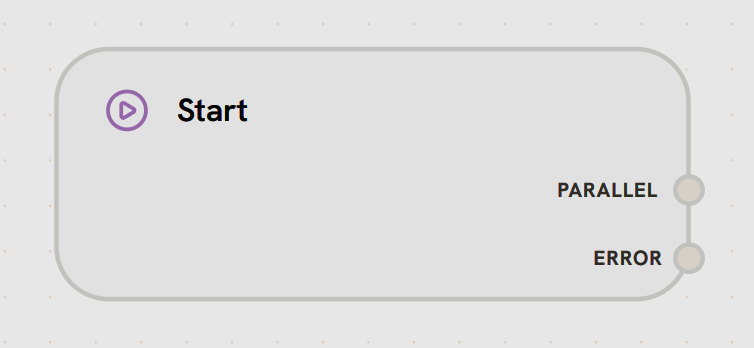
Start node visual representation

Configuration

Description: The name of the start node that identifies the entry point of your workflow.Type: StringRequired: YesConstraints:
  • Minimum length: 1 character
  • Maximum length: 64 characters
Example:
"Stripe Payment Webhook"
"Process Customer Data"
"New User Registration"
Description: Defines how the workflow is triggered - either by external webhook or internal API call.Type: SelectRequired: YesDefault: InternalOptions:
  • Webhook - Triggered by external platform webhooks (Stripe, Slack, etc.)
  • Internal - Triggered by internal API calls or other workflows
Visibility: Only shown when node has no parent (root start node)Example:
webhook  # For external integrations
internal # For API or workflow triggers
Description: Specifies which platform will trigger this start node via webhook.Type: Select (Dynamic)Required: ConditionalVisibility: Only shown when Trigger Type is set to “Webhook”Options: Dynamically loaded from available platforms:
  • External Platforms: Telegram, Slack, GitHub, Stripe, and more
  • Splox Platform: For custom API webhooks from your own application
Example:
telegram   # For Telegram bot webhooks
slack      # For Slack app webhooks
splox      # For custom API webhooks from your app
Choose Splox platform if you want to trigger workflows via custom API requests from your own application.
Description: Links to your specific connected integration that will handle incoming webhook requests.Type: Select (Dynamic)Required: ConditionalVisibility: Only shown when Trigger Type is “Webhook” AND Platform is selectedOptions: Dynamically loaded from your connected integrations for the selected platformExample:
user_stripe_integration_id
user_slack_workspace_id
You must first connect an integration in Settings > Integrations before it appears in this list.
Node Handles:
Right Side Handles:
  • PARALLEL: Main output path after trigger activation
    • Fires when workflow starts
    • Passes trigger input data to next nodes
    • Enables workflow execution to begin
  • ERROR: Error handling path for trigger failures
    • Activated if trigger validation fails
    • Passes error details for logging
    • Allows error recovery at workflow start
Features:
  • Multiple Trigger Types: Support both internal triggers and external webhook triggers
  • Platform Integration: Direct webhook connections to 50+ external platforms (Telegram, Slack, etc.)
  • Custom API Webhooks: Use Splox platform webhook for custom API integrations from your app
  • Internal Orchestration: Connect workflows and build multi-agent systems with internal triggers
  • Error Handling: Built-in error path for trigger validation failures
  • Input Data Flow: Automatically passes trigger payload to connected nodes
  • Webhook Security: Validates signatures and authentication from external platforms
Choosing Trigger Type:
  • Internal → Multi-agent systems, workflow orchestration
  • Webhook + External Platform → Telegram, Slack bots
  • Webhook + Splox Platform → Custom API integration from your app
Use Cases:
  • API Webhooks: Receive data from external platforms like Stripe payments, Slack messages, or GitHub events
  • Scheduled Workflows: Entry point for time-based triggers and scheduled tasks
  • Manual Execution: Start workflows manually from the dashboard or API
  • Multi-Entry Workflows: Create different start nodes for different trigger sources in the same workflow
Start nodes can be selected when triggering a workflow programmatically, allowing different entry points for different use cases.
Configuration Examples

Example 1: Internal Trigger (Multi-Agent Orchestration)

Label: "Process Customer Request"
Trigger Type: Internal
Use Case: Connect multiple workflows together or use internal workflow chat for multi-agent systems. Triggered By:
  • Internal Workflow Chat - Using send_internal_message tool from another workflow
  • Subflow Nodes - When this workflow is called as a subflow from another workflow
  • Multi-Agent Systems - Orchestrate multiple agents communicating internally
How It Works: No webhook or external integration needed. This start node activates when:
  • Another workflow sends a message via the send_internal_message tool
  • A subflow node executes this workflow
  • Internal Splox operations trigger the workflow
Best For: Building complex multi-agent systems where workflows communicate with each other internally.

Example 2: Telegram Bot Webhook

Label: "Telegram Message Handler"
Trigger Type: Webhook
Platform: Telegram
Integration: My Telegram Bot
Use Case: Build a Telegram bot that responds to user messages, commands, and button clicks automatically. Setup:
  1. Go to Integrations page and connect your Telegram bot
  2. Configure this start node with Telegram platform and your bot integration
  3. Splox generates webhook URL: https://app.splox.io/v1/webhooks/{webhook_id}
  4. Webhook is automatically registered with Telegram
Triggered By: External Telegram events (messages, commands, callbacks)

Example 3: Splox Custom Webhook (Your Own API)

Label: "API Request Handler"
Trigger Type: Webhook
Platform: Splox
Integration: Splox Webhook
Use Case: Trigger workflows from your own application, scripts, or external services with custom API requests. Setup:
  1. Go to Integrations page and create a Splox integration (if not exists)
  2. Configure this start node with Splox platform
  3. Get webhook URL: https://app.splox.io/v1/webhooks/{webhook_id}
  4. Make POST requests from your app to trigger the workflow
How to Trigger:
POST https://app.splox.io/v1/webhooks/{webhook_id}
Content-Type: application/json

{
  "customer_id": "12345",
  "action": "process_order",
  "data": {
    "order_id": "ORD-789",
    "amount": 99.99
  }
}
Response:
{
  "workflow_request_id": "workflow_request_uuid",
  "status": "success"
}
Splox Webhook vs Internal: Splox webhook is for external API calls from your app. Internal trigger is for workflow-to-workflow communication within Splox.

Example 4: Slack Event Webhook

Label: "Slack Command Handler"
Trigger Type: Webhook
Platform: Slack
Integration: Company Workspace
Use Case: Respond to Slack slash commands, message events, or button interactions in your workspace. Setup:
  1. Go to Integrations page and connect your Slack workspace
  2. Configure this start node with Slack platform and your workspace integration
  3. Splox generates webhook URL: https://app.splox.io/v1/webhooks/{webhook_id}
  4. Add this URL to your Slack app’s Event Subscriptions settings
Triggered By: External Slack events (slash commands, messages, interactions)

What’s Next?