

What is a Workflow?
A workflow in Splox is a visual, node-based automation that connects AI models, tools, and integrations to accomplish complex tasks. Think of it as a programmable flowchart where each box (node) performs a specific action, and arrows (edges) define the execution path and data flow. Workflows are the foundation of Splox, enabling you to:AI Agent Orchestration
Build autonomous agents that reason, plan, and use tools to complete complex tasks
Tool Integration
Connect AI agents to external tools, APIs, MCP servers, and third-party platforms
Agentic Behavior
Agents iterate autonomously — calling tools, processing results, and deciding next steps
Multi-Agent Systems
Create collaborative AI systems where multiple agents communicate with configurable execution modes
Conditional Logic
Route execution through branching paths with Switch nodes and conditional edges
Parallel Execution
Fan out to multiple branches and merge results back together
Key Capabilities
- Visual Programming — Build complex logic without code using an intuitive canvas interface
- Chat Mode — Test interactively with a conversational interface and real-time streaming
- Flexible Patterns — Support for sequential, parallel, conditional, and agent-loop execution
- Real-time Testing — See nodes execute live with immediate feedback and streaming output
- Version Control — Track changes, publish versions, and roll back when needed
- Voice & Realtime — Build voice-enabled agents with realtime audio capabilities
Workflow Structure
Node Types
Every workflow is built from 5 node types:Entry Node
Entry point that receives input data and triggers execution
Agent Node
Autonomous AI agent with LLM, memory, tool calling, and streaming
Tool Node
Executes operations via MCP servers, custom tools, or external APIs
Switch Node
Conditional branching with multiple operators and AND/OR logic
Merge Node
Waits for all parent branches to complete, then merges their outputs
Edge Types
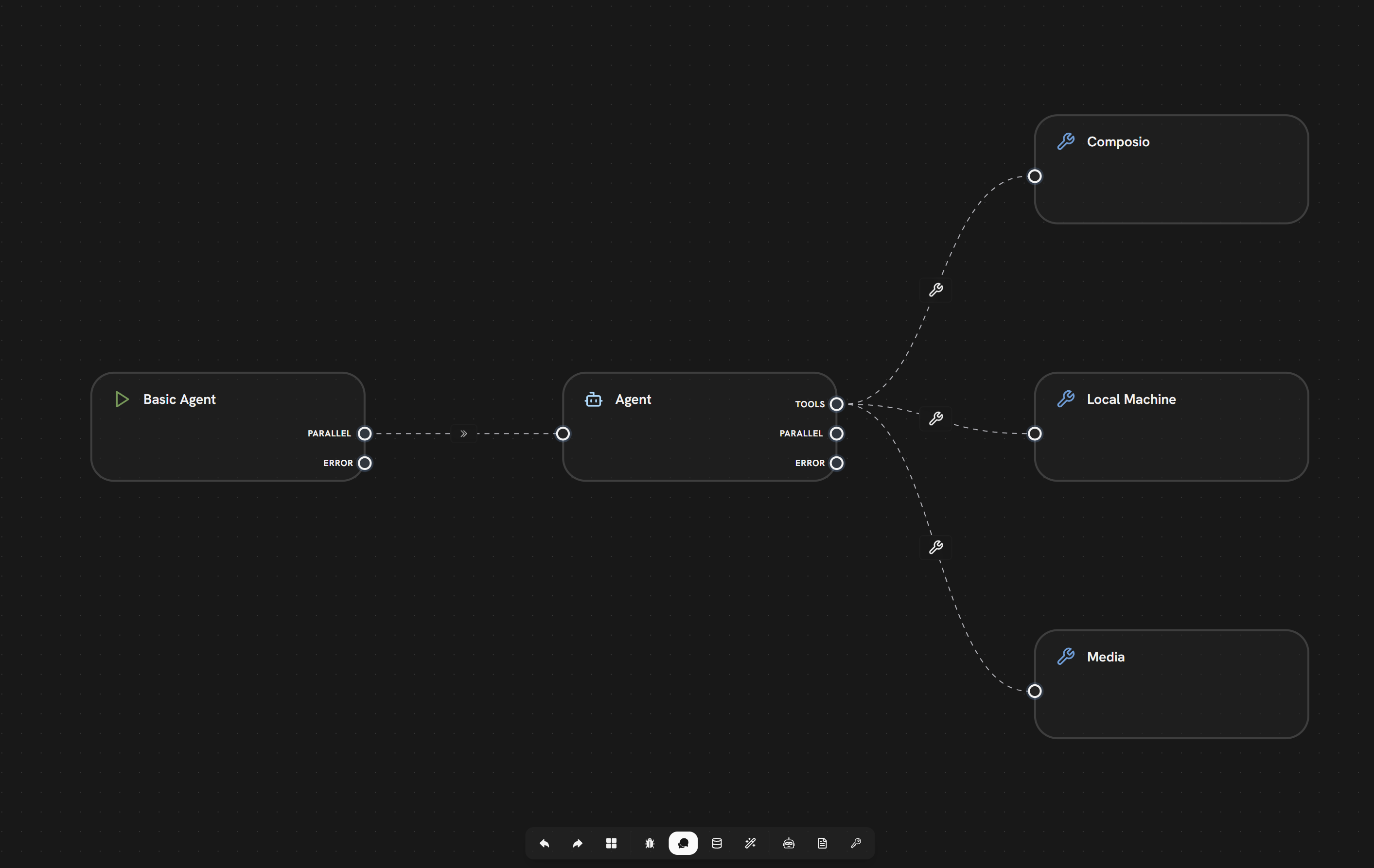
Nodes connect through 4 edge types that control execution flow and data transfer:Parallel Edges
Standard execution flow — triggers the next node when the source completes
Tool Edges
Connect an Agent’s TOOLS handle to Tool nodes for autonomous tool calling
Conditional Edges
Route execution from Switch nodes based on IF/ELIF/ELSE conditions
Error Edges
Activate when a node fails, enabling graceful error handling
Visual Canvas
Workflows are built on a visual canvas with powerful editing capabilities:Add Nodes
Right-click anywhere on the canvas to open a context menu with available nodes
Connect Nodes
Draw edges between nodes by dragging from output to input handles
Configure
Click any node to open its settings panel and configure parameters
Navigate
Pan by dragging the canvas, zoom with mouse wheel or trackpad
Workflow Lifecycle
1
Creation
When you create a new workflow, Splox automatically:
- Generates a unique workflow ID
- Sets up an empty canvas
- Assigns it to your account
- Creates initial configuration
2
Building
Build your workflow by:
- Adding nodes from the context menu
- Connecting nodes with edges
- Configuring each node’s settings (LLM model, system prompt, tools, etc.)
- Saving your changes
3
Testing & Execution
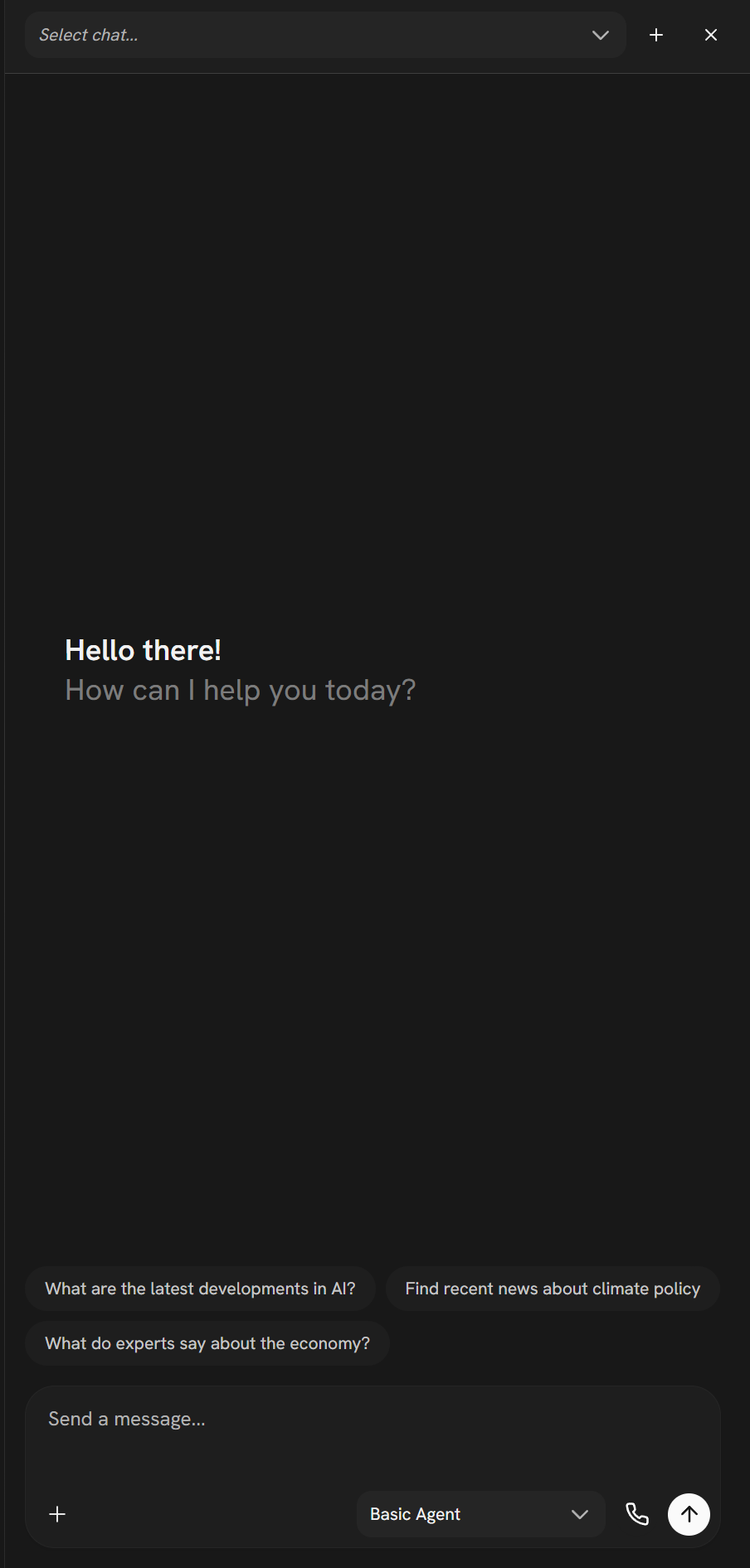
Chat Mode
Purpose: Interactive, conversational interface for testing and debugging workflows.Features:- In-editor sliding panel
- Chat-based conversational interaction with real-time streaming
- Node execution highlighting on the canvas
- Multiple chat sessions management
- Persistent chat history with context memory
- Entry node selection
- Create new chat
- Switch between existing chats
- Clear chat memory (flush history)
- Delete chat
- Share chat publicly
- Leave chat session
Execution Flow
1
Select Entry Node
Choose where to begin execution from the available entry nodes
2
Provide Inputs
Enter required parameters, messages, or upload files
3
Run Workflow
Execute using Chat Mode or the API
4
Monitor Execution
Watch real-time status updates and streaming output as nodes process
5
View Results
See agent responses, tool results, and review execution logs
4
Deployment
Once tested, deploy your workflow by:
- Setting up triggers (webhooks, API calls)
- Configuring execution settings
- Enabling the workflow
- Monitoring the first few runs
5
Monitoring
After deployment, monitor your workflow:
- View execution history and tree
- Check success/failure rates
- Review error logs
- Analyze performance metrics
Execution Model
Sequential Flow
The simplest pattern: nodes execute one after another. Each node completes before the next one begins. Data flows forward through variable mappings.Parallel Execution
Use parallel edges to fan out and a Merge node to fan back in: Both Agent nodes run simultaneously. The Merge node waits for all parents to complete, then combines their outputs (objects are merged, arrays concatenated).Conditional Branching
Use the Switch node for conditional logic: The Switch node evaluates conditions with operators likecontains, equal, greater_than, starts_with, is_empty, and more. Each case routes to a different branch via conditional edges.
Agent Tool Loop
The Agent node is the core of agentic workflows. It autonomously calls tools, processes results, and iterates until the task is complete — all within a single node: How the Agent Loop Works:1
Agent Receives Input
The Agent node receives input from its parent (entry node payload, previous node output, or variable mappings) and appends it as a user message to its context memory.
2
LLM Reasoning
The Agent’s configured LLM analyzes the conversation context (system prompt + memory + current input) and decides what action to take. It can either respond with text or call one or more tools.
3
Tool Execution
If the LLM requests tool calls, the Agent executes them via connected Tool nodes (through tool edges). Tool results are appended to the conversation context.
4
Iteration
The Agent loops back to the LLM with tool results. The LLM can call more tools or produce a final response. This continues until:
- The LLM responds without tool calls (task complete)
- The max iterations limit is reached (configurable, default: 50, max: 50)
5
Output
The Agent’s final response flows to downstream nodes via parallel edges.
- Context Memory
- LLM Configuration
- Iteration Control
- Streaming
The Agent has built-in conversation memory — no separate memory node needed.
- Memory ID: Links conversations across executions (e.g.,
{{ start.chat_id }}) - Limit Type: Token-based or message-based limits
- Trim Strategy:
drop_oldestordrop_middlewhen limits are reached - Summarization: Automatically summarize old messages to preserve context
- Custom Messages: Inject predefined messages into the conversation
Multi-Agent Workflows
Multiple Agent nodes can be connected to create collaborative multi-agent systems. When one Agent connects to another via a tool edge, the child agent becomes a tool the parent can call. The child agent can be configured with different execution modes:- Sync
- Async Inject
- Async Bidirectional
- Fire & Forget
- Handoff
sync — Parent agent blocks and waits for the child agent to complete before continuing.Best for: Sequential delegation where the parent needs the child’s result to proceed.- Execution Mode: How the child agent runs relative to the parent (see tabs above)
- Child Tool Name & Description: How the child agent appears as a tool to the parent
- Reply Tool Name & Description: For bidirectional mode, how the reply-to-parent tool appears
- Orchestrator Model: One agent coordinates tasks by delegating to specialized child agents
- Peer-to-Peer: Agents communicate bidirectionally using
async_bidirmode - Pipeline: Agents chain sequentially, each processing and passing results forward
- Handoff Chain: Agents hand off control based on the conversation topic
Error Handling
Every node can have an error edge that activates when the node fails: When a node fails:- Its parallel (success) edges are marked as skipped
- Its error edges are activated, routing to fallback nodes
- Downstream nodes on the skipped path are also marked as skipped
on_tool_error setting controls whether individual tool failures cause the entire agent to fail (fail) or are reported back to the LLM to handle gracefully (continue).
Error edges are indicated by red connections in the workflow editor.
Node Execution States
During execution, each node transitions through these states:For detailed state transitions, see the Node Lifecycle documentation.
Best Practices
Start Simple
Begin with a Start → Agent flow, then add tools and complexity as needed
Use Descriptive Labels
Name nodes clearly: “Research Agent” not “Node 1”
Handle Errors
Add error edges to critical nodes for graceful failure handling
Set Iteration Limits
Configure appropriate max iterations on Agent nodes to prevent runaway loops
Leverage Context Memory
Use the Agent’s built-in memory for conversational workflows instead of managing state manually
Choose Execution Modes
Use the right agent-to-agent execution mode — sync for dependencies, fire_forget for side effects
Next Steps
Agent Node
Deep dive into the Agent node — the core of every workflow
Understanding Nodes
Learn about all node types and their capabilities
Managing Edges
How to connect nodes and control data flow
Build Your First Agent
Step-by-step tutorial to build your first AI agent