

What are Integrations?
Integrations allow you to connect external platforms (APIs, databases, services) to your Splox workflows. Each integration stores encrypted credentials and authentication details, enabling secure access to external resources.Secure Authentication
Credentials encrypted at rest with AES-256
Multiple Auth Methods
OAuth2, API Keys, Bearer Tokens, Custom Auth
User-Owned
Each user manages their own integrations
Workflow Access
Tool nodes use integrations to access platforms
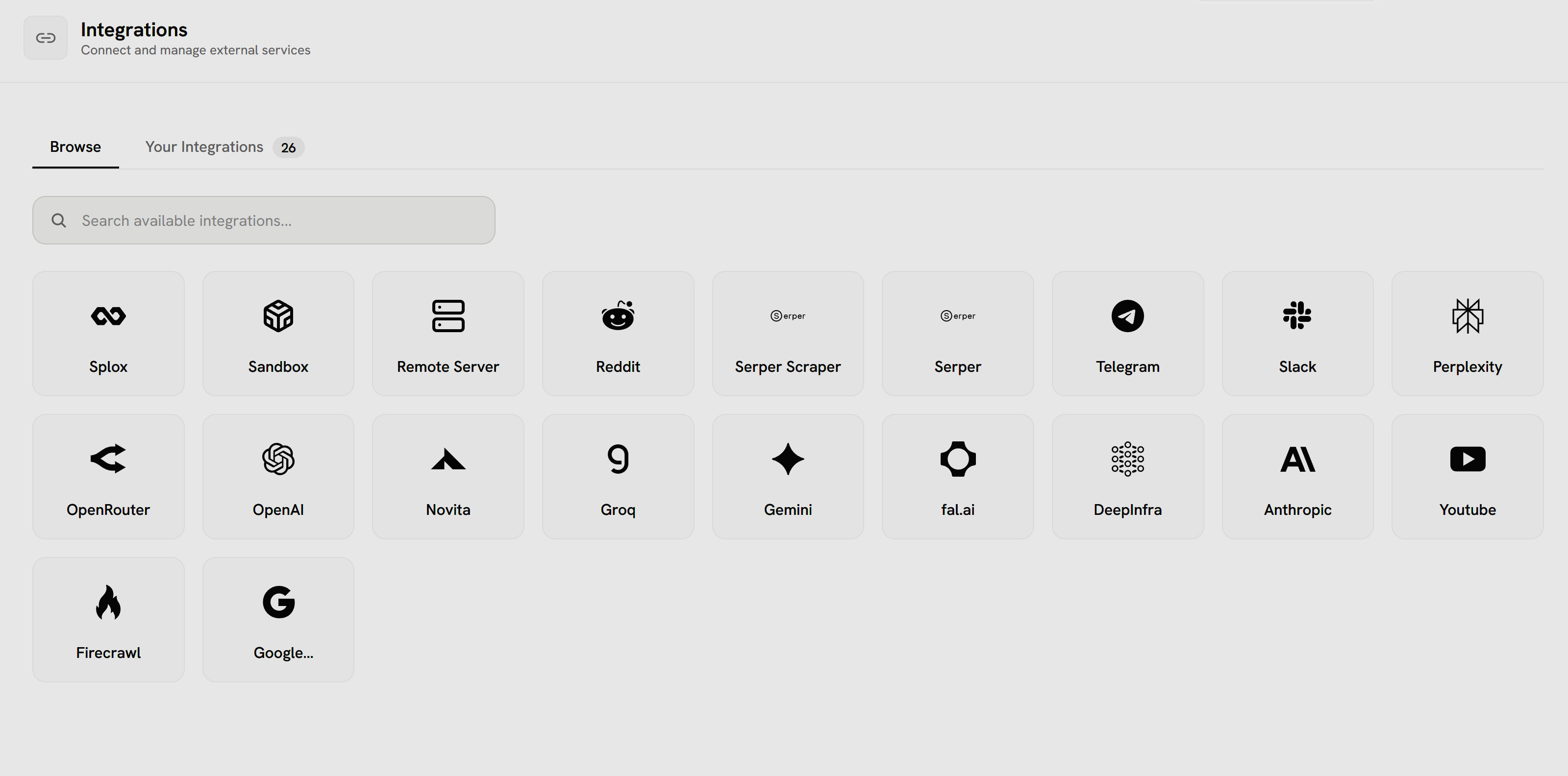
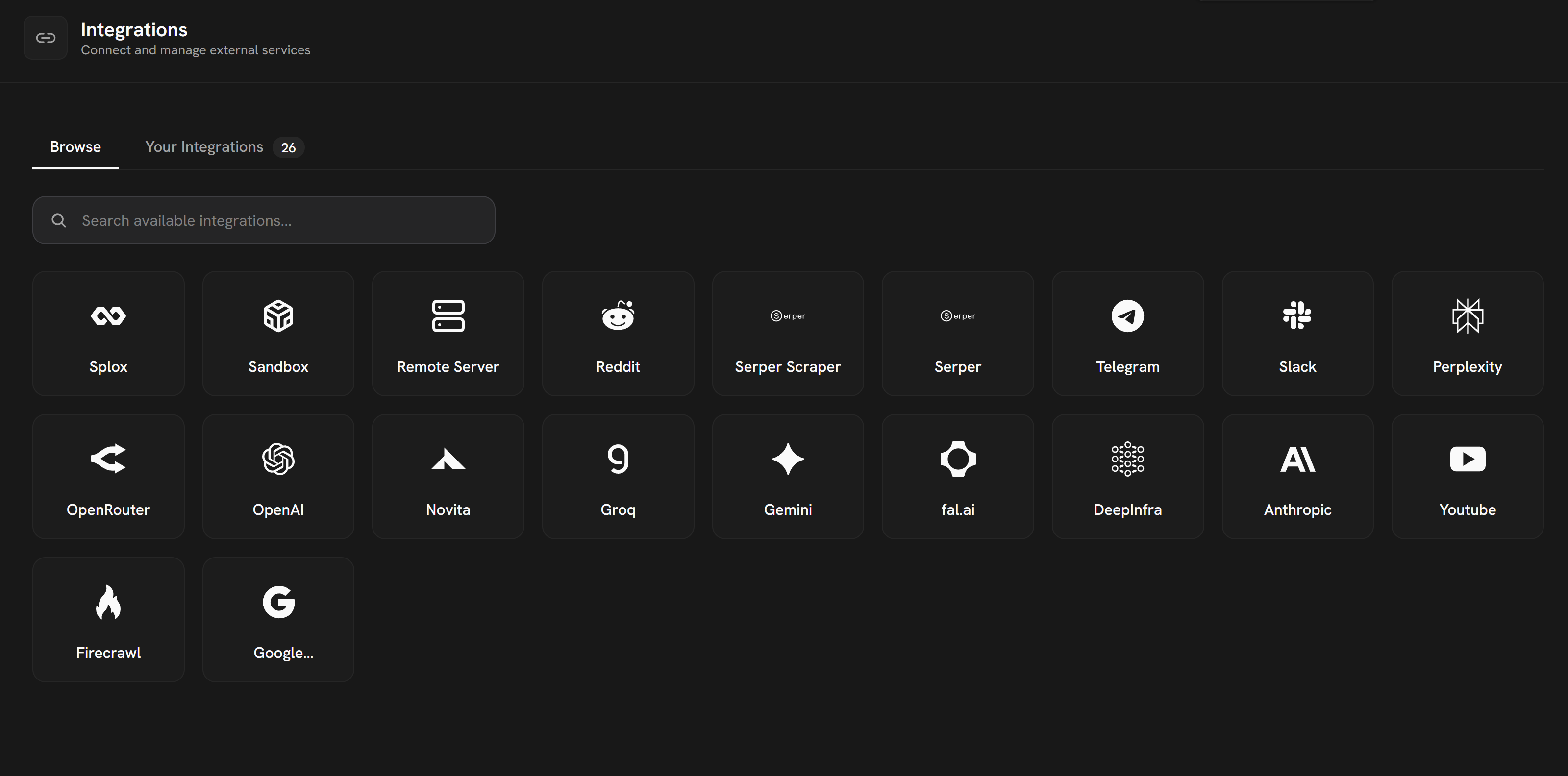
- Browse tab shows all available integrations
- Your Integrations tab (26) shows connected accounts
- Search bar to find specific platforms
- Grid of available platforms with icons:
- Internal: Splox, Sandbox, Remote Server
- Social: Reddit, Telegram, Slack
- AI: OpenAI, Anthropic, Gemini, Groq, Novita, DeepInfra
- Tools: Serper Scraper, Perplexity, OpenRouter, Firecrawl, Google
- Media: Youtube
How Integrations Work
1
Connect Platform
User creates an integration by connecting their account to a platformExample: Connect your Gmail account via OAuth2Splox securely stores access tokens and refresh tokens
2
Configure Tool
In a workflow, add a Tool Node and select the integrationExample: Add “Send Email” tool node, select Gmail integrationTool is authorized to use your Gmail account
3
Workflow Execution
When the workflow runs, the tool:
- Loads encrypted credentials from integration
- Authenticates with the platform
- Executes the operation
- Returns results
4
Automatic Token Refresh
If OAuth2 tokens expire, Splox automatically:
- Uses refresh token to get new access token
- Updates stored credentials
- Retries the operation
Integration Components
Platform
A platform represents an external service (e.g., Gmail, Slack, Anthropic, OpenAI). Platform Properties:- Platform ID: Unique identifier (e.g.,
gmail,slack) - Name: Display name
- Adapter: Backend service handler
- Auth Methods: Supported authentication types
- Operations: Available API actions
User Integration
A user integration is your personal connection to a platform. Properties:- Label: Custom name for this integration
- Platform ID: Which platform this connects to
- Auth Method: How you authenticate (OAuth2, API Key, etc.)
- Credentials: Encrypted authentication data
- Status: Active or inactive
Tool Configuration
Tools reference integrations to access platforms. Tool Node Settings:- Integration ID: Which user integration to use
- Operation: Which API operation to execute
- Input Data: Parameters for the operation
Special Integration: Sandboxes
Unlike typical integrations that connect to external services, Sandboxes provide persistent code execution environments.While sandboxes appear in the integrations browse list and are accessed through the integrations system, they work fundamentally differently from API-based integrations. They’re important enough to have their own Core Concept page.
| Aspect | Typical Integration | Sandbox Integration |
|---|---|---|
| Purpose | Call external APIs | Execute arbitrary code |
| State | Stateless API calls | Persistent environment |
| Lifecycle | No lifecycle | running → paused → destroyed |
| Resources | API rate limits | CPU, memory, disk allocation |
| Cost Model | Per API call | Per compute minute + storage |
| Use Cases | Send emails, query data | AI agents, data processing, ML |
- Maintain state across workflow runs (files, packages, processes)
- Can be paused to save costs while preserving state
- Require unique management (timeouts, cleanup, resource limits)
- Enable stateful AI agents and long-running computations
Authentication Methods
- OAuth2
- API Key
- Bearer Token
- Custom Auth
Best for: Services with user authorization flowsHow it works:
- User clicks “Connect” button
- Redirected to platform for authorization
- Platform redirects back with auth code
- Splox exchanges code for access + refresh tokens
- Tokens stored encrypted
- Most secure (user grants explicit permission)
- Automatic token refresh
- Revocable access
Creating Integrations
1
Navigate to Integrations
Click Integrations in the sidebarView all your connected platforms
2
Add New Integration
Click New IntegrationBrowse available platforms or search
3
Choose Platform
Select the platform you want to connectExample: Select “Gmail” from the list
4
Authenticate
Follow the authentication flow:OAuth2: Click “Connect” → Authorize in popupAPI Key: Paste your API key → SaveSplox verifies credentials and stores them encrypted
5
Label Integration (Optional)
Give your integration a custom nameExample: “Work Gmail” vs “Personal Gmail”Useful when connecting multiple accounts
6
Use in Workflows
Your integration is ready!Add Tool Nodes and select this integration
Using Integrations in Workflows
In Tool Nodes
1
Add Tool Node
Drag a Tool Node onto the canvas
2
Select Platform
Choose the platform (e.g., Gmail)Only platforms with active integrations are available
3
Choose Integration
Select which integration to useExample: “Work Gmail” vs “Personal Gmail”
4
Select Operation
Pick the API operationExample: “Send Email”, “Search Messages”, “Get Thread”
5
Configure Input
Set operation parametersCan use variable mappings from previous nodesExample:
Multiple Integrations
Workflows can use multiple integrations:- Gmail for emails
- Slack for notifications
- OpenAI for LLM calls
- Google Sheets for data storage
Security
Encryption at Rest
Encryption at Rest
All credentials encrypted with AES-256
- Access tokens
- Refresh tokens
- API keys
- Private keys
- Other secrets
Encryption in Transit
Encryption in Transit
TLS 1.3 for all API requests
- Credentials never sent unencrypted
- Platform communication over HTTPS
- Secure OAuth2 flows
Access Control
Access Control
User-scoped integrations
- Users can only access their own integrations
- Workflows inherit user’s integrations
- No cross-user credential sharing
- Role-based access in teams (future)
Token Refresh
Token Refresh
Automatic OAuth2 token management
- Detects expired tokens
- Uses refresh token automatically
- Updates stored credentials
- Transparent to workflow execution
Revocation
Revocation
User control over access
- Deactivate integrations anytime
- Delete integrations (soft delete)
- Revoke in platform directly
- Workflows fail gracefully when integration deactivated
Managing Integrations
View Integrations
- See all connected platforms
- Check auth status (active/expired)
- View last used timestamp
- Filter by platform
Edit Integrations
- Update label/name
- Refresh credentials (OAuth2)
- Update API key
- Test connection
Deactivate Integrations
- Temporarily disable without deleting
- Workflows using this integration will fail
- Can reactivate anytime
Delete Integrations
- Soft delete (can be restored)
- Workflows fail gracefully
- Removes from integration list
Best Practices
Label Your Integrations
Label Your Integrations
Use descriptive names❌ “Gmail Integration”✅ “Work Gmail - [email protected]”Especially important when connecting multiple accounts
Use Separate Integrations for Different Purposes
Use Separate Integrations for Different Purposes
Don’t mix contexts
- Personal Gmail vs Work Gmail
- Production Slack vs Test Slack
- Dev OpenAI key vs Prod OpenAI key
Monitor Usage
Monitor Usage
Track API consumption
- Check usage stats per integration
- Set up alerts for high usage
- Review costs regularly
Test Before Production
Test Before Production
Verify integrations work
- Test workflows before enabling
- Use test/sandbox accounts when available
- Check error handling
Rotate Credentials Regularly
Rotate Credentials Regularly
Maintain security hygiene
- Regenerate API keys periodically
- Reauthorize OAuth2 connections
- Review connected apps
Common Use Cases
Email Automation
Send emails via Gmail or Outlook
- Customer notifications
- Report delivery
- Alert emails
- Newsletter automation
Team Communication
Post to Slack
- Workflow status updates
- Error notifications
- Team alerts
- Daily summaries
AI Services
Call LLM APIs
- OpenAI GPT models
- Anthropic Claude
- Custom AI services
- Image generation
Data Storage
Read/write to external data
- Google Sheets
- Airtable
- Notion databases
- Cloud storage
Troubleshooting
Integration Connection Failed
Integration Connection Failed
Symptoms: Can’t authorize platformSolutions:
- Check pop-up blockers (OAuth2)
- Verify API key is correct
- Ensure platform account is active
- Try reconnecting
Workflow Fails with Auth Error
Workflow Fails with Auth Error
Symptoms: “Integration not found” or “Auth failed”Solutions:
- Check integration is still active
- Verify workflow has access to integration
- Refresh OAuth2 token
- Check if API key expired
Rate Limit Errors
Rate Limit Errors
Symptoms: “Too many requests” errorsSolutions:
- Reduce workflow frequency
- Implement backoff/retry logic
- Upgrade platform plan
- Use multiple integrations (round-robin)
Permission Denied
Permission Denied
Symptoms: “Insufficient permissions” errorsSolutions:
- Check OAuth2 scopes granted
- Verify API key has required permissions
- Reauthorize with correct scopes
- Check platform role/permissions