

What is an Entry Node?
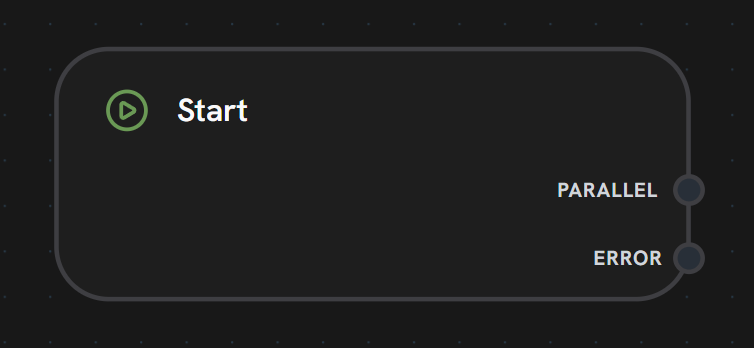
The Entry Node is the entry point of every workflow. When a workflow is triggered — via chat, API, or an external event — execution begins at the specified entry node, which passes the incoming payload to downstream nodes. Every workflow must have at least one entry node. A workflow can have multiple entry nodes to support different entry points for different use cases.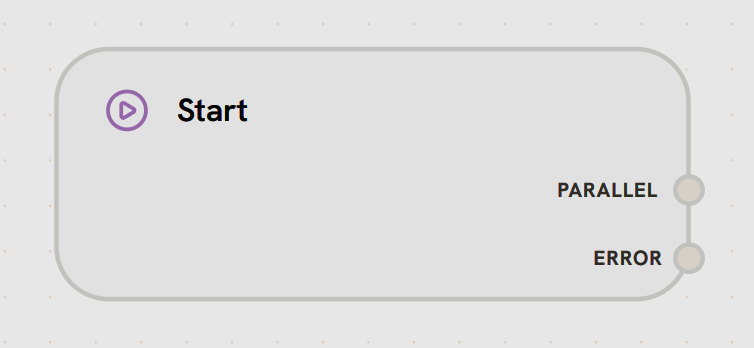
How It Works
The entry node is simple — it receives the raw input payload and passes it through as its output. Downstream nodes access the payload fields via variable mappings like{{ start.text }}, {{ start.chat_id }}, {{ start.files }}, etc.
The payload structure depends on how the workflow is triggered:
- Chat / API Run
- Agent-to-Agent
When triggered via the chat interface or
POST /v1/workflow-requests/run:Configuration
Label
Label
Description: A name to identify this entry node on the canvas and in the entry node selector.Type: StringRequired: YesExample:
Variable Mappings
Variable Mappings
Description: Reference data from other nodes using Jinja2 templates.Type: Variable mapping listRequired: NoSee Variable Mappings for details.
Max Retries
Max Retries
Description: Number of automatic retries on transient failures.Type: NumberDefault: 3Range: 0–10
Timeout
Timeout
Description: Maximum execution time in minutes.Type: NumberDefault: 525,600 (1 year)
Handles
Entry nodes have no input handle — they are always the first node in the execution chain.
How to Trigger Workflows
1. Chat Interface
The most common way to trigger a workflow during development and testing:- Open a workflow in the editor
- Open the Chat panel
- Select an entry node from the dropdown
- Type a message and send
{{ start.text }} and the chat session ID becomes {{ start.chat_id }}.
2. API — Run Workflow
Trigger a workflow programmatically via the API:workflow_request_id to:
- Listen for results:
GET /v1/workflow-requests/{id}/listen(SSE stream) - Get execution tree:
GET /v1/workflow-requests/{id}/execution-tree - Get history:
GET /v1/workflow-requests/{id}/history
Rate limited to 20 workflow executions per minute per user.
Multiple Entry Nodes
A single workflow can have multiple entry nodes for different entry points:entry_node_ids parameter. In the chat interface, a dropdown lets you select the active entry node.
Best Practices
Descriptive Labels
Name entry nodes clearly — they appear in dropdowns and API calls
Handle Missing Fields
Use conditional logic (Switch nodes or template defaults) to handle cases where optional payload fields may be missing
One Concern Per Start
Create separate entry nodes for different trigger sources rather than handling everything in one
What’s Next?
Agent Node
Connect your entry node to an Agent to process the incoming data
Variable Mappings
Access entry node payload data in downstream nodes
Node Lifecycle
Understand execution states and transitions
Build Your First Agent
Step-by-step tutorial using an entry node