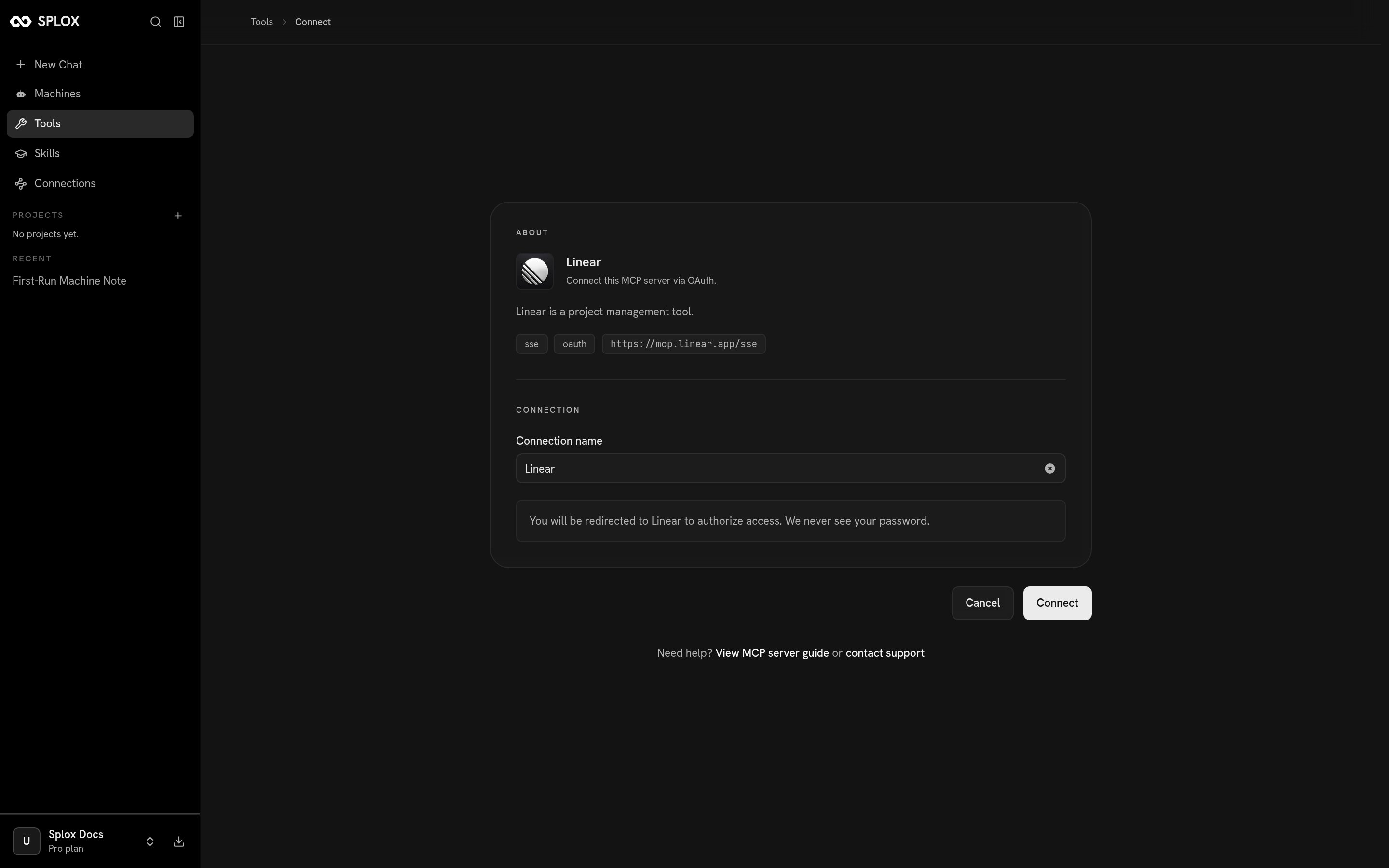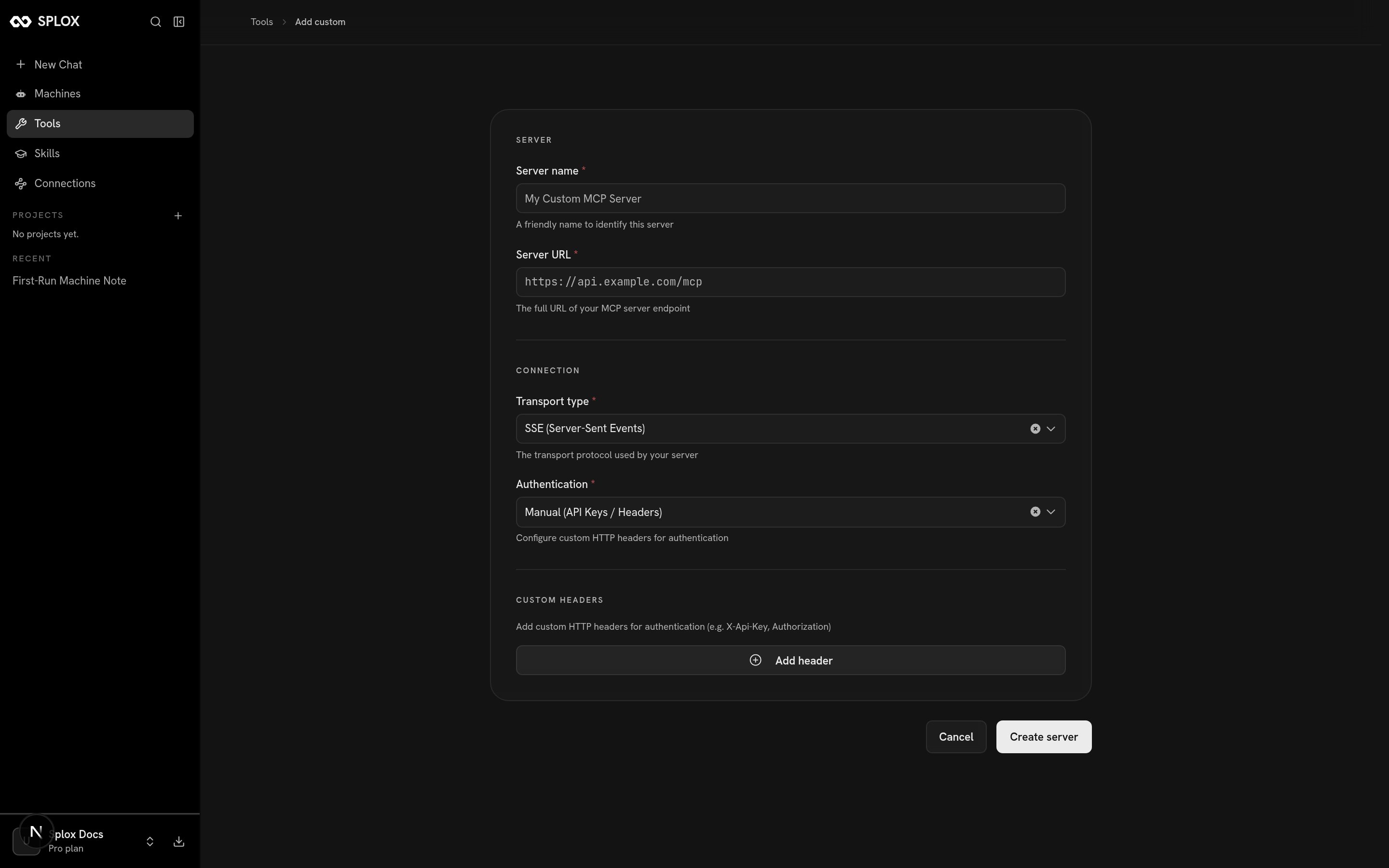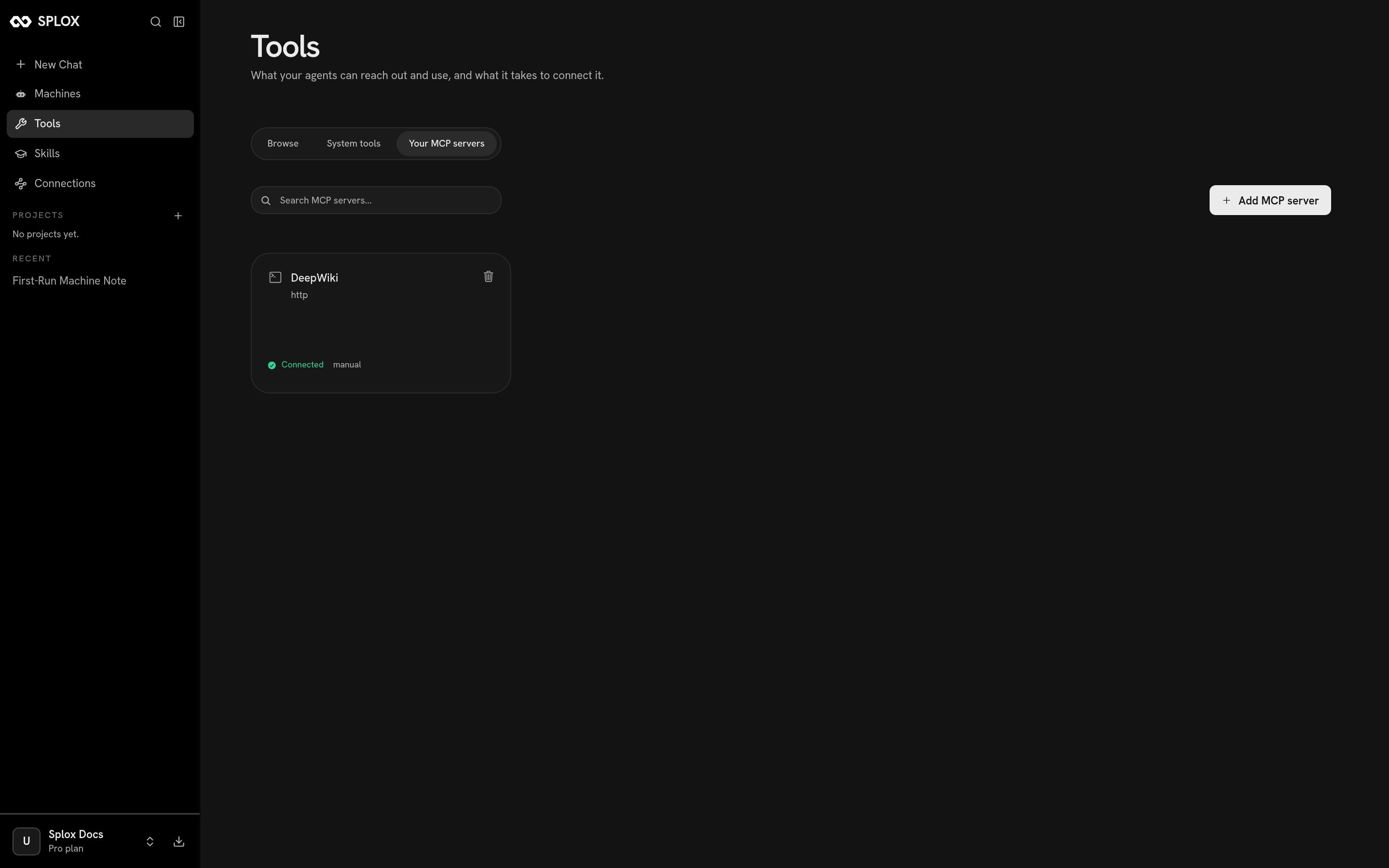

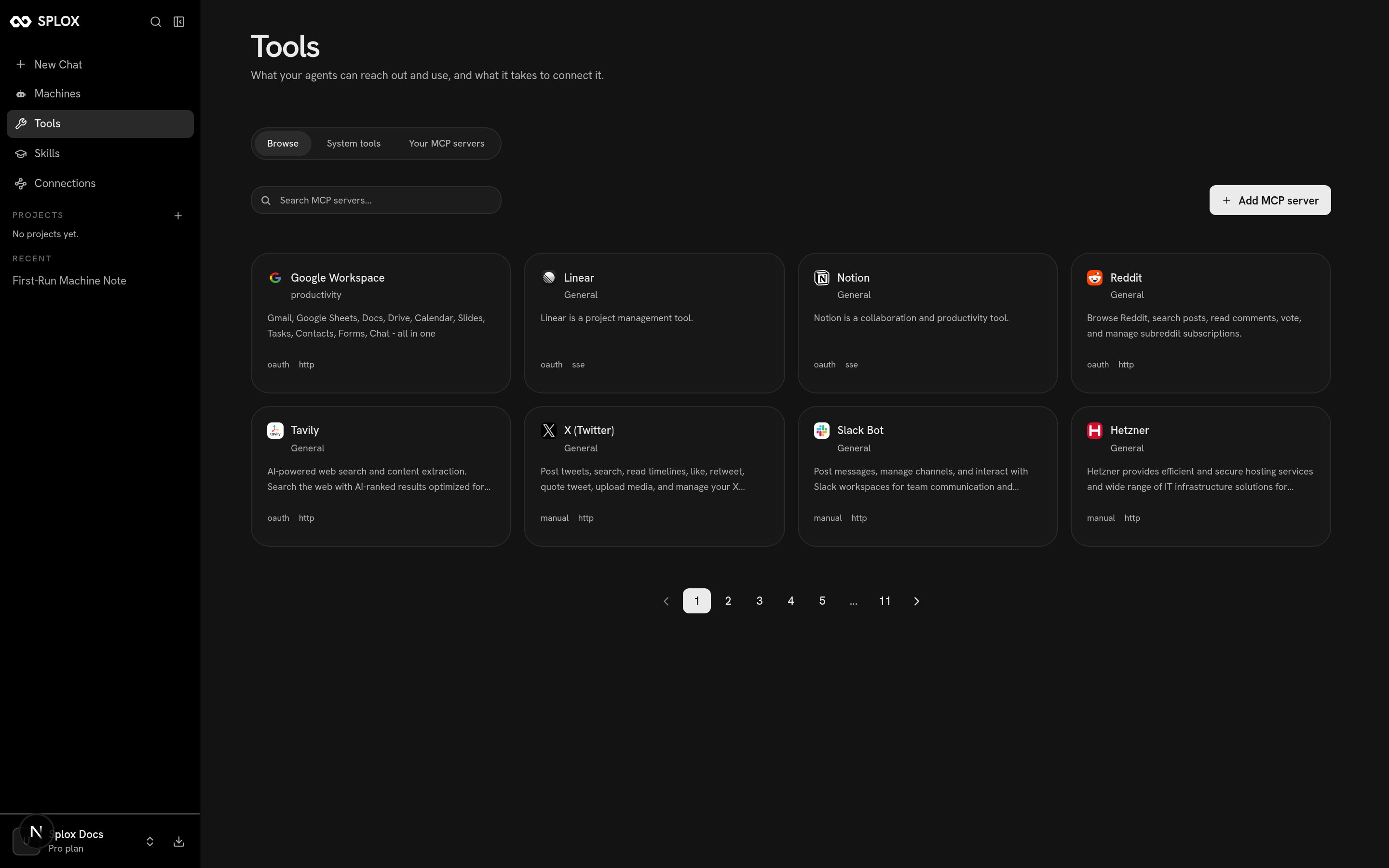
Ready to connect your AI agent to real data? In this tutorial, you’ll build a customer feedback analyzer that reads reviews from Google Sheets, uses AI to categorize sentiment and extract themes, creates a structured database in Notion, and alerts your team in Slack about critical issues.

What You’ll Build

Customer feedback analyzer workflow connecting Google Sheets, Notion, and Slack By the end of this tutorial, you’ll have an AI agent that:
  • Reads customer reviews from Google Sheets
  • Analyzes sentiment (positive, negative, neutral)
  • Extracts key themes and issues
  • Creates organized insights in Notion
  • Alerts your team in Slack about critical feedback
Example task: “Analyze the customer reviews in my Google Sheet, categorize them by sentiment, create a summary in Notion, and post critical issues to Slack” Time to complete: 10 minutes
Skill level: Beginner

Prerequisites

Before you begin, make sure you have:
  • Splox account (Sign up free)
  • Google account (for Google Sheets)
  • Slack workspace with admin access
  • Notion account

Step 1: Create Your Workflow

Let’s start by creating your workflow from the DevOps Agent template.
  1. Navigate to the DevOps Agent template
  2. Click Use Template to create your workflow
  3. The workflow canvas will open with your new agent ready to configure
DevOps Agent template in Splox What’s happening: You’re creating a pre-configured AI agent that can use tools, remember context, and perform complex tasks autonomously.

Step 2: Connect Google Workspace

Now let’s connect your Google account to Splox.
  1. Go to Integrations
  2. Click on Google Workspace
  3. Enter an Integration Label (e.g., “My Google Account”)
  4. Make sure Is Active is toggled on
  5. Click Connect
  6. Sign in with your Google account and authorize access
Google Workspace integration setup in Splox What’s happening: Splox uses OAuth to securely connect to your Google account. Your credentials are never stored - only an access token that can be revoked anytime.

Step 3: Connect Slack

To send alerts to Slack, you’ll need to create a Slack app and get your Bot Token.

Create a Slack App

  1. Go to api.slack.com/apps
  2. Click Create New AppFrom scratch
  3. Name your app (e.g., “Splox Feedback Bot”)
  4. Select your workspace
  5. Click Create App

Get Your Bot Token

  1. In the left sidebar, click OAuth & Permissions
  2. Scroll to ScopesBot Token Scopes
  3. Add these scopes:
    • chat:write - Send messages
    • channels:read - View channels
  4. Scroll up and click Install to Workspace
  5. Authorize the app
  6. Copy the Bot User OAuth Token (starts with xoxb-)

Connect to Splox

  1. Go to Splox Integrations
  2. Enter an Integration Label (e.g., “Slack Workspace”)
  3. Paste your Bot Token
  4. For Verify Token, enter any string (e.g., “splox123”) - this is for webhook verification
  5. Click Connect
Slack integration setup with Bot Token
Don’t forget to invite your Slack bot to the channel where you want alerts! Type /invite @YourBotName in the channel.

Step 4: Connect Notion via MCP

Notion uses the Model Context Protocol (MCP) for integration. This requires a slightly different setup.
  1. Navigate to the DevOps Agent template
  2. Click Use Template to create your workflow
  3. Right-click on the canvas and select Tool to add a new Tool Node
  4. Configure the Tool Node:
    • Node Label: Notion
    • Tool Type: MCP
    • Launch Method: Remote
    • Transport Type: Streamable HTTP
    • MCP URL: https://mcp.notion.com/mcp
    • Output Storage: Memory
  5. Click the Connect button next to MCP URL
  6. A Notion popup will appear - authorize access to your workspace
  7. Check “I recognize and trust this URL” and click Continue
Notion MCP Tool Node configuration with OAuth popup What’s happening: MCP (Model Context Protocol) allows AI agents to securely interact with external services. Notion’s MCP server handles authentication and provides tools for reading/writing pages and databases.

Step 5: Build the Workflow

Now let’s add Tool Nodes for Google Sheets and Slack, then connect everything to the AI agent.

Add Google Sheets Tool Node

  1. Right-click on the canvas → select Tool
  2. Configure:
    • Node Label: Google Spreadsheet
    • Tool Type: Operations
    • Platform: Google Workspace
    • Integration: Select your connected Google integration
    • Operations: Select the spreadsheet operations you need (read, write)
  3. Connect this node to the TOOLS output handle on the DevOps LLM node

Add Slack Tool Node

  1. Right-click on the canvas → select Tool
  2. Configure:
    • Node Label: Slack
    • Tool Type: Operations
    • Platform: Slack
    • Integration: Select your connected Slack integration
    • Operations: Select messaging operations (send message)
  3. Connect this node to the TOOLS output handle on the DevOps LLM node

Connect Notion Tool Node

  1. Find the Notion Tool Node you created in Step 4
  2. Connect it to the TOOLS output handle on the DevOps LLM node
Your workflow should now look like this: Complete workflow with Google Sheets, Notion, and Slack Tool Nodes connected to DevOps LLM
One Tool Node = One Platform. Each integration platform needs its own Tool Node. The AI agent will automatically choose which tools to use based on your request.

Step 6: Run the Analysis

Time to see your AI agent in action! We’ve prepared a sample Google Sheet with 136 real Amazon food reviews for you to analyze: 📊 Sample Customer Reviews Dataset
  1. Click the chat bubble icon in the bottom toolbar to open Chat Mode
  2. Type your analysis request:
Analyze the customer reviews in this Google Sheet:
https://docs.google.com/spreadsheets/d/1pa-qk7zNywzO_rq48haS-_1JX0X6m6UQSLWxWp4I0To/edit?gid=2213027#gid=2213027

For each review:
- Categorize sentiment (positive, negative, neutral)
- Extract key themes (product quality, taste, value, shipping)
- Identify critical issues that need immediate attention

Then:
1. Create a Notion page with a summary of findings and a table of categorized reviews
2. Post a message to #customer-feedback in Slack with any critical issues (1-star reviews or urgent complaints)
  1. Press Enter and watch the AI work across all three platforms!
Chat Mode with customer feedback analysis prompt
Want to use your own data? Simply replace the Google Sheet URL with your own spreadsheet. The AI agent will adapt to whatever columns and data structure you have.

Step 7: Review the Results

Your AI agent will:
  1. Read all reviews from your Google Sheet
  2. Analyze each review for sentiment and themes
  3. Create a Notion page with:
    • Executive summary
    • Sentiment breakdown (X positive, Y negative, Z neutral)
    • Common themes identified
    • Table of all reviews with categories
  4. Alert your Slack channel about critical issues
Notion page with customer feedback analysis results Slack message with critical customer feedback alerts

What You’ve Learned

  • Connecting Google Workspace via OAuth
  • Setting up Slack integration with Bot Tokens
  • Configuring Notion via MCP (Model Context Protocol)
  • Adding and connecting Tool Nodes to an AI agent
  • Running multi-platform workflows with natural language

Try These Tasks Next

Expand Your Feedback System:
  • “Update the Google Sheet with sentiment scores for each review”
  • “Create a weekly digest of feedback trends”
  • “Set up daily alerts for any new 1-star reviews”
Other Use Cases:
  • “Sync my Notion tasks to Google Sheets for reporting”
  • “Post daily standup summaries from Notion to Slack”
  • “Analyze sales data and create executive summaries”

Frequently Asked Questions

Yes! Just reference different spreadsheet URLs in your prompts. The AI agent will access whichever sheets you specify.
At minimum, you need chat:write to send messages and channels:read to see available channels. Add more scopes based on what operations you want to perform.
Notion’s MCP server provides richer functionality and handles authentication seamlessly. It’s Notion’s recommended way to integrate with AI agents.
Absolutely! Splox supports many platforms including Airtable, Discord, WhatsApp, Telegram, and more. Check the Integrations page for the full list.
Yes. Splox uses OAuth for authentication and never stores your passwords. Data is processed in isolated environments and you can revoke access anytime.

Next Steps


Need Help?