> ## Documentation Index
> Fetch the complete documentation index at: https://docs.splox.io/llms.txt
> Use this file to discover all available pages before exploring further.
# Variable Mappings
> Reference data across nodes using Jinja2 template syntax - a universal feature in Splox
## Overview
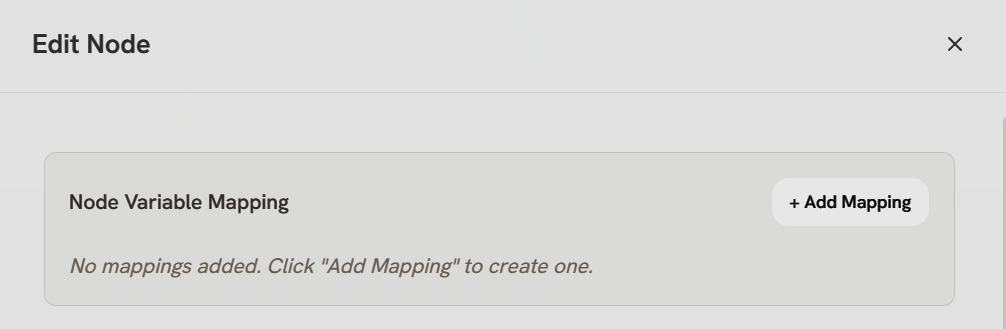
Variable mappings are a fundamental feature in Splox that allow nodes to access and reference data from previous nodes in the workflow. **All node types support variable mappings.**
***
## How Variable Mappings Work
Choose which previous node's output you want to access
**Available nodes:** Any node that has already executed in the workflow
Give the mapping a name to reference in templates
**Example:** `user_data`, `api_response`, `search_results`
Reference the mapped data using Jinja2 template syntax
**Syntax:** `{{ mapping_name.field }}`
***
## Configuration Structure
Variable mappings are stored in the node configuration:
```json theme={null}
{
"variable_mappings": [
{
"node_json_schema_id": "abc-123-456",
"mapping_name": "user_data"
},
{
"node_json_schema_id": "def-789-012",
"mapping_name": "api_response"
}
]
}
```
***
## Template Syntax (Jinja2)
Once mapped, use Jinja2 syntax to access the data:
**Reference mapped variables**
```django theme={null}
{{ user_data }}
{{ user_data.name }}
{{ user_data.profile.email }}
{{ api_response.items.0 }}
```
**Transform data inline**
```django theme={null}
{{ user_data.name|upper }}
{{ user_data.name|lower }}
{{ api_response.items|length }}
{{ data|json }}
{{ number|int }}
```
**Dynamic logic**
```django theme={null}
{% if user_data.role == "admin" %}
Admin access granted
{% else %}
User access only
{% endif %}
{% if api_response.items|length > 0 %}
Found {{ api_response.items|length }} items
{% endif %}
```
**Iterate over collections**
```django theme={null}
{% for item in api_response.items %}
- {{ item.name }}: {{ item.value }}
{% endfor %}
{% for key, value in user_data %}
{{ key }}: {{ value }}
{% endfor %}
```
***
## Nodes That Support Variable Mappings
**All node types support variable mappings**, allowing you to reference data from previous nodes throughout your entire workflow.
* Access trigger data (`{{ start.text }}`, `{{ start.chat_id }}`, `{{ start.files }}`)
* Reference workflow inputs and webhook payloads
* Include context in system prompts and user messages
* Reference outputs from previous nodes for dynamic instructions
* Pass data as tool parameters and inputs
* Reference upstream outputs for dynamic tool arguments
* Use in condition evaluation and branching logic
* Reference data to determine which branch to follow
* Access merged data from parallel branches
* Reference outputs from all converging paths
Variable mappings are a universal feature in Splox. Every node can access outputs from any previously executed node in the workflow.
***
## Common Use Cases
Map API node output and format for LLM consumption
```django theme={null}
{{ api_data.results|json }}
```
Pass user information between nodes
```django theme={null}
User {{ user.name }} ({{ user.email }})
```
Make decisions based on previous outputs
```django theme={null}
{% if result.status == "success" %}
```
Transform data formats between nodes
```django theme={null}
{{ data.items|length }} items found
```
**Jinja2 Documentation:** Splox uses the Gonja template engine (Jinja2 for Go). Full syntax reference: [https://github.com/NikolaLohworkarinski/gonja](https://github.com/nikolalohinski/gonja)
***
## What's Next?
Use variable mappings in Agent system prompts
Pass dynamic data to tool parameters
Reference data in Switch node conditions
See what data the entry node provides