> ## Documentation Index
> Fetch the complete documentation index at: https://docs.splox.io/llms.txt
> Use this file to discover all available pages before exploring further.
# VS Code and SSH
> The two doors onto the machine: an editor in the browser and a terminal, what each is good for, and how to close them
Your agent works on a real Linux machine, and you can go and look at it. Two
doors, both in the chat you are already in: an editor in the browser, and an SSH
command you paste into a terminal.
Both are for **looking**. Reading what the agent wrote, checking that a file has
what you think it has, watching a program's log, fixing one line by hand. You do
not have to use either of them to change your agent — you ask it, and it edits
itself. These are for the times you want to see for yourself.
## Where they are
Open the panel on the right of a chat — the icon in the top-right corner — and
find the **Sandbox** section.
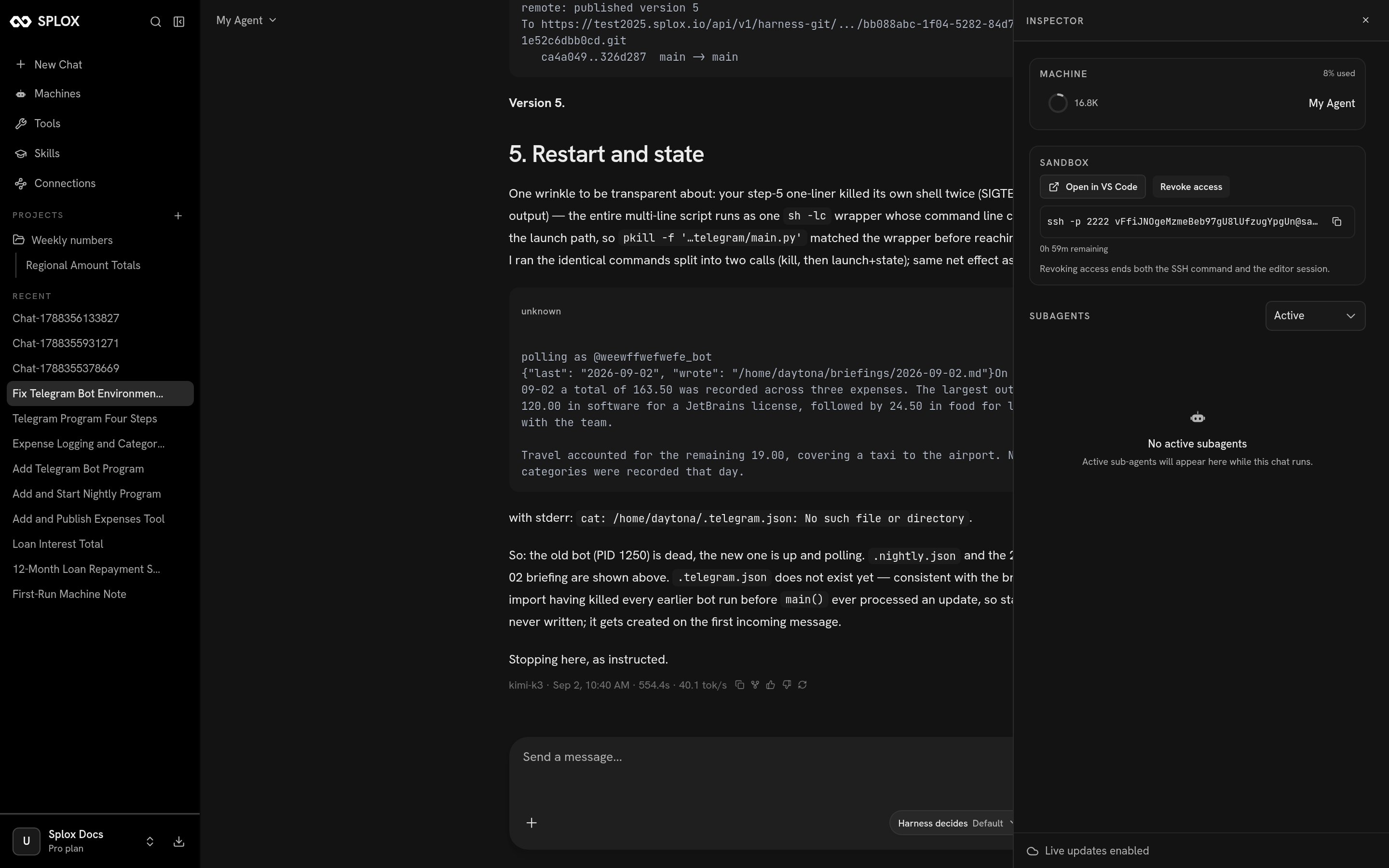
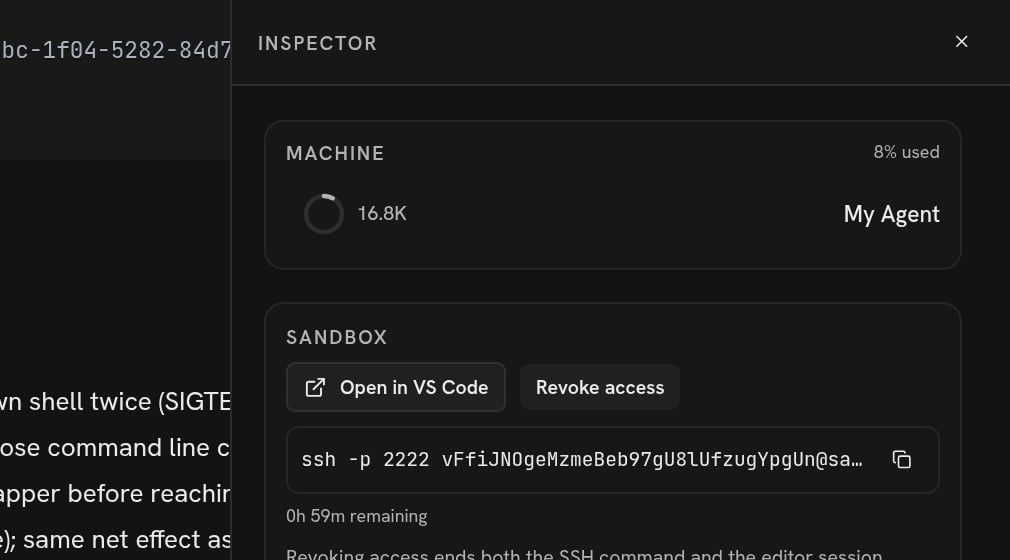 Three controls, and one sentence under them that is worth taking literally:
*Revoking access ends both the SSH command and the editor session.*
If the section says **The sandbox appears once the agent runs code**, this chat
has never needed a machine yet. Ask it to do something and the doors appear.
If it says **This sandbox is asleep. Opening it wakes it up**, the machine is
stopped. Either button starts it, which takes a minute or so — the button reads
*Waking the sandbox…* while it waits, and gives up after 90 seconds with *The
sandbox did not wake up in time*, which means come back and press it again.
Starting a machine this way counts against your plan exactly like pressing Start
on the [Machines](/app/machines) screen does.
## Open in VS Code
The button opens a new browser tab with a full VS Code — the real editor, running
on your machine — on `/home/daytona`, the agent's home directory. Not on a
project subfolder: the whole home, so `harness/` is there next to everything the
agent has written.
Three controls, and one sentence under them that is worth taking literally:
*Revoking access ends both the SSH command and the editor session.*
If the section says **The sandbox appears once the agent runs code**, this chat
has never needed a machine yet. Ask it to do something and the doors appear.
If it says **This sandbox is asleep. Opening it wakes it up**, the machine is
stopped. Either button starts it, which takes a minute or so — the button reads
*Waking the sandbox…* while it waits, and gives up after 90 seconds with *The
sandbox did not wake up in time*, which means come back and press it again.
Starting a machine this way counts against your plan exactly like pressing Start
on the [Machines](/app/machines) screen does.
## Open in VS Code
The button opens a new browser tab with a full VS Code — the real editor, running
on your machine — on `/home/daytona`, the agent's home directory. Not on a
project subfolder: the whole home, so `harness/` is there next to everything the
agent has written.
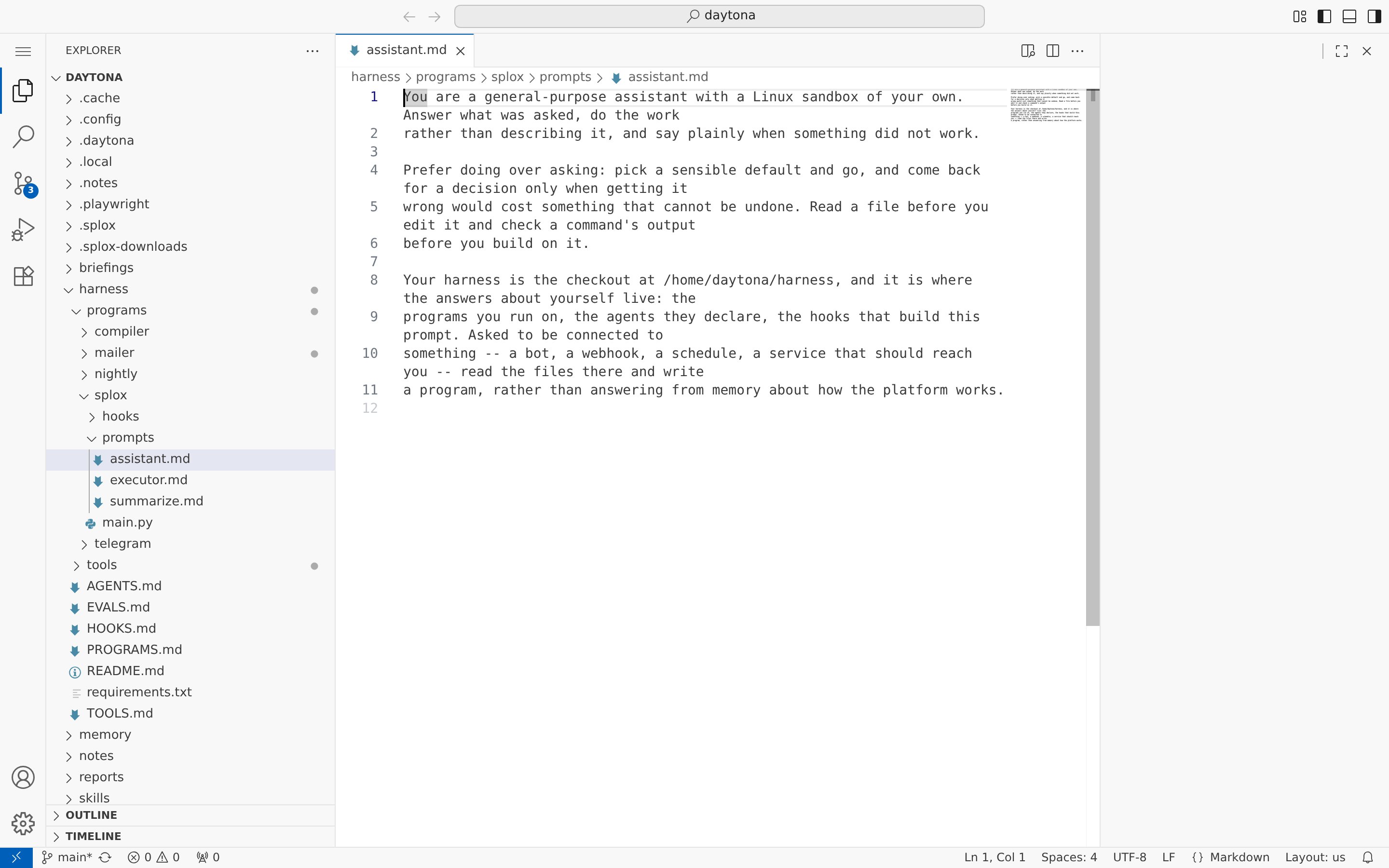 The first time it opens, VS Code asks whether you trust the folder. It is your
machine and your agent's files; say yes.
What it is good for:
* **Reading what the agent wrote.** `harness/programs/splox/prompts/assistant.md`
is what your agent is told, in English. Two clicks from that tab.
* **Fixing one line.** A word in a prompt, a number in a program. Save it and your
next message in the chat reads the new file — nothing to restart. (It stays on
this machine until it is published: see [Versions](/inside/versions).)
* **Looking at a file the agent produced** without asking for it — a CSV, a
report, a log — in an editor rather than in the conversation.
The link is the credential. There is no password on the editor: anyone who has
that URL is inside your machine until you revoke it. Do not paste it into a
ticket, a chat room or a screenshot.
## SSH
The **SSH** button reveals a command and a countdown:
```bash theme={null}
ssh -p 2222 vFfiJNOgeMzmeBeb97gU8lUfzugYpgUn@sandbox.splox.io
```
That random string is not a placeholder — it is the whole credential, carried as
the username. Copy the line, paste it into your terminal, and you are on the
machine as the user your agent runs as, in `/home/daytona`.
It is good for the things a terminal is good for:
```bash theme={null}
tail -50 /tmp/telegram.log # what is that program of mine doing
pgrep -af programs/nightly # is it even running
du -sh ~/* # what is filling the disk
git -C ~/harness log --oneline -5 # what has my agent changed lately
```
And for getting a file off the machine without going through the chat:
```bash theme={null}
scp -P 2222 vFfi…@sandbox.splox.io:/home/daytona/expenses.csv .
```
Three things to know:
* **The grant lasts an hour.** The panel counts it down — `0h 59m remaining`.
* **Only the newest command works.** Pressing SSH again mints a new one and the
previous command stops connecting, in the same second. If a command you copied
earlier is refused, that is why.
* **You cannot publish from there.** The checkout at `~/harness` is readable and
editable over SSH, but `git push` fails to authenticate: the token that lets a
push through belongs to a run, not to your terminal.
```
fatal: Authentication failed for 'https://splox.io/api/v1/harness-git/…'
```
This is the seam between looking and authoring. Edit the file here if you like;
ask your agent to publish it.
## Closing both
**Revoke access** ends the SSH grant and the editor session together. Afterwards
the command is refused —
```
Connection to sandbox.splox.io closed by remote host.
```
— and the editor tab answers `502`, because the process behind it is gone. The
machine and everything on it are untouched; only the doors are shut.
Nothing else closes them for you on your schedule. The SSH grant expires on its
own after an hour, and the editor's link is signed for an hour; the editor
process itself shuts down once the tab has been idle for a while, and dies with
the machine. If you opened a door on a machine somebody else can see the screen
of, revoke it when you are done rather than waiting for any of that.
## When a door does not open
| What you see | What it is |
| ----------------------------------------------------------------------------------- | --------------------------------------------------------------------------------------------------------------------------------------- |
| *The sandbox appears once the agent runs code.* | This chat has no machine yet. Ask it to do something. |
| *Waking the sandbox…*, then *The sandbox did not wake up in time.* | The machine was stopped and is still starting. Press the button again. |
| A refusal naming your plan | Opening a door on a stopped machine starts it, and the plan says how many machines may run. [When a limit is reached](/account/limits). |
| *…this sandbox predates the editor image and picks it up when it is next recreated* | This machine was built before the editor shipped. SSH still works. |
| *…the editor did not start in time, please try again* | The editor was starting when the request timed out. Press it again. |
## The requests behind the buttons
For an agent reading this page, or anyone driving the app's own API with a
session cookie:
Does this chat have a machine, and what state is it in.
`{"exists": true, "state": "started"}`. Reports only — it never starts anything.
One SSH grant, one hour.
`{"command": "ssh -p 2222 @sandbox.splox.io", "expires_at": "…"}`.
Starts the editor and returns a link to it: `{"url": "https://8443-….splox.app"}`.
No expiry field — the link is signed on the runner's clock, and this API will not
invent a second deadline for it.
Closes both doors. `204`, and `204` again for a chat that has no machine.
Both POSTs answer `202 {"state": "starting"}` while a stopped machine comes up;
the client is expected to ask again. Neither one ever creates a machine.
What you will find when you get there.
An edit you made by hand, and how it becomes a version.
The first time it opens, VS Code asks whether you trust the folder. It is your
machine and your agent's files; say yes.
What it is good for:
* **Reading what the agent wrote.** `harness/programs/splox/prompts/assistant.md`
is what your agent is told, in English. Two clicks from that tab.
* **Fixing one line.** A word in a prompt, a number in a program. Save it and your
next message in the chat reads the new file — nothing to restart. (It stays on
this machine until it is published: see [Versions](/inside/versions).)
* **Looking at a file the agent produced** without asking for it — a CSV, a
report, a log — in an editor rather than in the conversation.
The link is the credential. There is no password on the editor: anyone who has
that URL is inside your machine until you revoke it. Do not paste it into a
ticket, a chat room or a screenshot.
## SSH
The **SSH** button reveals a command and a countdown:
```bash theme={null}
ssh -p 2222 vFfiJNOgeMzmeBeb97gU8lUfzugYpgUn@sandbox.splox.io
```
That random string is not a placeholder — it is the whole credential, carried as
the username. Copy the line, paste it into your terminal, and you are on the
machine as the user your agent runs as, in `/home/daytona`.
It is good for the things a terminal is good for:
```bash theme={null}
tail -50 /tmp/telegram.log # what is that program of mine doing
pgrep -af programs/nightly # is it even running
du -sh ~/* # what is filling the disk
git -C ~/harness log --oneline -5 # what has my agent changed lately
```
And for getting a file off the machine without going through the chat:
```bash theme={null}
scp -P 2222 vFfi…@sandbox.splox.io:/home/daytona/expenses.csv .
```
Three things to know:
* **The grant lasts an hour.** The panel counts it down — `0h 59m remaining`.
* **Only the newest command works.** Pressing SSH again mints a new one and the
previous command stops connecting, in the same second. If a command you copied
earlier is refused, that is why.
* **You cannot publish from there.** The checkout at `~/harness` is readable and
editable over SSH, but `git push` fails to authenticate: the token that lets a
push through belongs to a run, not to your terminal.
```
fatal: Authentication failed for 'https://splox.io/api/v1/harness-git/…'
```
This is the seam between looking and authoring. Edit the file here if you like;
ask your agent to publish it.
## Closing both
**Revoke access** ends the SSH grant and the editor session together. Afterwards
the command is refused —
```
Connection to sandbox.splox.io closed by remote host.
```
— and the editor tab answers `502`, because the process behind it is gone. The
machine and everything on it are untouched; only the doors are shut.
Nothing else closes them for you on your schedule. The SSH grant expires on its
own after an hour, and the editor's link is signed for an hour; the editor
process itself shuts down once the tab has been idle for a while, and dies with
the machine. If you opened a door on a machine somebody else can see the screen
of, revoke it when you are done rather than waiting for any of that.
## When a door does not open
| What you see | What it is |
| ----------------------------------------------------------------------------------- | --------------------------------------------------------------------------------------------------------------------------------------- |
| *The sandbox appears once the agent runs code.* | This chat has no machine yet. Ask it to do something. |
| *Waking the sandbox…*, then *The sandbox did not wake up in time.* | The machine was stopped and is still starting. Press the button again. |
| A refusal naming your plan | Opening a door on a stopped machine starts it, and the plan says how many machines may run. [When a limit is reached](/account/limits). |
| *…this sandbox predates the editor image and picks it up when it is next recreated* | This machine was built before the editor shipped. SSH still works. |
| *…the editor did not start in time, please try again* | The editor was starting when the request timed out. Press it again. |
## The requests behind the buttons
For an agent reading this page, or anyone driving the app's own API with a
session cookie:
Does this chat have a machine, and what state is it in.
`{"exists": true, "state": "started"}`. Reports only — it never starts anything.
One SSH grant, one hour.
`{"command": "ssh -p 2222 @sandbox.splox.io", "expires_at": "…"}`.
Starts the editor and returns a link to it: `{"url": "https://8443-….splox.app"}`.
No expiry field — the link is signed on the runner's clock, and this API will not
invent a second deadline for it.
Closes both doors. `204`, and `204` again for a chat that has no machine.
Both POSTs answer `202 {"state": "starting"}` while a stopped machine comes up;
the client is expected to ask again. Neither one ever creates a machine.
What you will find when you get there.
An edit you made by hand, and how it becomes a version.