> ## Documentation Index
> Fetch the complete documentation index at: https://docs.splox.io/llms.txt
> Use this file to discover all available pages before exploring further.
# Tools
> The system tool packages, the MCP catalog, and how an agent gets one
**Tools** lists what your agents can reach for: the packages the platform runs
for everybody, and the MCP servers you connect yourself.
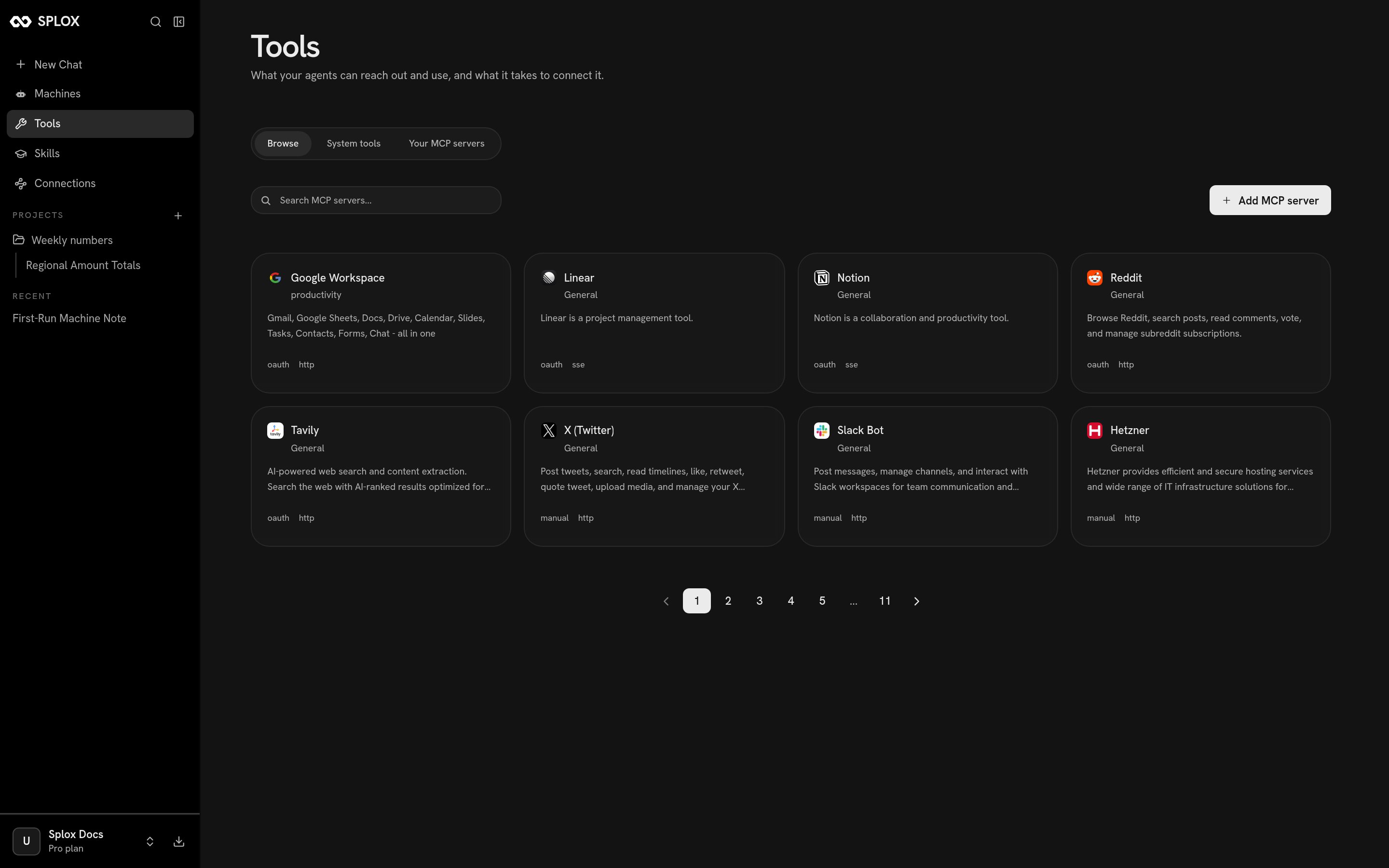 Three tabs. **Browse** is the catalog of MCP servers you can connect, **System
tools** is what you already have, and **Your MCP servers** is what you have
connected so far.
## System tools
Three tabs. **Browse** is the catalog of MCP servers you can connect, **System
tools** is what you already have, and **Your MCP servers** is what you have
connected so far.
## System tools
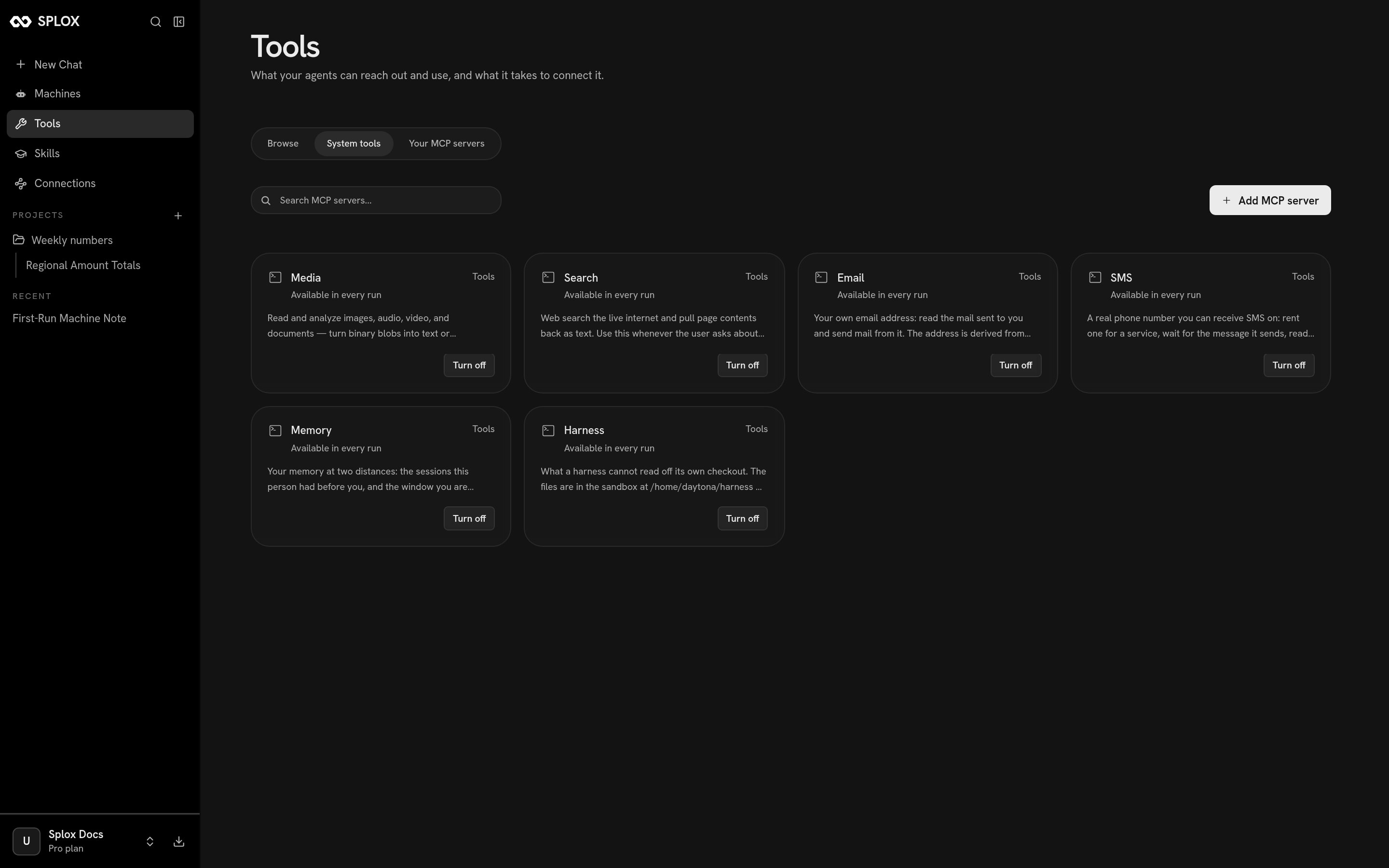 Six packages, on for every agent on the account unless you turn one off:
| Package | What it is for |
| ------- | --------------------------------------------------------------------------------- |
| Media | Read images, audio, video and documents — binary in, text or structured data out. |
| Search | Search the live web and pull page contents back as text. |
| Email | An address of your own: read the mail sent to it, send mail from it. |
| SMS | A real phone number to receive SMS on, for a signup that asks for one. |
| Memory | Search everything said in past chats, and the window the run is carrying now. |
| Harness | The questions about a harness that its own checkout cannot answer. |
Each card says *Available in every run* and offers **Turn off**.
## What `system:` means
The slug on that screen is the second half of a name you write in code. An agent
gets a tool by naming its **source** in its declaration:
```python theme={null}
assistant = agent(
"Assistant",
system_prompt=prompt("assistant"),
tools=[
"system:compute", # a platform package
"system:search#search", # one tool out of a package
"tools/files.py", # a file of your own harness
"019e4f9a-a679-79b4-a21c-7ff9c60b9181", # an MCP server you connected
],
)
```
`system:` is a package the platform runs, credentials and all. You cannot
edit one and you do not publish anything for it to work. A `#` after the source
narrows it to named tools and nothing else.
`system:compute` — the runner every other tool executes through — is not on this
screen, and neither is `system:splox`. They are sources you can name in code
without being listed here as something to switch. The full list of sources your
account can use comes back from
[`/v2/tool-servers`](/api/tool-servers).
So there are two switches, and they do different things. This screen decides what
your account **has**; the `tools` list in the harness decides what a given agent
**gets**. An agent is only ever offered what its own line names.
[Tools](/reference/tools) is the whole story, including writing your own.
## Connecting an MCP server
Pick a server from the catalog and Splox shows what connecting it takes. The
badges on the card said it already: `oauth` or `manual` for the credential,
`http` or `sse` for the transport.
Six packages, on for every agent on the account unless you turn one off:
| Package | What it is for |
| ------- | --------------------------------------------------------------------------------- |
| Media | Read images, audio, video and documents — binary in, text or structured data out. |
| Search | Search the live web and pull page contents back as text. |
| Email | An address of your own: read the mail sent to it, send mail from it. |
| SMS | A real phone number to receive SMS on, for a signup that asks for one. |
| Memory | Search everything said in past chats, and the window the run is carrying now. |
| Harness | The questions about a harness that its own checkout cannot answer. |
Each card says *Available in every run* and offers **Turn off**.
## What `system:` means
The slug on that screen is the second half of a name you write in code. An agent
gets a tool by naming its **source** in its declaration:
```python theme={null}
assistant = agent(
"Assistant",
system_prompt=prompt("assistant"),
tools=[
"system:compute", # a platform package
"system:search#search", # one tool out of a package
"tools/files.py", # a file of your own harness
"019e4f9a-a679-79b4-a21c-7ff9c60b9181", # an MCP server you connected
],
)
```
`system:` is a package the platform runs, credentials and all. You cannot
edit one and you do not publish anything for it to work. A `#` after the source
narrows it to named tools and nothing else.
`system:compute` — the runner every other tool executes through — is not on this
screen, and neither is `system:splox`. They are sources you can name in code
without being listed here as something to switch. The full list of sources your
account can use comes back from
[`/v2/tool-servers`](/api/tool-servers).
So there are two switches, and they do different things. This screen decides what
your account **has**; the `tools` list in the harness decides what a given agent
**gets**. An agent is only ever offered what its own line names.
[Tools](/reference/tools) is the whole story, including writing your own.
## Connecting an MCP server
Pick a server from the catalog and Splox shows what connecting it takes. The
badges on the card said it already: `oauth` or `manual` for the credential,
`http` or `sse` for the transport.
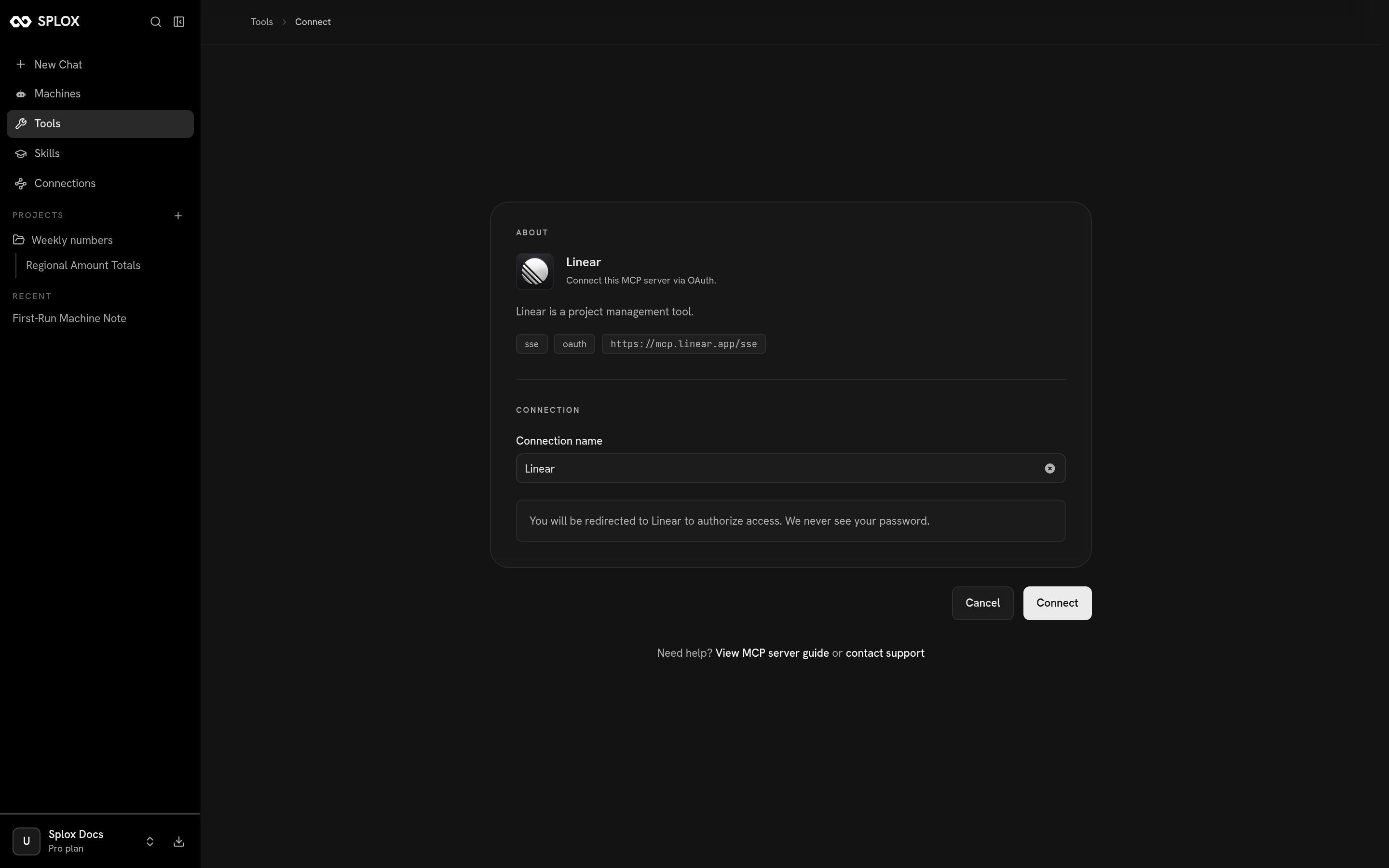 * **OAuth** — name the connection and press Connect. You are sent to the
provider to authorize, and back.
* **Manual** — the page asks for exactly the headers that server wants, named
one by one (`X-api-key`, `X-access-token`, and so on), with a link to where you
get them.
A server that is not in the catalog is **Add MCP server**:
* **OAuth** — name the connection and press Connect. You are sent to the
provider to authorize, and back.
* **Manual** — the page asks for exactly the headers that server wants, named
one by one (`X-api-key`, `X-access-token`, and so on), with a link to where you
get them.
A server that is not in the catalog is **Add MCP server**:
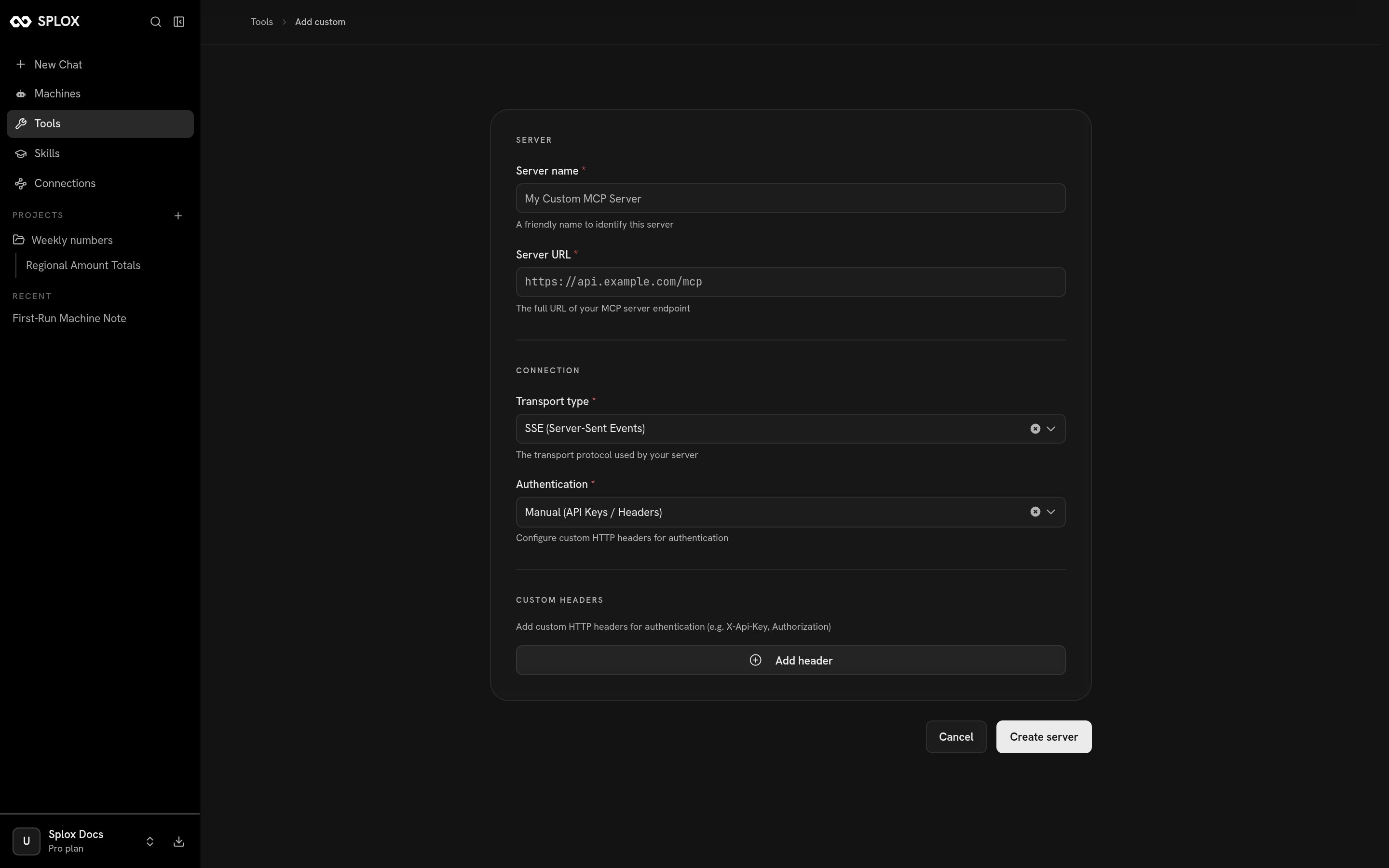 Give it a name and a URL, pick the transport, and add whatever headers it
authenticates with. It then appears under **Your MCP servers** like any other,
and an agent gets it by putting its id in `tools`.
Writing a tool of your own, and why tools are code and not JSON calls.
Listing the sources and the tools inside them.
Give it a name and a URL, pick the transport, and add whatever headers it
authenticates with. It then appears under **Your MCP servers** like any other,
and an agent gets it by putting its id in `tools`.
Writing a tool of your own, and why tools are code and not JSON calls.
Listing the sources and the tools inside them.