> ## Documentation Index
> Fetch the complete documentation index at: https://docs.splox.io/llms.txt
> Use this file to discover all available pages before exploring further.
# The workspace
> The sidebar, the machine switcher, the composer, and where your chats live
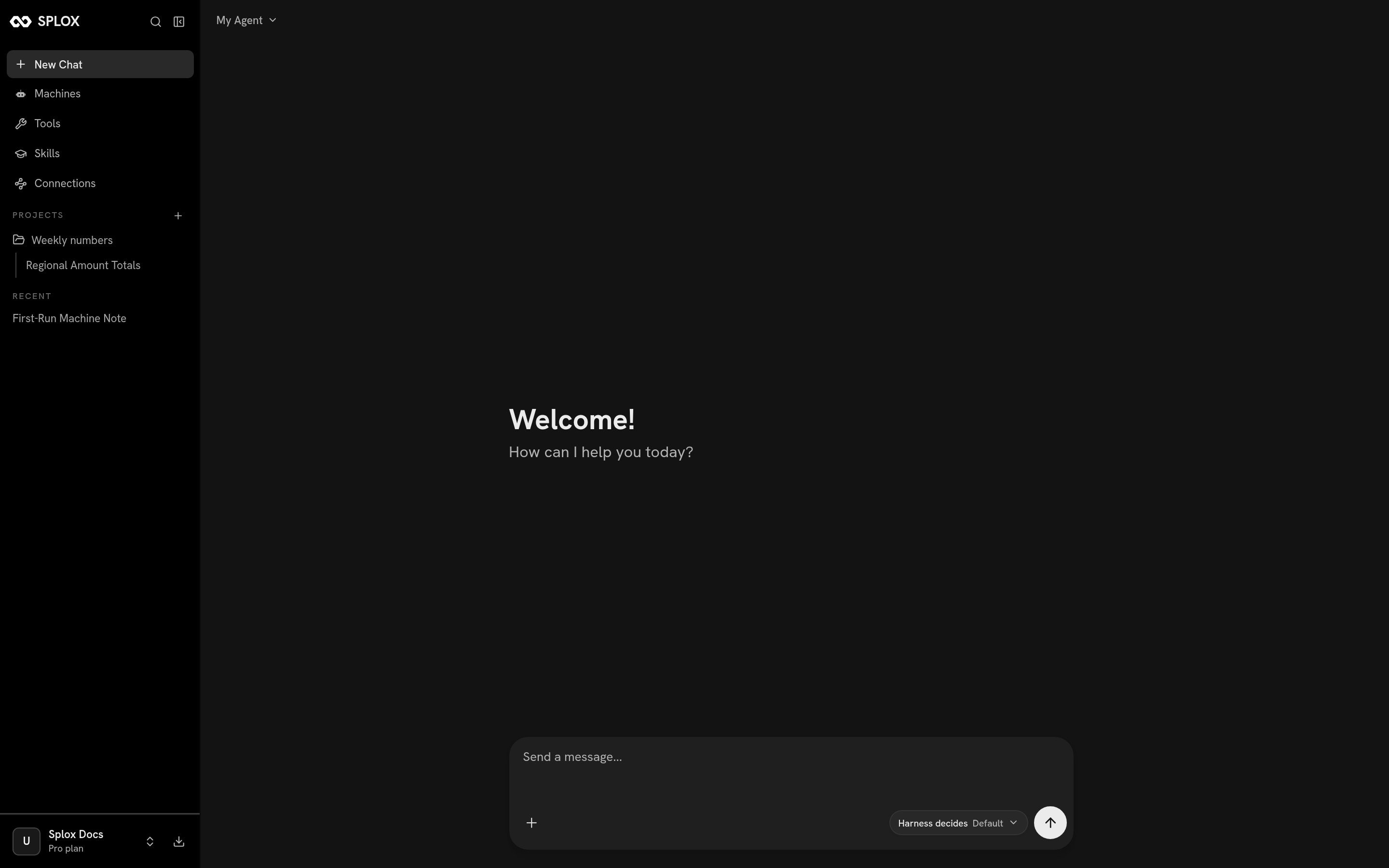
Everything you do in Splox happens on one screen: a sidebar of places on the
left, a conversation in the middle, and a composer at the bottom. This page names
the parts so the rest of this section can point at them.
 ## The sidebar
**New Chat** opens an empty conversation. **Machines**, **Tools**, **Skills** and
**Connections** are the four screens where you set up what the agent has to work
with:
| Where | What it is |
| ------------------------------- | ---------------------------------------------------------------------------------------- |
| [Machines](/app/machines) | The computers your agents run on, the harnesses they run, and the starters you can copy. |
| [Tools](/app/tools) | The system tool packages and the MCP servers you have connected. |
| [Skills](/app/skills) | The skills catalog, the ones the platform ships, and your own. |
| [Connections](/app/connections) | Model providers you bring yourself, and environment secrets. |
Under those, **PROJECTS** lists your projects and **RECENT** lists your chats,
newest first. A chat sits in Recent until you move it into a project, and then it
sits under that project instead. See [Projects](/app/projects).
The magnifier at the top of the sidebar searches chats — by name and by message
content, so a phrase you remember from a conversation finds it.
At the bottom is your account: name, plan, and a menu with **Upgrade Plan**,
**Usage**, **Settings** and **Log out**. The download icon beside it goes to the
[desktop app](/app/desktop).
## The machine switcher
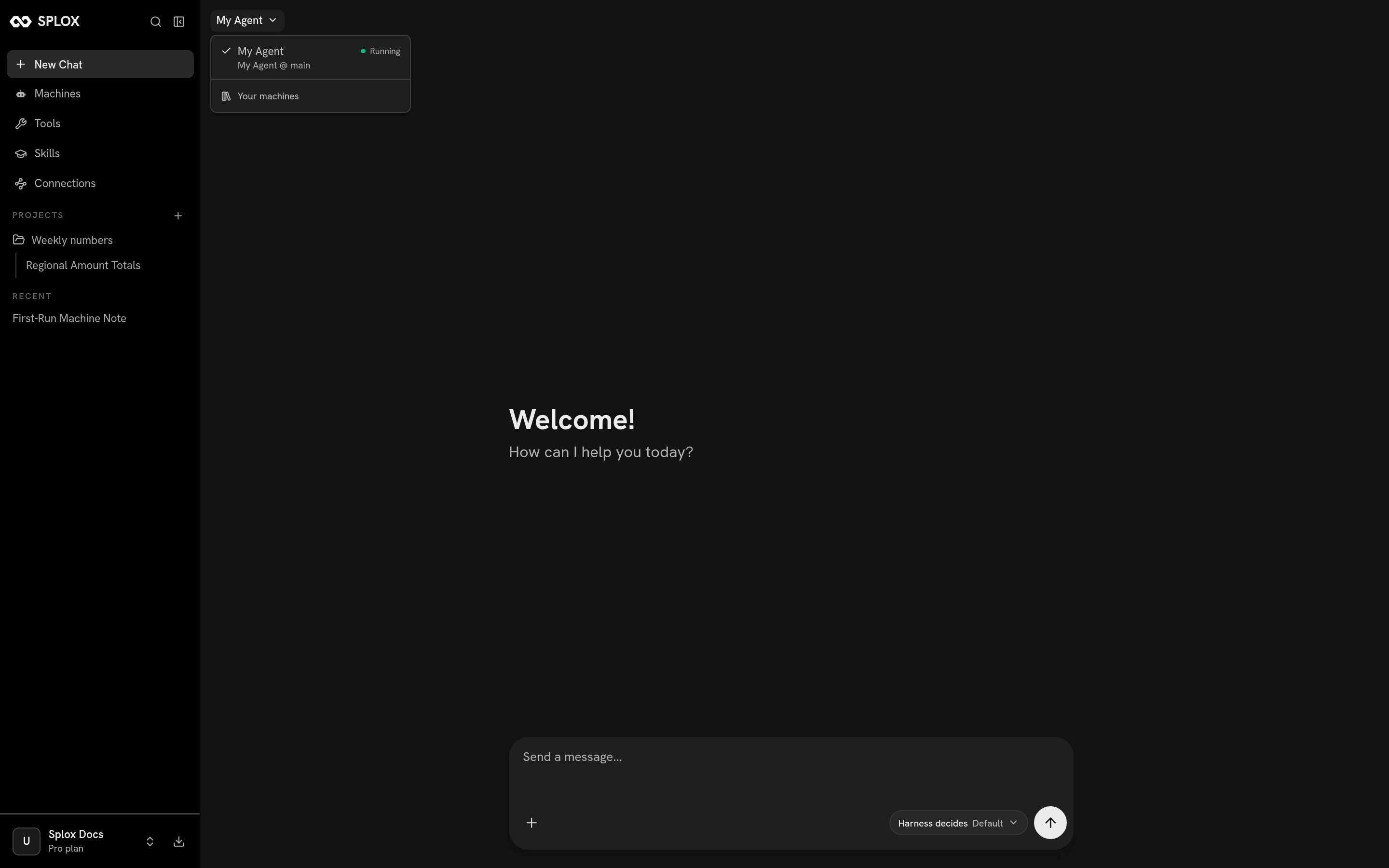
The control at the top left of a chat names the **machine** this conversation
runs on, and under it the harness that machine runs and the ref it runs at.
## The sidebar
**New Chat** opens an empty conversation. **Machines**, **Tools**, **Skills** and
**Connections** are the four screens where you set up what the agent has to work
with:
| Where | What it is |
| ------------------------------- | ---------------------------------------------------------------------------------------- |
| [Machines](/app/machines) | The computers your agents run on, the harnesses they run, and the starters you can copy. |
| [Tools](/app/tools) | The system tool packages and the MCP servers you have connected. |
| [Skills](/app/skills) | The skills catalog, the ones the platform ships, and your own. |
| [Connections](/app/connections) | Model providers you bring yourself, and environment secrets. |
Under those, **PROJECTS** lists your projects and **RECENT** lists your chats,
newest first. A chat sits in Recent until you move it into a project, and then it
sits under that project instead. See [Projects](/app/projects).
The magnifier at the top of the sidebar searches chats — by name and by message
content, so a phrase you remember from a conversation finds it.
At the bottom is your account: name, plan, and a menu with **Upgrade Plan**,
**Usage**, **Settings** and **Log out**. The download icon beside it goes to the
[desktop app](/app/desktop).
## The machine switcher
The control at the top left of a chat names the **machine** this conversation
runs on, and under it the harness that machine runs and the ref it runs at.
 This is not an agent picker. Switching machines switches computers: a different
disk, a different checkout of a possibly different harness. A chat stays on the
machine it was started on, so switch before you send the first message rather
than in the middle of a conversation. [Machine](/concepts/machine) explains what
that means for your files.
The picker also says whether the machine is running, and ends with a **Your
machines** shortcut to the [Machines](/app/machines) screen.
## The composer
This is not an agent picker. Switching machines switches computers: a different
disk, a different checkout of a possibly different harness. A chat stays on the
machine it was started on, so switch before you send the first message rather
than in the middle of a conversation. [Machine](/concepts/machine) explains what
that means for your files.
The picker also says whether the machine is running, and ends with a **Your
machines** shortcut to the [Machines](/app/machines) screen.
## The composer
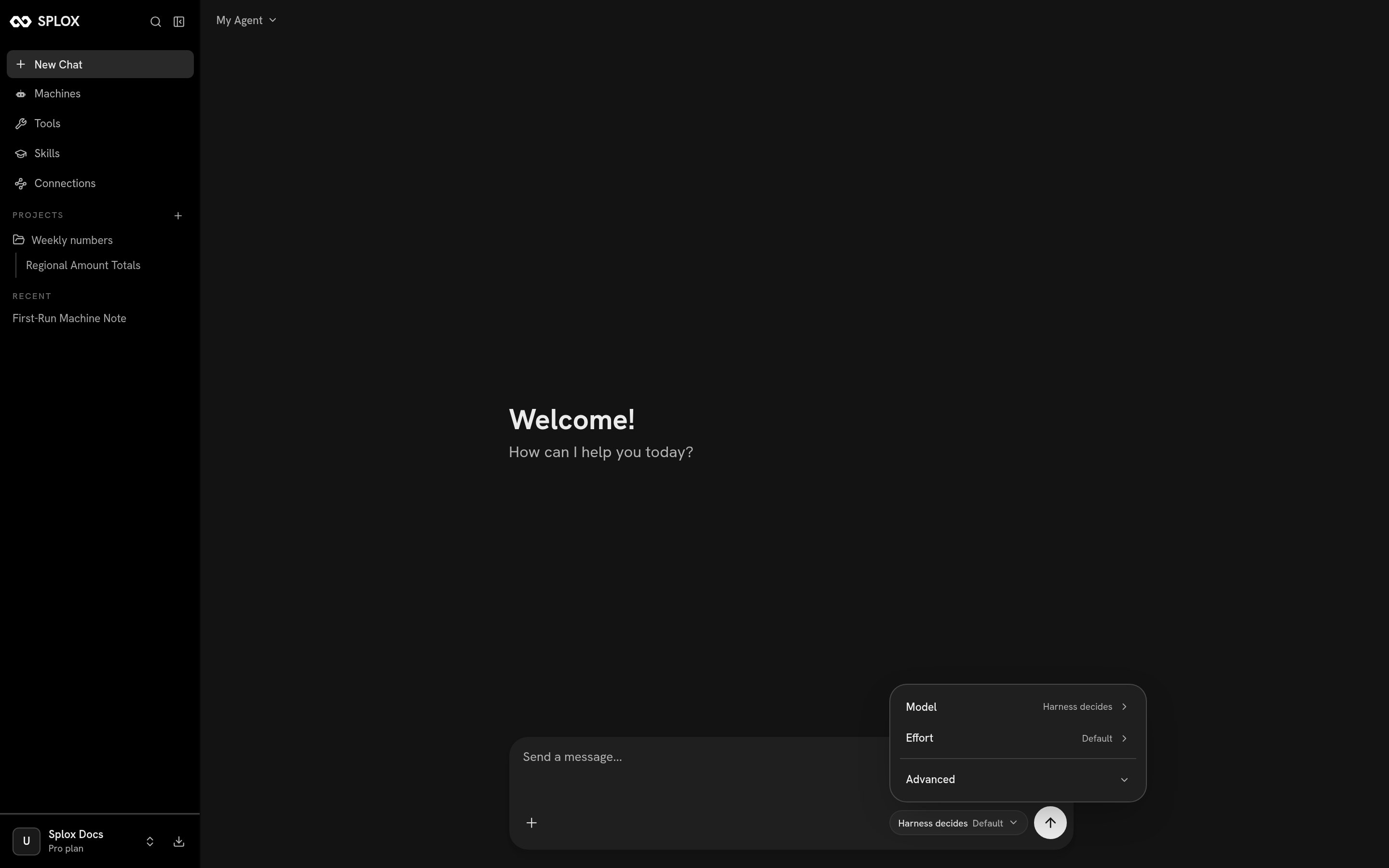 Three controls:
* **+** attaches a file. It is uploaded and the agent is given a URL it can
fetch onto the machine.
* **Harness decides · Default** is the run configuration: which model answers,
and how much thinking effort it spends. Left alone, both come from the code in
your harness.
* The arrow sends. While a run is going it becomes a square, which stops it.
All three are covered in [A conversation](/app/chat).
## The inspector
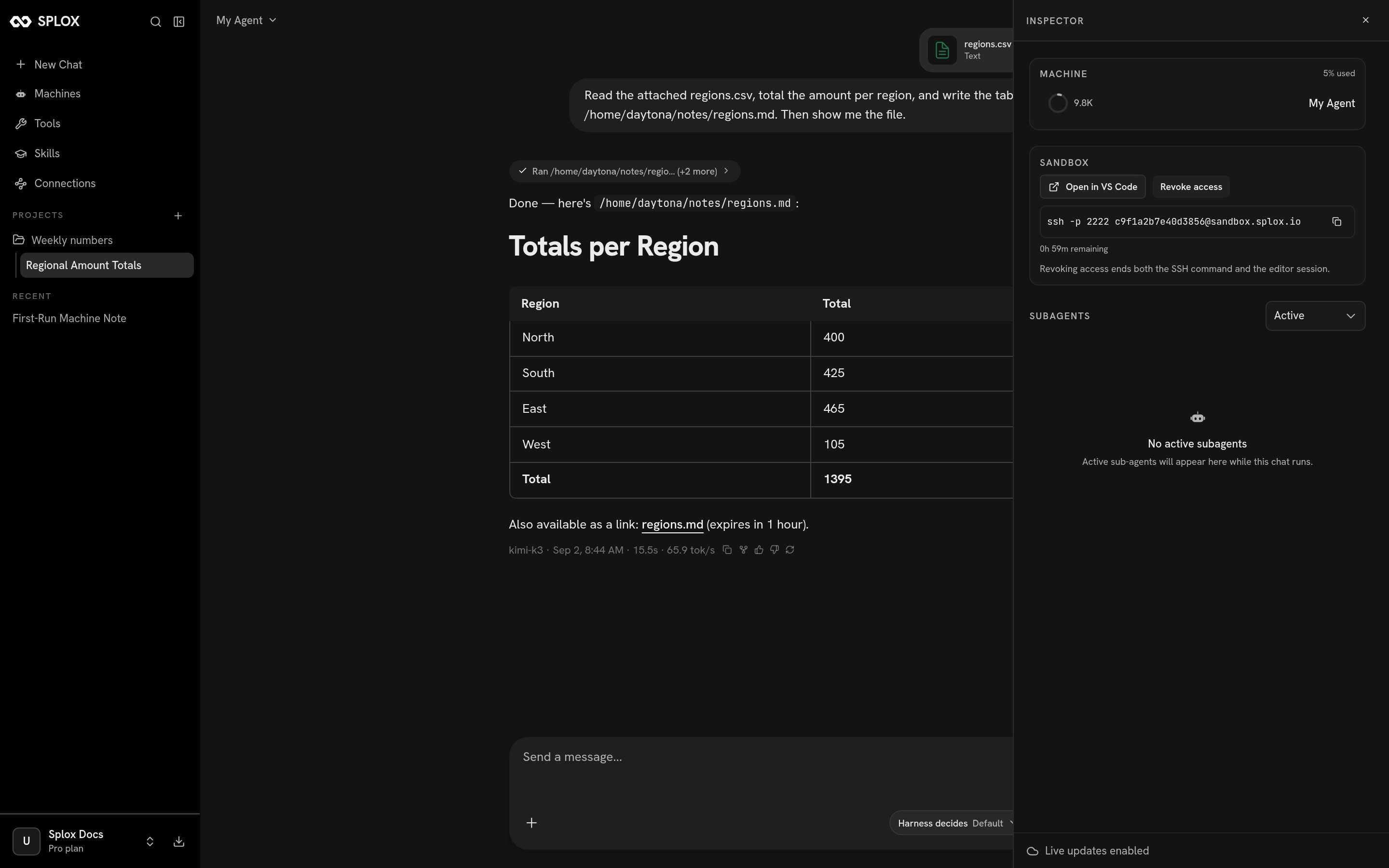
The button at the top right of a chat opens a panel showing the machine this chat
is on, how much of the context window the conversation has used, a way into the
sandbox over SSH or VS Code, and any sub-agents running right now.
Three controls:
* **+** attaches a file. It is uploaded and the agent is given a URL it can
fetch onto the machine.
* **Harness decides · Default** is the run configuration: which model answers,
and how much thinking effort it spends. Left alone, both come from the code in
your harness.
* The arrow sends. While a run is going it becomes a square, which stops it.
All three are covered in [A conversation](/app/chat).
## The inspector
The button at the top right of a chat opens a panel showing the machine this chat
is on, how much of the context window the conversation has used, a way into the
sandbox over SSH or VS Code, and any sub-agents running right now.
 ## Where to go next
Sending, attachments, reading tool calls, stopping, forking, sharing.
Start, stop, add a second one, delete one.
What is listed, what `system:` means, how an agent gets one.
The catalog, the shipping skills, forking one.
## Where to go next
Sending, attachments, reading tool calls, stopping, forking, sharing.
Start, stop, add a second one, delete one.
What is listed, what `system:` means, how an agent gets one.
The catalog, the shipping skills, forking one.