> ## Documentation Index
> Fetch the complete documentation index at: https://docs.splox.io/llms.txt
> Use this file to discover all available pages before exploring further.
# The desktop app
> Where to get it, what it adds over the browser, and which platforms it ships for
The desktop app is the same workspace in a window of its own, plus a small
background agent that registers the computer it is installed on as a device of
your account.
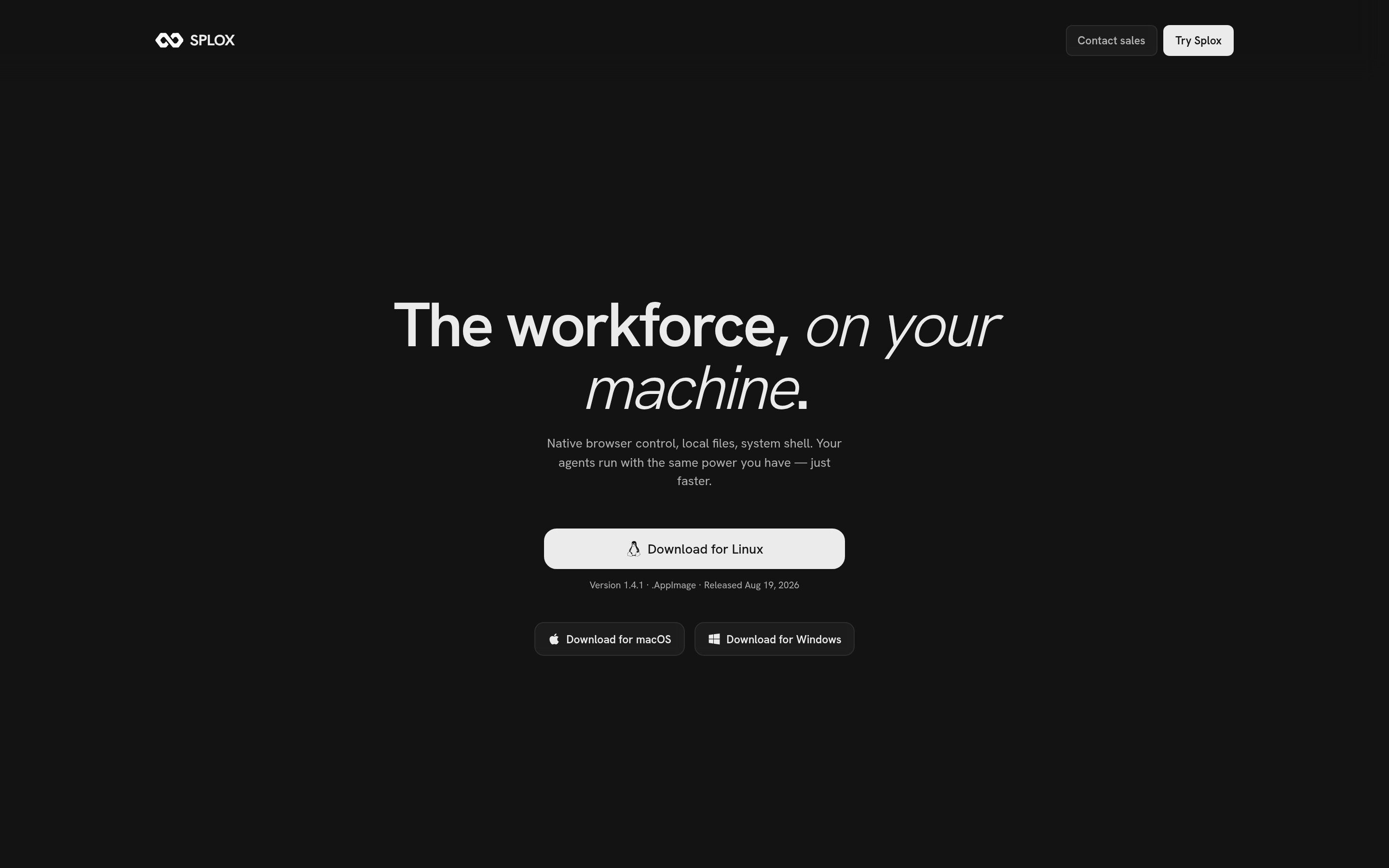
Get it at [splox.io/download](https://splox.io/download).
 ## The platforms
Version 1.4.1, released August 19, 2026. The page offers the build for the
system you are visiting from and links the other two underneath.
| Platform | What you get |
| -------- | ------------------------------------------------------------------------------------------------------------------ |
| macOS | A `.dmg`, Apple silicon only — there is no Intel build in the release. |
| Windows | An installer `.exe`. |
| Linux | An `.AppImage`. A `.deb` for amd64 is published in the same release directory, though the page links the AppImage. |
The app updates itself from the same place, so an install is a one-time thing.
## Signing in
Open the app and it sends you to your browser to approve the device. Approving
there does two things at once: the window is signed in, and the background agent
is paired to your account without a code to copy anywhere.
## What it adds over the browser
The browser gives an agent a machine that Splox runs. The desktop app is how an
agent reaches **your** computer instead: the background agent it installs is the
thing on the other end of a `local:` target, which the compute tools
accept everywhere they accept the sandbox:
```python theme={null}
compute_exec(command="ls ~/Downloads", target="local:")
```
That is what the download page means by *native browser control, local files,
system shell* — the same tools, pointed at the machine in front of you rather
than at the sandbox.
On Windows the background agent starts with your session and keeps running when
you close the window, so the computer stays reachable. On macOS and Linux
quitting the app stops it.
The **Local** machine kind is not switched on yet. On the Machines screen, adding
a machine offers Sandbox, Server and Local, and the last two are marked *Not
available* — so today the desktop app is a signed-in window and a paired device,
and a chat still runs on a sandbox. Until that changes, nothing you do in the app
executes on your own computer.
## The platforms
Version 1.4.1, released August 19, 2026. The page offers the build for the
system you are visiting from and links the other two underneath.
| Platform | What you get |
| -------- | ------------------------------------------------------------------------------------------------------------------ |
| macOS | A `.dmg`, Apple silicon only — there is no Intel build in the release. |
| Windows | An installer `.exe`. |
| Linux | An `.AppImage`. A `.deb` for amd64 is published in the same release directory, though the page links the AppImage. |
The app updates itself from the same place, so an install is a one-time thing.
## Signing in
Open the app and it sends you to your browser to approve the device. Approving
there does two things at once: the window is signed in, and the background agent
is paired to your account without a code to copy anywhere.
## What it adds over the browser
The browser gives an agent a machine that Splox runs. The desktop app is how an
agent reaches **your** computer instead: the background agent it installs is the
thing on the other end of a `local:` target, which the compute tools
accept everywhere they accept the sandbox:
```python theme={null}
compute_exec(command="ls ~/Downloads", target="local:")
```
That is what the download page means by *native browser control, local files,
system shell* — the same tools, pointed at the machine in front of you rather
than at the sandbox.
On Windows the background agent starts with your session and keeps running when
you close the window, so the computer stays reachable. On macOS and Linux
quitting the app stops it.
The **Local** machine kind is not switched on yet. On the Machines screen, adding
a machine offers Sandbox, Server and Local, and the last two are marked *Not
available* — so today the desktop app is a signed-in window and a paired device,
and a chat still runs on a sandbox. Until that changes, nothing you do in the app
executes on your own computer.
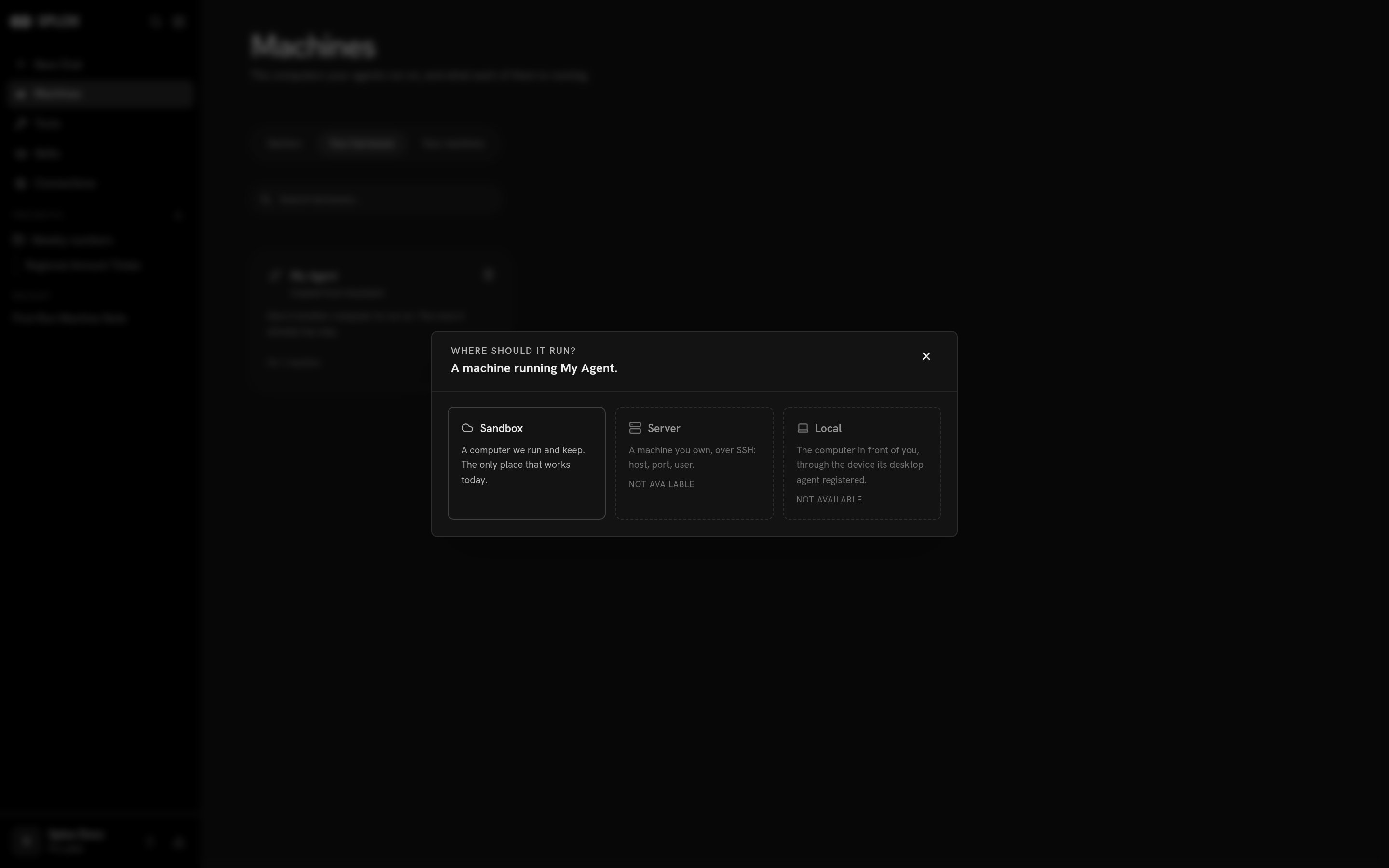 The machine kinds, and what each one gives an agent.
The screen the app opens on, in the browser or out of it.
The machine kinds, and what each one gives an agent.
The screen the app opens on, in the browser or out of it.