> ## Documentation Index
> Fetch the complete documentation index at: https://docs.splox.io/llms.txt
> Use this file to discover all available pages before exploring further.
# A conversation
> Sending a message, reading what the agent did, and what you can do with the chat afterwards
A chat is a conversation with an agent that has a computer. You type, it works on
its machine, and it comes back with what happened. One turn of the conversation
is one [run](/concepts/run).
## Sending
Type into the composer and press Enter. The first message names the chat, and the
run starts immediately — the machine starts itself if it was stopped.
Ask for the outcome rather than the steps. The agent has a shell, a filesystem, a
package manager and a browser, so "read this CSV, total it by region, and write
the table to a file" is a better request than a description of the table you
want.
### Attachments
The **+** button opens your file picker. The file is uploaded and shown as a chip
above your message:
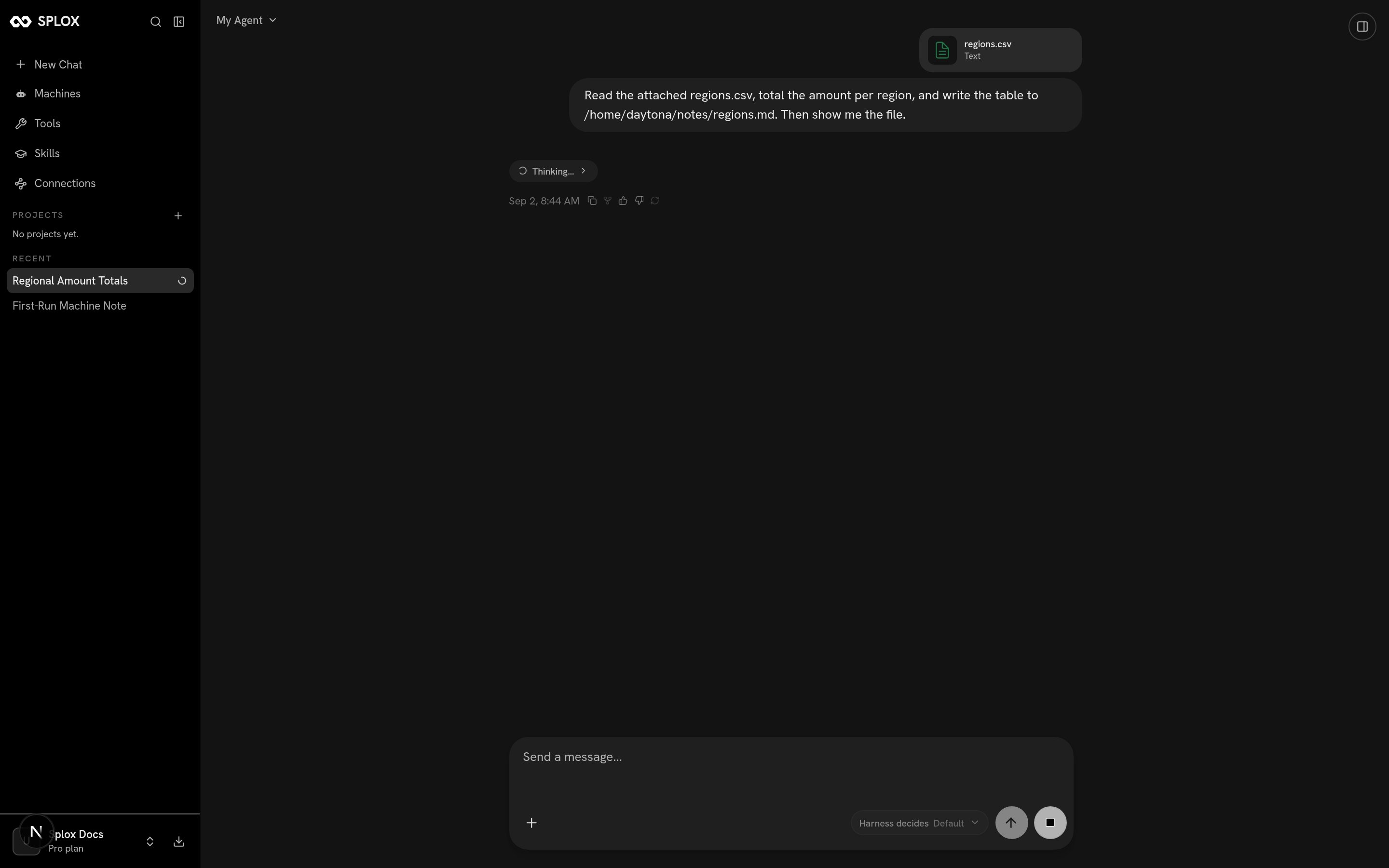 What the agent receives is a URL. It downloads the file onto the machine itself —
in the run above, the first thing it did was `mkdir -p /home/daytona/notes && curl
…` — which means the file is on the disk afterward, and the next chat can read it.
### Model and effort
The chip in the composer reads **Harness decides · Default** until you change it.
What the agent receives is a URL. It downloads the file onto the machine itself —
in the run above, the first thing it did was `mkdir -p /home/daytona/notes && curl
…` — which means the file is on the disk afterward, and the next chat can read it.
### Model and effort
The chip in the composer reads **Harness decides · Default** until you change it.
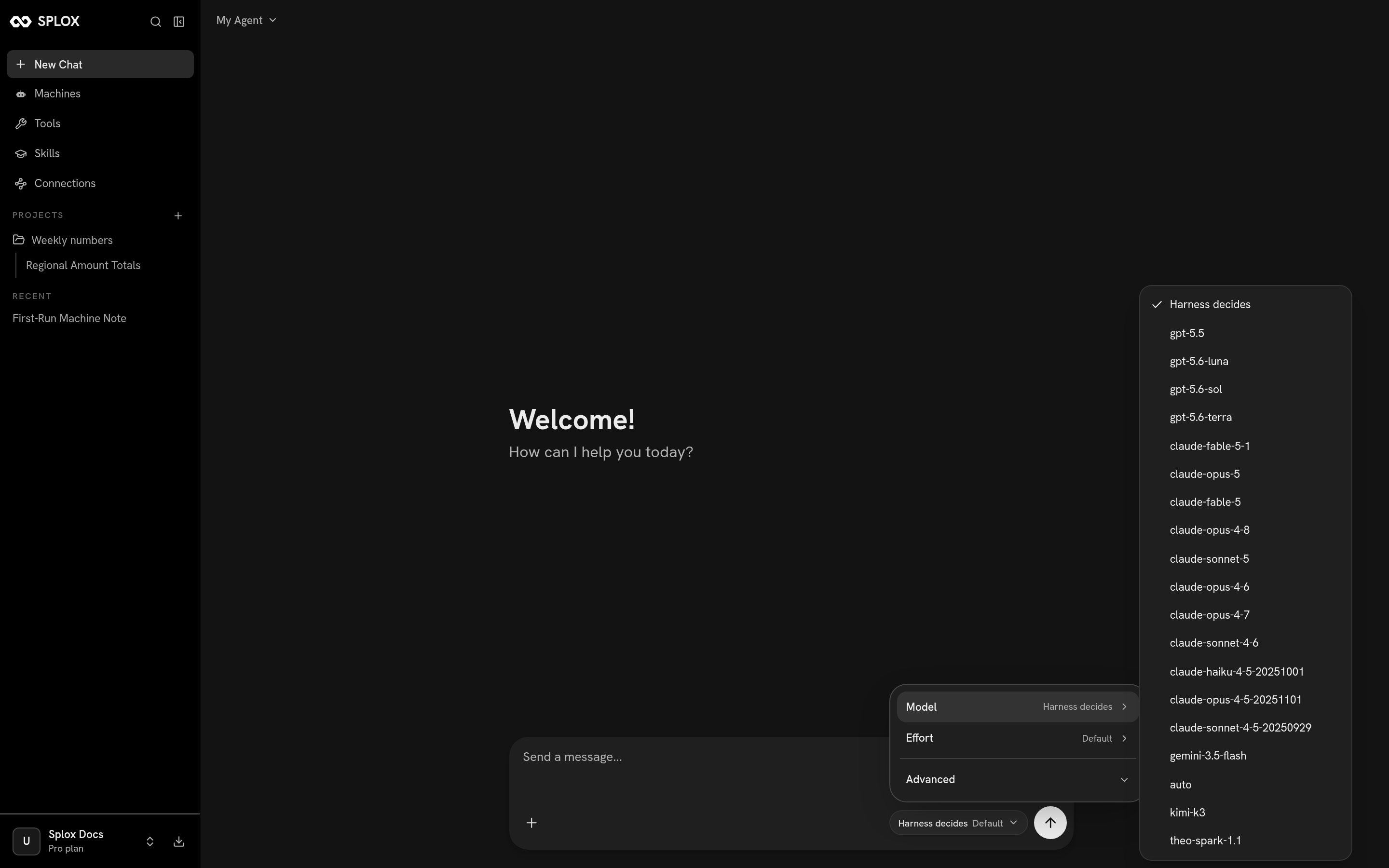 * **Harness decides** means the model is the one your harness declares in
`agent(..., model=…)`. Pick a specific model and it overrides the harness for
this chat. The choice is per chat — another conversation keeps whatever it was
set to — but a new chat starts on the last model you picked, so put it back to
*Harness decides* when you are done experimenting.
* **Default** is the same idea for reasoning effort. Once you pick a model that
takes an effort setting, the choices are Off, Low, Medium, High and Max.
* **Advanced → Endpoint** picks which credential answers: *Harness decides*, or
one of OpenAI, Anthropic, Gemini and Splox. Choosing an endpoint narrows the
model list to that provider's models, and choosing *Harness decides* again puts
the model back to *Harness decides* too.
The endpoints listed here are the ones the platform runs. To answer from a key of
your own, add it under [Connections](/app/connections) — it then shows up in this
list. Which model to reach for is [Models](/concepts/model).
## Reading a run
While the run is going you see a collapsed chip and a `Thinking…` line. Click the
chip and the whole turn opens: the model's reasoning first, then every tool call
in the order it was made.
* **Harness decides** means the model is the one your harness declares in
`agent(..., model=…)`. Pick a specific model and it overrides the harness for
this chat. The choice is per chat — another conversation keeps whatever it was
set to — but a new chat starts on the last model you picked, so put it back to
*Harness decides* when you are done experimenting.
* **Default** is the same idea for reasoning effort. Once you pick a model that
takes an effort setting, the choices are Off, Low, Medium, High and Max.
* **Advanced → Endpoint** picks which credential answers: *Harness decides*, or
one of OpenAI, Anthropic, Gemini and Splox. Choosing an endpoint narrows the
model list to that provider's models, and choosing *Harness decides* again puts
the model back to *Harness decides* too.
The endpoints listed here are the ones the platform runs. To answer from a key of
your own, add it under [Connections](/app/connections) — it then shows up in this
list. Which model to reach for is [Models](/concepts/model).
## Reading a run
While the run is going you see a collapsed chip and a `Thinking…` line. Click the
chip and the whole turn opens: the model's reasoning first, then every tool call
in the order it was made.
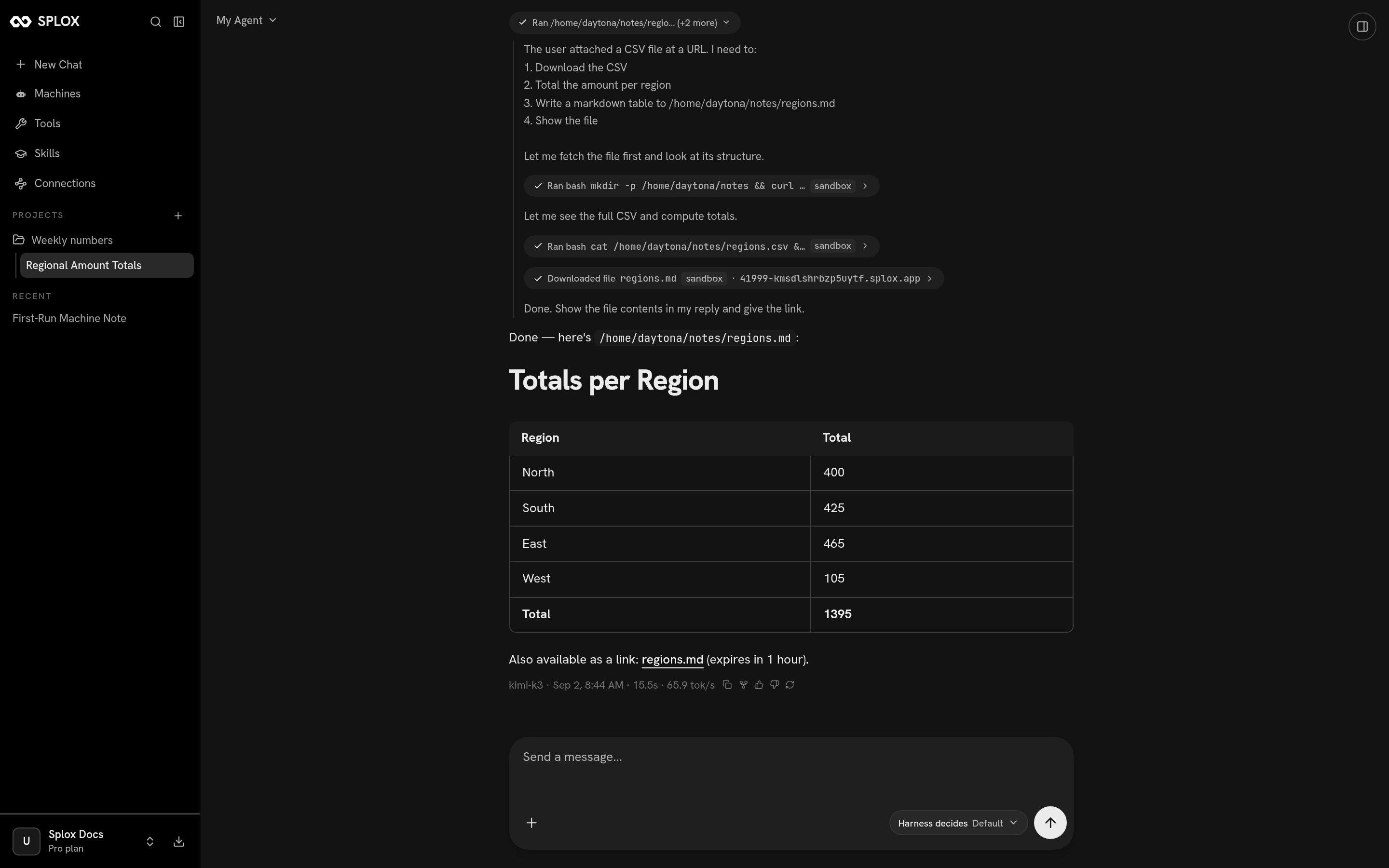 Each tool call is its own chip — `Ran bash …` with the target it ran on, or
`Downloaded file` with the link it produced. Open one and you get exactly what
was sent and what came back:
Each tool call is its own chip — `Ran bash …` with the target it ran on, or
`Downloaded file` with the link it produced. Open one and you get exactly what
was sent and what came back:
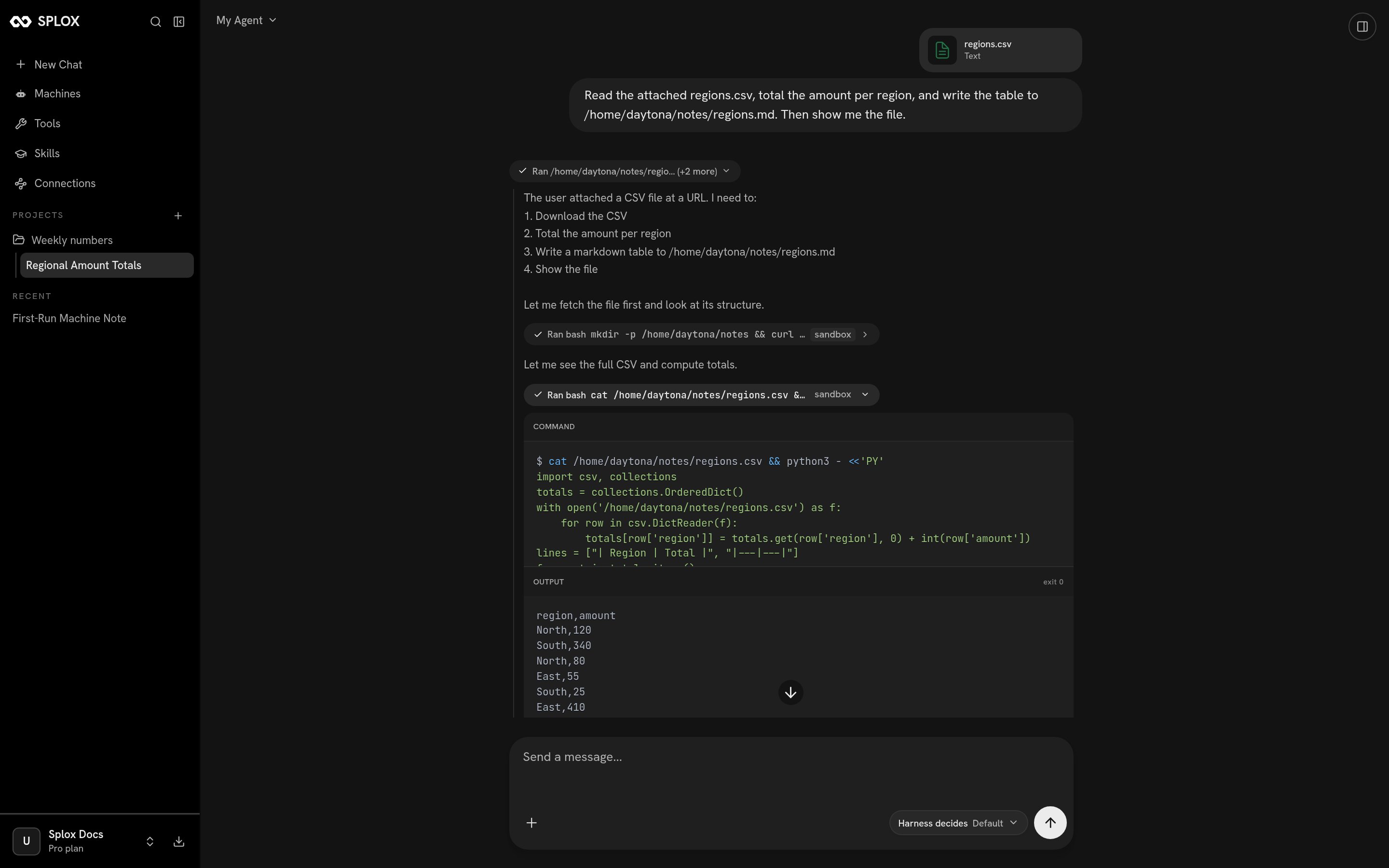 That is the thing worth getting used to. The agent is not filling in arguments to
a search tool; it wrote a Python program, piped a CSV through it, and printed the
result. See [Tools](/reference/tools) for why the platform is built that way.
**Stopping.** The send arrow becomes a square while the run is going. Pressing it
ends the turn where it is: the tool calls it already made stay in the
conversation, there is no answer and no footer line, and whatever the agent
wrote to the machine stays written. The run is over — not paused — so continuing
means sending another message.
**The footer.** Under the answer:
```text theme={null}
kimi-k3 · Sep 2, 8:44 AM · 15.5s · 65.9 tok/s
```
The model that actually ran, when the turn started, how long it took, and how
fast it generated. Beside it are copy, fork, thumbs up and down, and regenerate.
Your own messages have an edit button, which resends from that point.
## What you can do with the chat
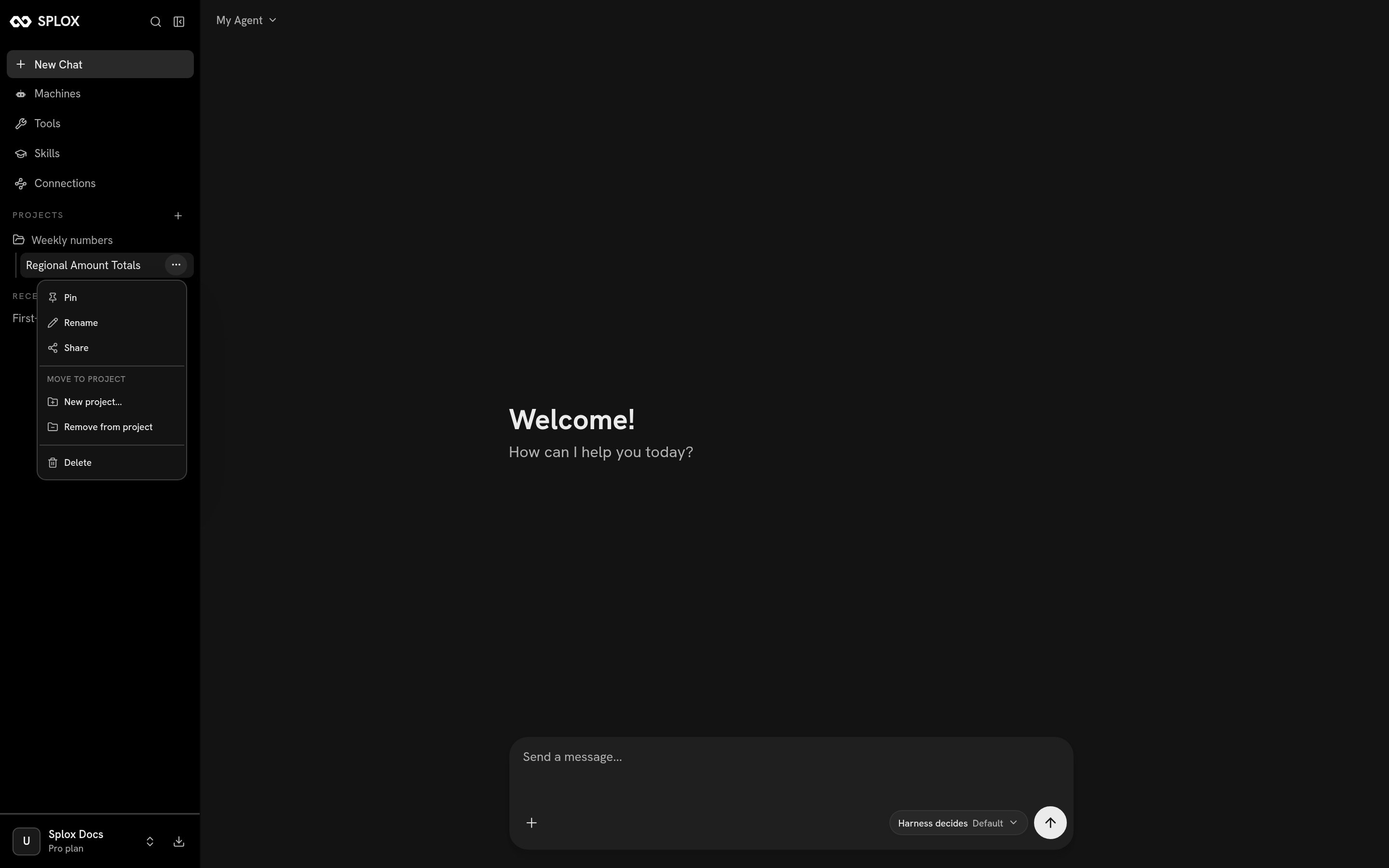
The **···** menu next to a chat in the sidebar holds everything: **Pin**,
**Rename**, **Share**, the projects you can move it into, **New project…**, and
**Delete**.
That is the thing worth getting used to. The agent is not filling in arguments to
a search tool; it wrote a Python program, piped a CSV through it, and printed the
result. See [Tools](/reference/tools) for why the platform is built that way.
**Stopping.** The send arrow becomes a square while the run is going. Pressing it
ends the turn where it is: the tool calls it already made stay in the
conversation, there is no answer and no footer line, and whatever the agent
wrote to the machine stays written. The run is over — not paused — so continuing
means sending another message.
**The footer.** Under the answer:
```text theme={null}
kimi-k3 · Sep 2, 8:44 AM · 15.5s · 65.9 tok/s
```
The model that actually ran, when the turn started, how long it took, and how
fast it generated. Beside it are copy, fork, thumbs up and down, and regenerate.
Your own messages have an edit button, which resends from that point.
## What you can do with the chat
The **···** menu next to a chat in the sidebar holds everything: **Pin**,
**Rename**, **Share**, the projects you can move it into, **New project…**, and
**Delete**.
 **Naming.** The chat is named from your first message. Rename replaces that with
whatever you type; nothing else changes.
**Forking.** *Fork from this message*, on the message toolbar, copies the
conversation up to that point into a new chat called *Fork of …*. The original is
untouched, so it is the way to try a second approach without losing the first.
The fork runs on the same machine, which means both branches see the same
files — a fork is a new conversation, not a new computer.
**Sharing.** Share makes the chat public at a link of the form `/chat/`;
anyone with it can read the conversation history, signed in or not.
**Naming.** The chat is named from your first message. Rename replaces that with
whatever you type; nothing else changes.
**Forking.** *Fork from this message*, on the message toolbar, copies the
conversation up to that point into a new chat called *Fork of …*. The original is
untouched, so it is the way to try a second approach without losing the first.
The fork runs on the same machine, which means both branches see the same
files — a fork is a new conversation, not a new computer.
**Sharing.** Share makes the chat public at a link of the form `/chat/`;
anyone with it can read the conversation history, signed in or not.
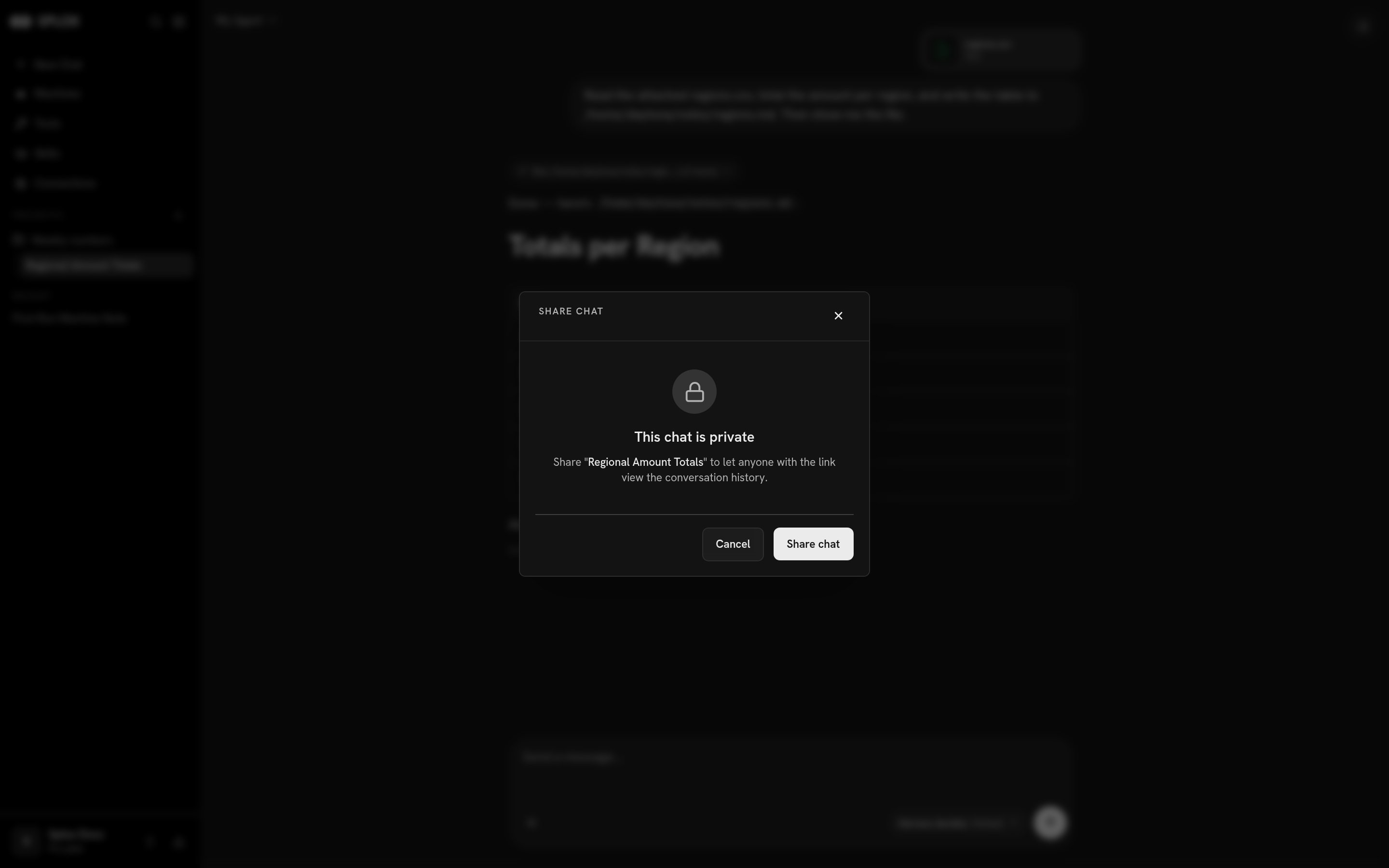 *Make private* revokes it — the link then answers *Chat Not Available* for
everybody, including you.
**Deleting.** Delete removes the chat and its history and cannot be undone. It
does not touch the machine or anything the agent wrote there.
## The inspector
The panel on the right of a chat is live while the run is going.
*Make private* revokes it — the link then answers *Chat Not Available* for
everybody, including you.
**Deleting.** Delete removes the chat and its history and cannot be undone. It
does not touch the machine or anything the agent wrote there.
## The inspector
The panel on the right of a chat is live while the run is going.
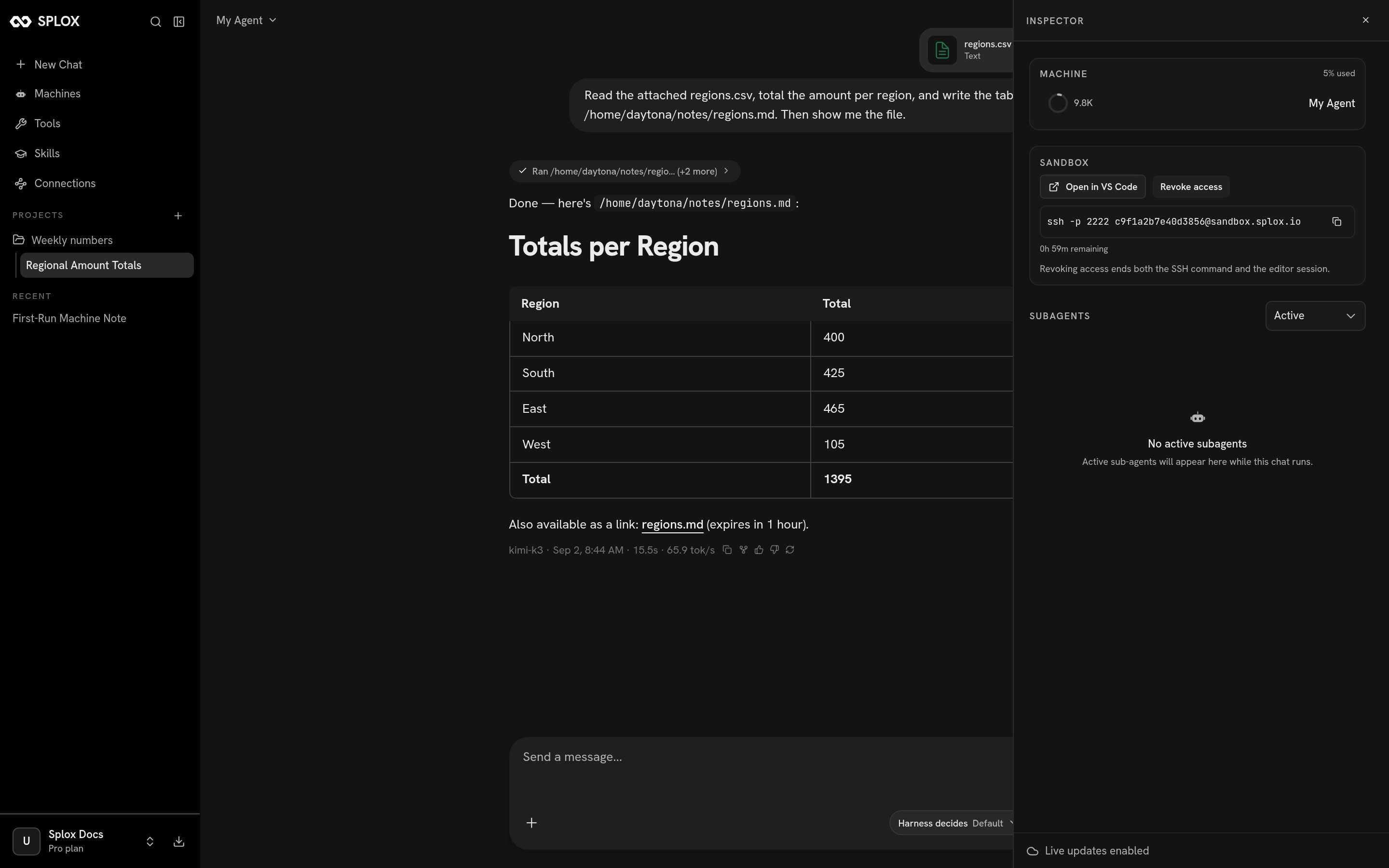 * **Machine** — the machine this chat runs on, and how much of the context window
the conversation is using (`9.8K`, `5% used` above).
* **Sandbox** — **Open in VS Code** gives you an editor session on the machine,
and **SSH** reveals a command you can paste into a terminal:
```bash theme={null}
ssh -p 2222 c9f1a2b7e40d3856@sandbox.splox.io
```
The credential is temporary — the panel counts down the hour it has left — and
**Revoke access** ends both the SSH session and the editor at once.
* **Subagents** — the sub-agent runs this chat has started, while they are
running. See [Sub-agents](/reference/subagents).
What a run keeps: events, messages, outputs, usage.
Grouping chats, and the instructions a project adds.
* **Machine** — the machine this chat runs on, and how much of the context window
the conversation is using (`9.8K`, `5% used` above).
* **Sandbox** — **Open in VS Code** gives you an editor session on the machine,
and **SSH** reveals a command you can paste into a terminal:
```bash theme={null}
ssh -p 2222 c9f1a2b7e40d3856@sandbox.splox.io
```
The credential is temporary — the panel counts down the hour it has left — and
**Revoke access** ends both the SSH session and the editor at once.
* **Subagents** — the sub-agent runs this chat has started, while they are
running. See [Sub-agents](/reference/subagents).
What a run keeps: events, messages, outputs, usage.
Grouping chats, and the instructions a project adds.